How to Make a QR Code for an Email Address
Make a QR code for an email address in under a minute with FreeQR. The free generator opens your recipient's mail app with your address ready to send.
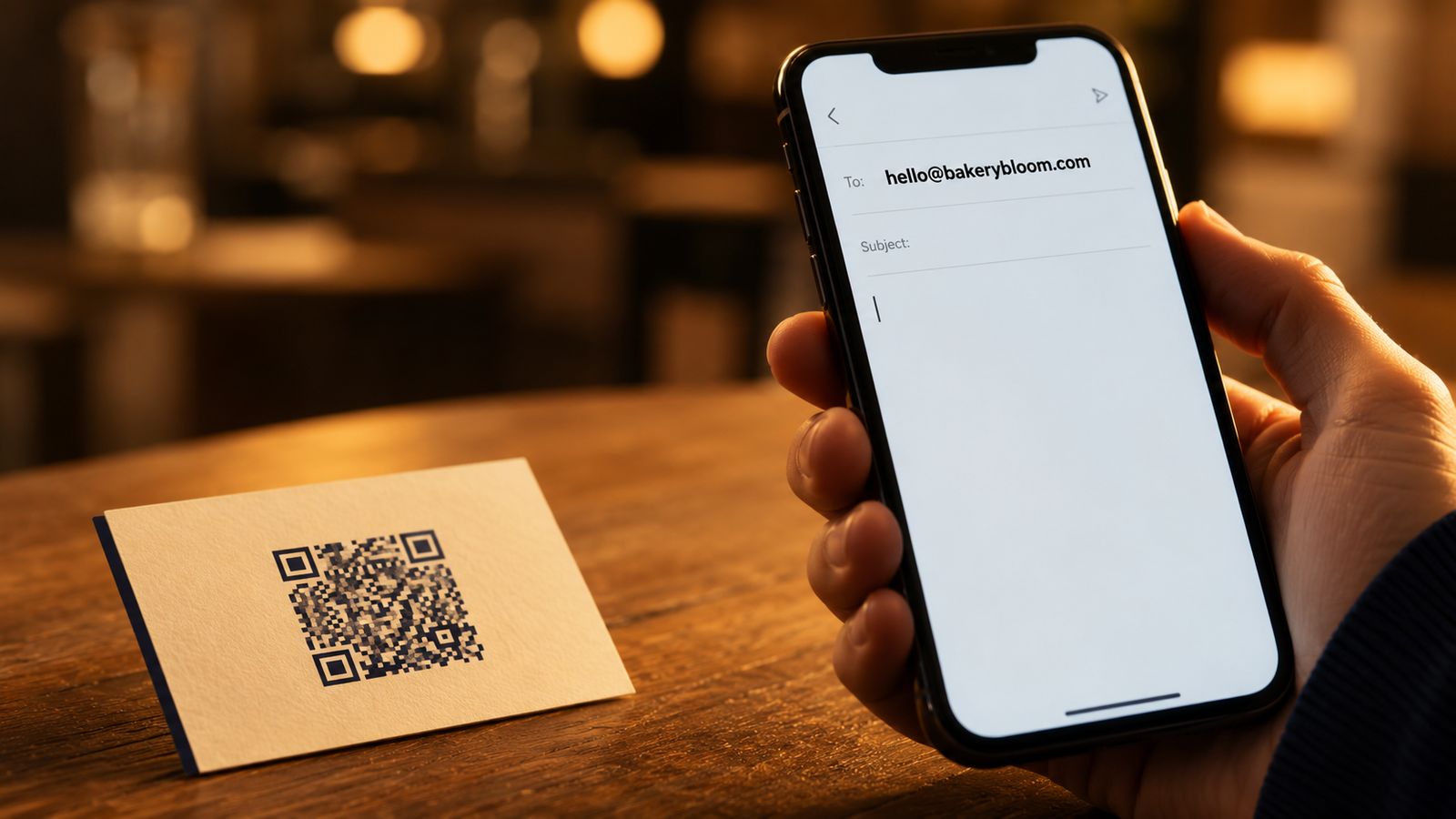
Yes, you can make a QR code for an email address, and any generator can do it. Scanning the code opens the person's mail app with your address already in the To field, ready to send. Use FreeQR's free email QR generator to make one in under a minute, no account required.
A few things worth knowing before you start:
The code never expires, and you don't need an app to scan it.
You can pre-fill a subject and short message, though some mail apps drop the body.
Once printed, the address is locked in, so check the spelling first.
Why Bother With an Email QR Code
Typing an email address on a phone keyboard is one of the slowest things you can ask a customer to do. One mistyped character loses the inquiry. On a business card or a trade show banner, that friction is the difference between a reply and silence.
Print typos are especially unforgiving. The card is already in someone's wallet, and the typo travels with it.
An email QR code removes the typing. The person points their camera, taps the prompt, and the draft is ready to send. The address is correct every time. That matters when 72% of consumers say they prefer scanning a QR over downloading an app.
What You Need
An email address (yours, or a shared inbox like
support@orsales@)A free QR generator that supports the email content type
Somewhere to put it (business card, packaging, signage, slide)
How to Create a QR Code for an Email Address
Three short steps. Most people finish in under a minute.
Step 1: Open the Generator and Enter the Address
Open FreeQR's email QR generator and select the Email content type. Enter the address you want people to write to. A shared inbox like [email protected] works well when several people on your team should get replies.
Double-check the spelling before you continue. The address is encoded straight into the code. Once printed, it can't be changed, and the only fix for a typo is to reprint.
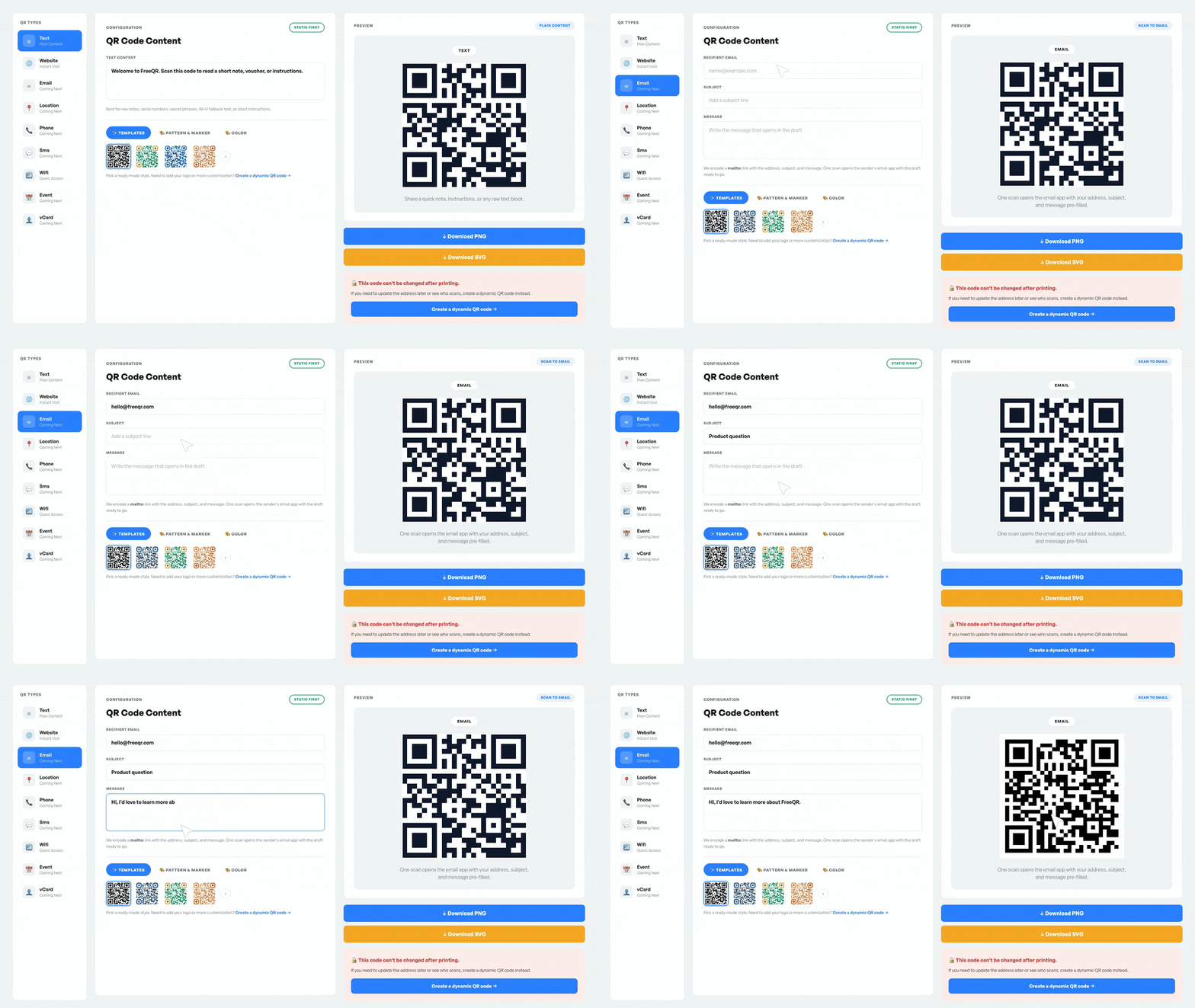
Step 2: Pre-fill a Subject and a Short Body (Optional)
If you want the draft to open with a subject line and a starter message, fill in the optional fields. A subject like "Inquiry from packaging" helps you route incoming mail. A short body like "Hi, I'd like to know more about" gives nervous senders an easier start.
Keep both fields short. A long body makes the code denser and shrinks its scan range. Aim for under 80 characters in the subject and under 200 in the body. Anything longer scans poorly at small print sizes.
Step 3: Download, Print, and Test
Download the code as PNG for screens or SVG for print. Place it where your audience will see it. Business cards, packaging, table tents, and event signage all work well.
Test on one iPhone and one Android before you send the design to the printer. Hold the camera over the code from normal reading distance. The phone should recognize it the way it scans any other QR code and offer to open the mail app. If it doesn't, increase the print size or the contrast, then retest.
Add a Subject, Body, CC, and BCC
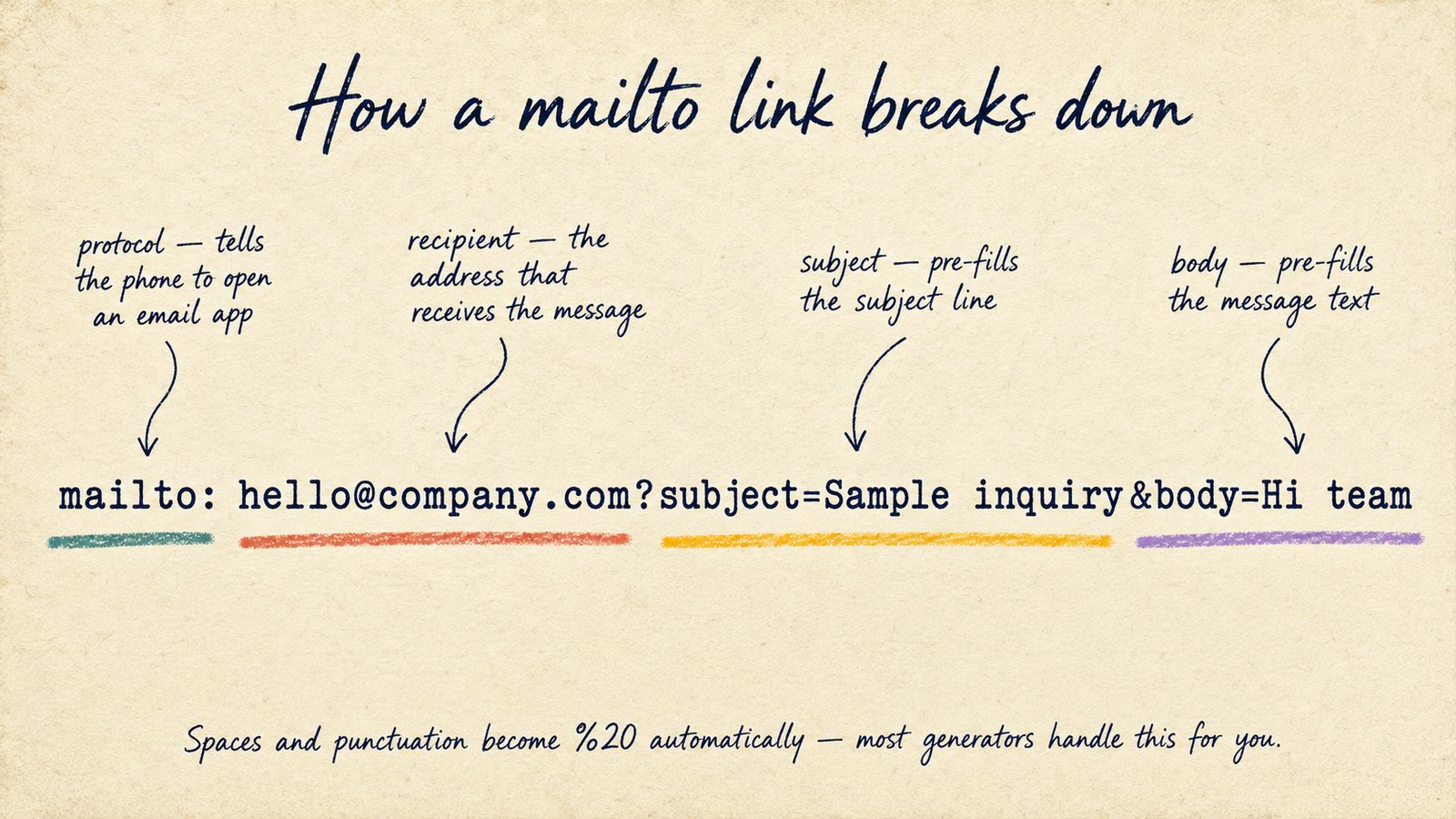
You can carry more than the recipient. The generator handles this for you, but if you want to see the underlying link, it looks like this:
mailto:[email protected]?subject=Sample inquiry&body=Hi teamThe subject fills the subject line, the body fills the message, and you can add CC and BCC to copy other people. Spaces and punctuation are handled automatically.
One trade-off: the more you pre-fill, the denser the code, and the closer someone has to hold their phone to scan it. Keep the subject to a line and the body to a sentence or two, and it will still scan well at business-card size.
Which Email Apps Fill Subject and Body Reliably
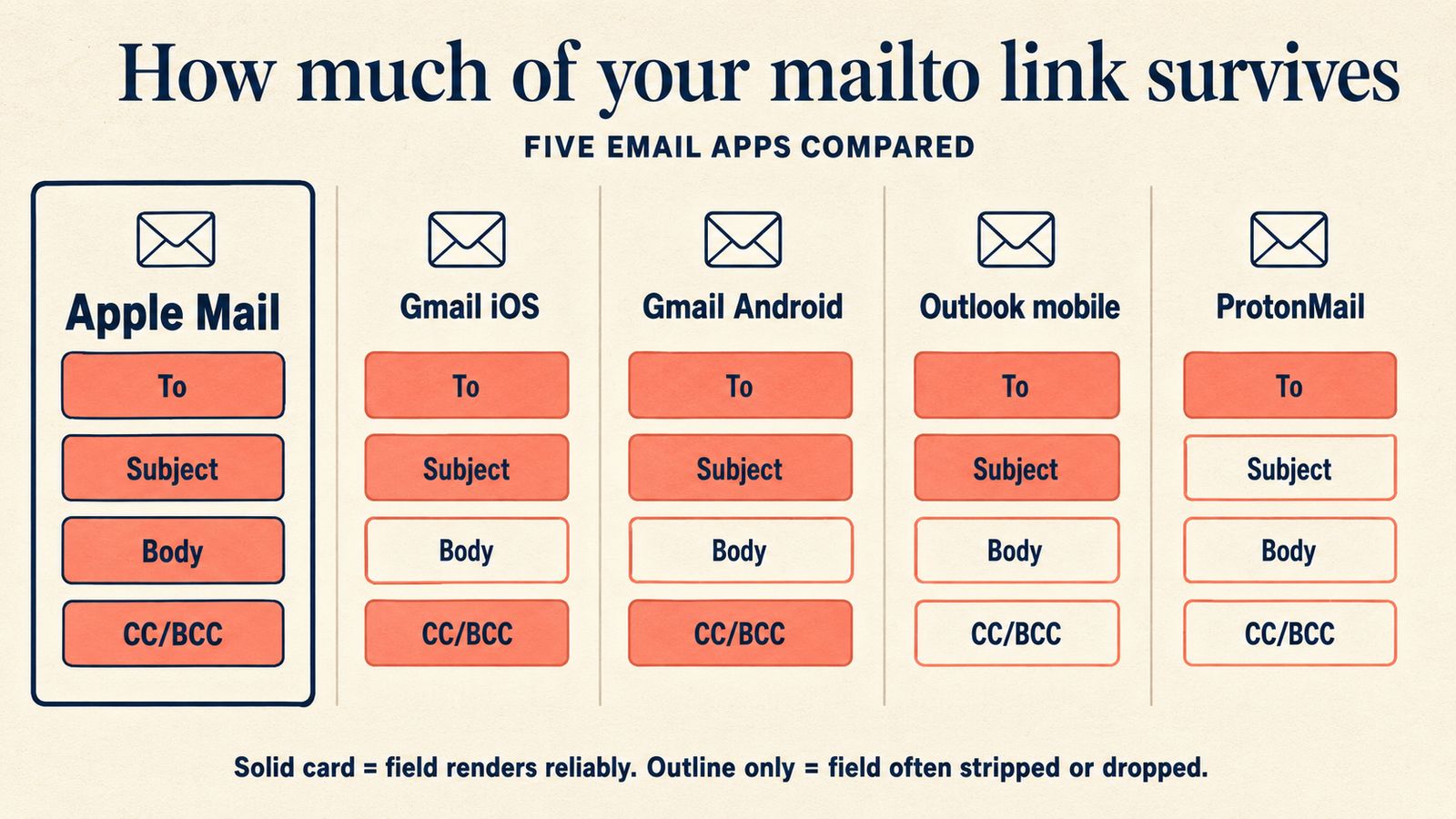
The recipient field works everywhere. Subject and body are less consistent, even in 2026. Here is what to expect across the most-used mail apps.
Email app | Recipient | Subject | Body |
|---|---|---|---|
Apple Mail (iOS, macOS) | Yes | Yes | Yes |
Gmail iOS | Yes | Yes | Sometimes dropped |
Gmail Android | Yes | Yes | Sometimes dropped |
Outlook mobile | Yes | Yes | Inconsistent |
ProtonMail | Yes | Often stripped | Often stripped |
The practical rule: rely on the recipient field, treat the subject as nice-to-have, and treat the body as optional. If a campaign needs a specific subject, write it so the message still reads well even if the body is dropped.
One quick note for anyone landing here from a search for "gmail qr code sign in": that phrase is about Gmail's two-factor login QR, a different feature from the address QR you are building here.
Best Practices
A few small habits make a difference once these codes are in the wild.
Verify the address: Check it letter by letter before you download. Typos survive every reprint.
Print big enough: At least one inch wide when the code includes a subject or body.
Use a different email per role: A
support@code on packaging routes differently than asales@code on a flyer.Share more in one scan: For a phone number, photo, and social links too, switch to a vCard QR.
Limitations to Know
Email QR codes have honest trade-offs. Once printed, the address is permanent, so the code can't be edited after print. On the upside, it won't expire and keeps working as long as the email account does.
You also don't get scan analytics, because the code talks straight to the phone and never touches a tracking server. And a long pre-filled body makes the pattern denser, which reduces scan range at small print sizes.
Technical Note
The mailto: link is an open internet standard, not a vendor trick, which is why it works across every provider. When a phone reads the link, the operating system hands it to whichever app the person has set as their default for mail. That handoff is why one code works whether the recipient uses Gmail, Outlook, or Apple Mail. The subject, body, CC, and BCC ride along as extra fields on the same link.
Frequently Asked Questions
Can a QR code link to an email address?
Yes. Scanning the code on any modern phone opens the default mail app with the recipient address already in the To field, ready to send.
Do recipients need a special app to scan an email QR code?
No. The iPhone Camera app scans QR codes on its own, and modern Android phones do the same through the Camera or Google Lens. No scanner app required.
Can I include a subject line and a pre-written message?
Yes. The generator adds them for you. Apple Mail fills both reliably. Gmail and Outlook usually keep the subject but sometimes drop the body, so treat the subject as helpful and the body as optional.
Does it work for Gmail, Outlook, and Yahoo?
Yes. The link is provider-agnostic. Whichever app the recipient uses as their default mail app opens. A separate search, "gmail qr code sign in," refers to Gmail two-factor login, which is a different feature.
Does an email QR code expire?
No. The code does not expire. It keeps working as long as the email address itself is active.
My QR code won't open the email app. What went wrong?
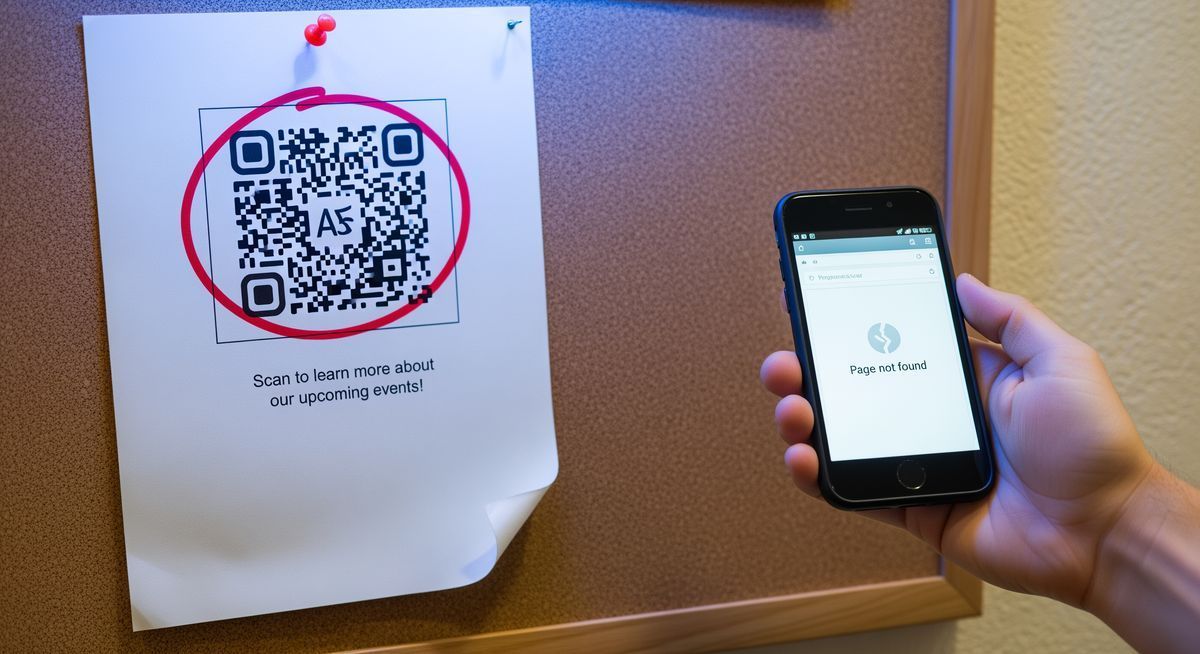
Common causes are low-contrast print, scanning from too far away, or a damaged pattern. Increase the print size, reprint at higher contrast, and test on a clean copy. The won't scan? common fixes guide walks through the rest.
One Scan Replaces Every Typed Address
Email QR codes solve a small but real friction: getting your address into someone's phone without typos. They are free to generate forever on FreeQR, never expire, and work on every modern phone. Create an email QR code free when you're ready, or browse all static QR types to compare.
Written by Andy Lee, QR Technology Specialist at FreeQR. FreeQR helps people create dynamic QR codes with built-in landing pages and scan analytics. Learn more about us.