vCard QR Code: Create a Digital Contact Card That Scans Instantly
Learn how to create a vCard QR code that saves your name, phone, email, and company to any phone with one scan. Free step-by-step guide with FreeQR.
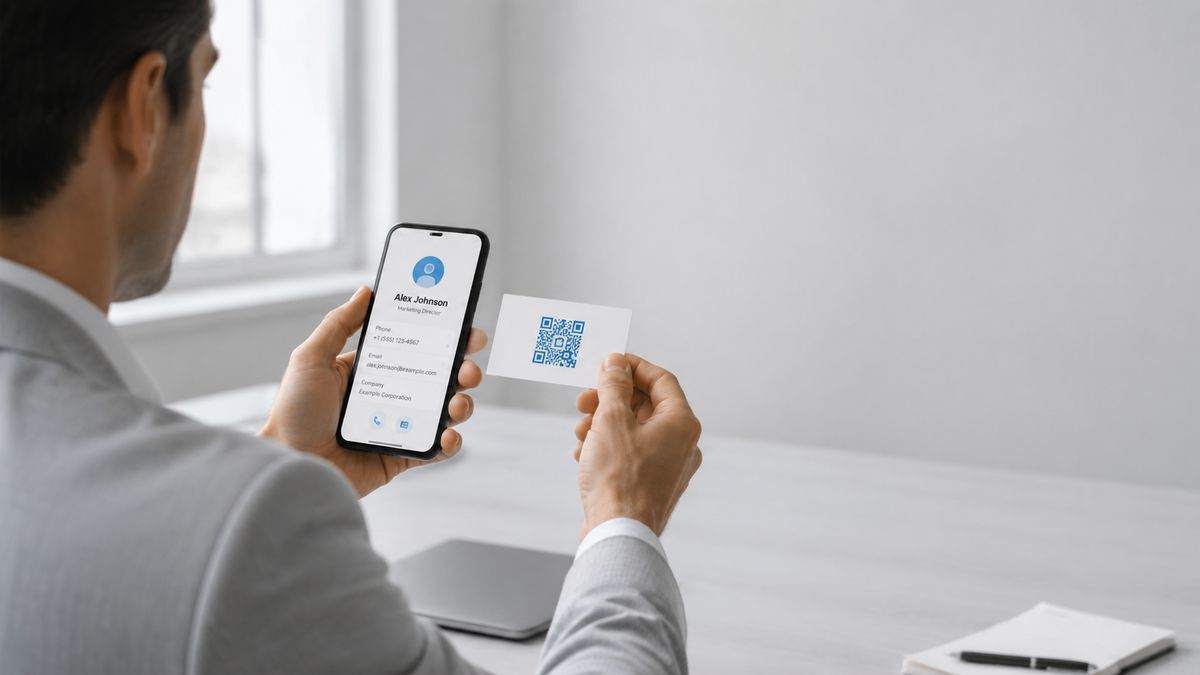
A vCard QR code is a scannable barcode that stores contact details in the standardized vCard format (RFC 6350). It holds your name, phone number, email address, company, and website. When someone scans it with any smartphone camera, their phone prompts them to save everything to their address book with one tap. You can create one in under a minute using a free vCard QR code generator.
Key Takeaways
A vCard QR code encodes contact information defined by RFC 6350, including name, phone, email, address, photo, URL, and company title.
Dynamic vCard QR codes let you update your details after printing. Static vCard QR codes are free forever but locked once created.
Business cards with QR codes see a 34% scan rate, compared to 12% for advertising QR codes.
The vCard format works natively on both iPhone and Android. No app required.
What Is a vCard QR Code?
A vCard is a standardized digital contact card format. The specification, RFC 6350, was published by the IETF in August 2011 and defines how contact data should be structured for exchange between devices. A vCard QR code encodes this contact data into a scannable QR code.
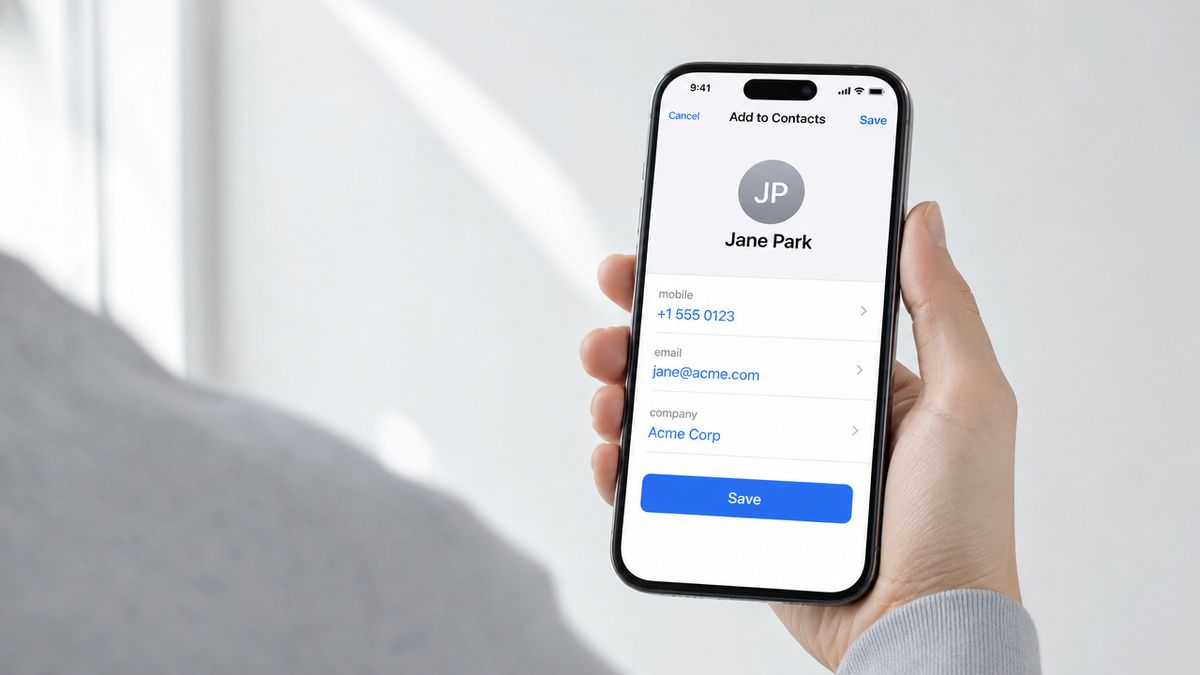
When someone scans a vCard QR code, their phone reads the encoded data and displays a pre-filled contact card. All the fields you included (name, phone number, email address, company, job title, website) appear ready to save. One tap adds everything to their phone's address book.
QR code scans surged to 130.12 million worldwide in 2026, and digital business card QR codes now account for 5% of all QR codes created by businesses. People expect to scan and save. Nobody wants to spell out their email address at a conference.
How to Create a vCard QR Code
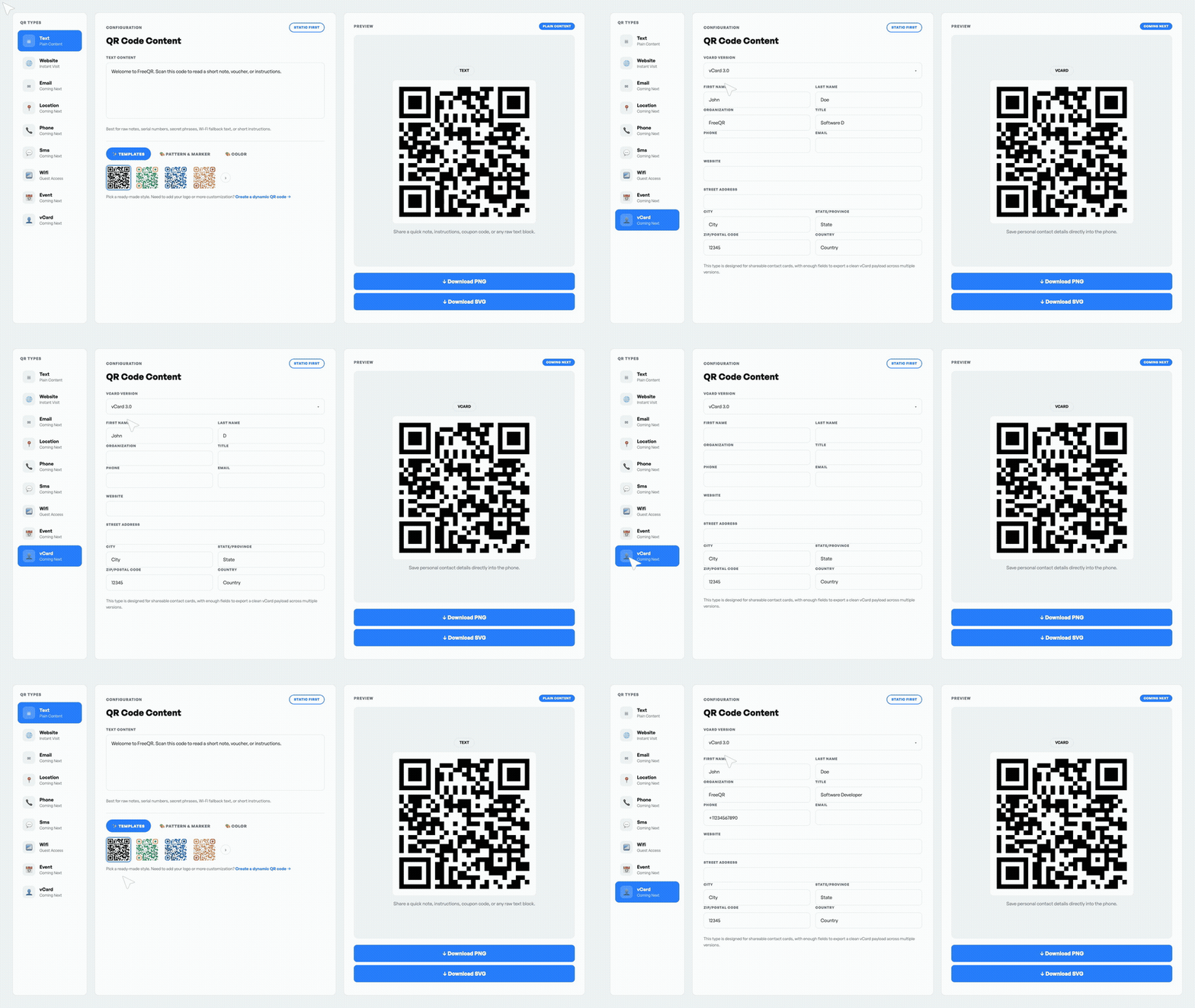
Creating a vCard QR code takes five steps. The process works with any vCard QR code generator. If you're new to QR codes, see how to create a QR code first. The example below uses FreeQR.
1. Open a vCard QR code generator
Go to a free vCard QR code generator. On FreeQR, select the vCard QR code type from the creation screen. This tells the generator to format your data as a contact card rather than a plain URL.
2. Enter your contact details
Fill in the fields you want to share: full name, phone number, email address, company name, job title, and website URL. You can also add a physical address and a note. Keep it to the essentials, because every field adds data to the QR code. More data means a denser, harder-to-scan pattern.
3. Choose static or dynamic
A static vCard QR code embeds your contact data directly into the QR pattern. It's free and works forever, but you can't change it after creating it. A dynamic vCard QR code links to a hosted contact page you can edit anytime. Choose dynamic if your phone number, title, or company might change. Choose static for personal info that won't.
4. Customize the design
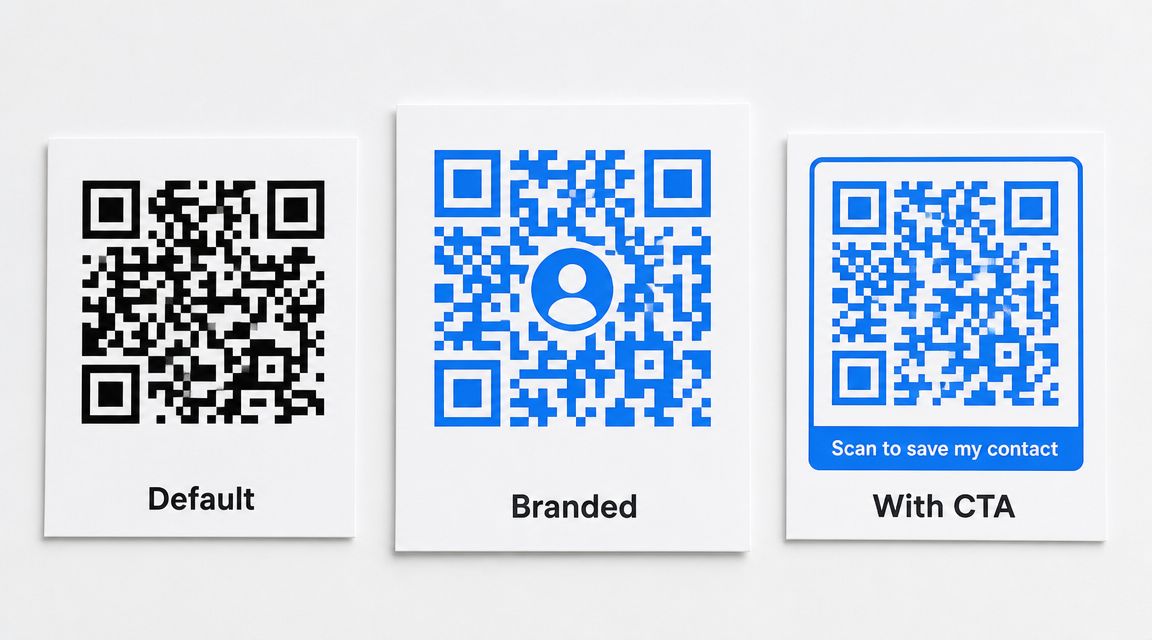
Add your brand colors, a company logo in the center, or a call-to-action frame like "Scan to save my contact." Keep the logo under 30% of the QR code area and maintain high contrast between dark modules and the background. Over-customizing reduces scan reliability. Test after every change.
5. Download and test
This is the step most people skip, and it matters the most. Download your vCard QR code as PNG for digital use or SVG for print. Then scan it with your own phone. Verify every field displays correctly and the "Add to Contacts" prompt appears. Ten seconds of testing prevents the embarrassment of handing out a broken code at your next event.
What information can you store in a vCard QR code?
The vCard format supports over 30 properties, but QR codes typically use eight to ten. Here are the fields that matter for most people:
Field | vCard Property | Example |
|---|---|---|
Full name | FN | Jane Park |
Phone | TEL | +1 555 0123 |
Company | ORG | Acme Corp |
Job title | TITLE | Head of Marketing |
Website | URL | acme.com |
Address | ADR | 123 Main St, NYC |
Photo | PHOTO | (base64 or URL) |
Birthday | BDAY | 1990-03-15 |
Note | NOTE | Met at SaaStr 2026 |
One thing to watch: static vCard QR codes have a data capacity limit of roughly 300 characters at standard error correction. That sounds generous until you add a street address. If you fill every field and include a photo, the QR code becomes so dense that older phone cameras struggle to read it. For static codes, stick to name, phone, email, company, and website. Save photos and extended fields for dynamic vCard QR codes, which store the data on a hosted page instead of in the pattern itself.
Static vs dynamic vCard QR codes
This is the most important decision when creating a vCard QR code, and the one most generators gloss over.
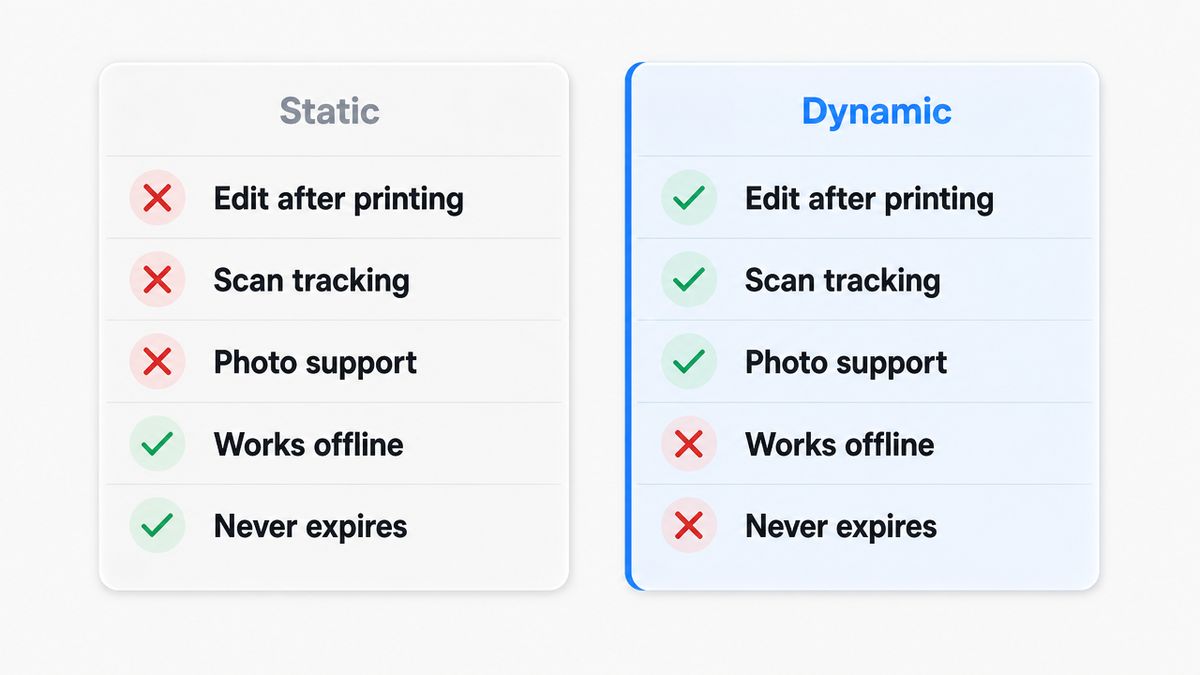
A static vCard QR code encodes your contact details directly into the QR pattern. The data lives in the image itself. No server, no internet connection required to read it. Static codes are free to create, never expire, and work offline. Once you generate it, though, the data is permanent and cannot be edited. Change your phone number, and every printed code with the old number is now wrong.
A dynamic QR code works differently. The QR pattern points to a redirect URL, not your actual contact data. When someone scans, the server loads your current contact information from a hosted landing page. Change your job title, update your phone number, add a profile photo. The printed QR code stays identical. The content behind it changes.
For anything you plan to print on business cards, brochures, or signage, dynamic is the practical choice. Printing is permanent, but your job title probably isn't.
Static | Dynamic | |
|---|---|---|
Edit after printing | No | Yes |
Scan tracking | No | Yes |
Photo support | Limited (inflates QR density) | Yes (hosted on landing page) |
Works offline | Yes | No (needs internet) |
Cost | Free forever | Free plan available |
Expiration | Never | Active while platform is active |
Best for | Personal cards, one-time events | Company cards, any info that may change |
37% of businesses have adopted digital business cards by 2025, up from 16% in 2020. The shift is driven by exactly this flexibility. Companies with hundreds of employees can't reprint business cards every time someone gets promoted. A dynamic vCard QR code handles it with a two-minute edit.
vCard QR codes for business cards
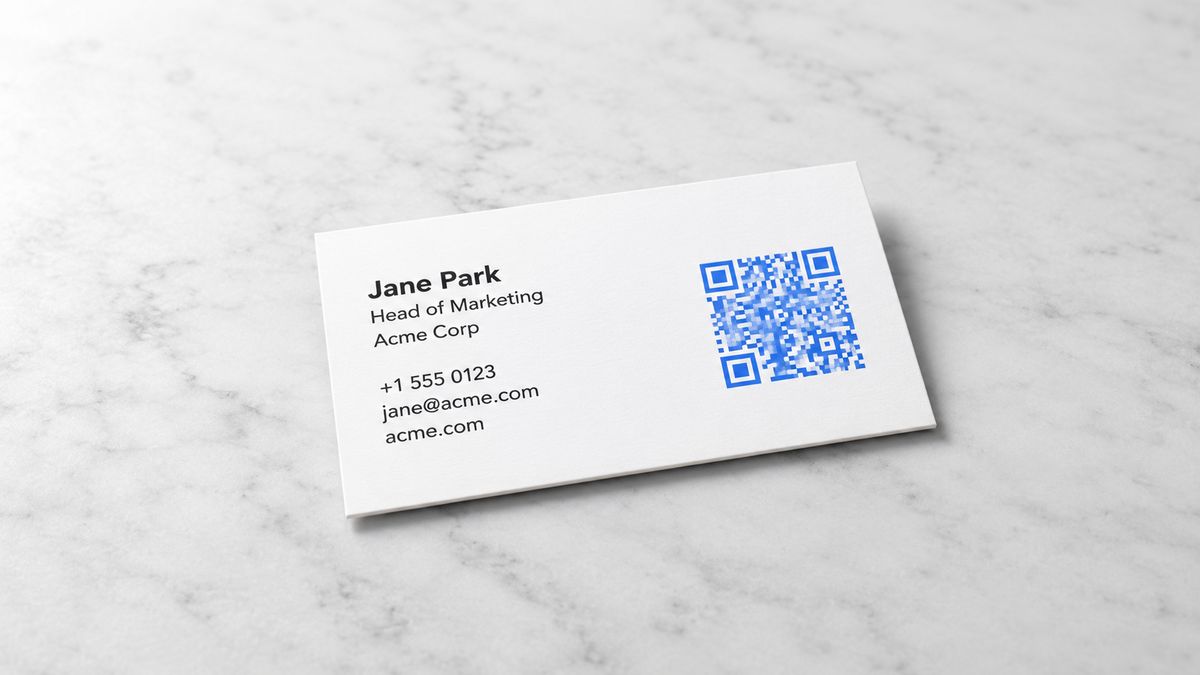
88% of paper business cards get thrown away within a week. A QR code on the back changes that. You hand someone a card, they flip it over, scan the code, and your contact info is saved to their phone before the conversation ends.
The scan rates confirm the behavior. Business card QR codes see a 34% scan rate, compared to just 12% for advertising QR codes. People who receive a business card have intent to connect, and the QR code removes the friction of manual entry.
Even if the paper card ends up in a desk drawer, the contact data already lives in the recipient's phone. That is the second job the QR code performs: it separates the information from the medium.
For placement, print the QR code at minimum 2 cm x 2 cm with a quiet zone (blank border) around it. A dark QR code on a white background scans faster than a branded design on a colored card. Contrast matters more than aesthetics when you need it to work at arm's length in a crowded room.
vCard vs MeCard: which format should you use?
Say your QR code generator asks you to pick a format. Here is the difference.
vCard (RFC 6350) supports the full range of contact fields: name, multiple phone numbers, multiple emails, address, company, title, website, photo, birthday, and notes. It's the universal standard. Every smartphone on the market reads it.
MeCard is a simpler format developed by NTT DoCoMo in the early days of Japanese mobile internet. It supports name, phone, email, URL, address, and a memo field. No photo, no birthday, no job title. The upside: MeCard-encoded QR codes are physically smaller because they carry less data.
vCard | MeCard | |
|---|---|---|
Standard | IETF RFC 6350 | NTT DoCoMo proprietary |
Fields supported | 30+ (name, phone, email, photo, birthday, notes, etc.) | 6 (name, phone, email, URL, address, memo) |
Photo support | Yes | No |
QR code size | Larger (more data) | Smaller |
Compatibility | All smartphones | All smartphones |
Unless you need the smallest possible QR code and only plan to share a name, phone number, and email, vCard gives you more fields and works everywhere. Honestly, most people will never need MeCard.
Customizing your vCard QR code
A default black-and-white QR code works, but a few adjustments make it scan better and look more professional.
Add your company logo to the center of the code. Keep it under 30% of the total area so the scanner can still read the pattern around it.
Match your brand colors for the dark modules, but keep the background light. Dark-on-light contrast is what cameras lock onto. Reversing it cuts scan reliability.
Include a CTA frame below the code with text like "Scan to save my contact." People who haven't scanned a QR code recently need the prompt.
If you're embedding a photo in a static vCard, test the result on three different phones before printing. Photos inflate the data payload and make the QR code denser at small sizes.
For dynamic vCard QR codes, the photo lives on the landing page, not in the QR pattern. This keeps the code clean regardless of image size.
What happens when someone scans your vCard QR code
The experience is nearly identical on iPhone and Android. Point the camera at the code, and within about three seconds a contact card preview appears. On iPhone, it shows as a notification banner at the top of the screen. On Android, Google Lens displays a contact preview with an "Add to contacts" button. Either way, one tap saves everything: name, phone, email, company, title, website.
Dynamic vCard QR codes take a slightly different path. The scan opens a web-based landing page with your contact information and a "Save Contact" button. Tapping it downloads a .vcf file that triggers the same "Add to Contacts" prompt. This approach works on every device because it uses a standard web link, not device-specific vCard parsing.
One edge case worth knowing: some older Android devices (pre-Android 10) don't auto-detect the vCard format from a static QR code. Dynamic codes avoid this entirely because they use a URL.
Limitations to know
The most important limit is data capacity. Static vCard QR codes max out around 300 characters at standard error correction (level L). A name, phone number, email, company, and website fit comfortably. Add a street address and a note, and you're pushing it. Add a photo, and the code is almost certainly too dense to scan at business card size.
Photos embedded in static vCard QR codes almost always fail for this reason. A single base64-encoded headshot can add thousands of characters to the data payload, which is why dynamic vCard QR codes are the only practical option when you want to include an image. Scanner compatibility varies too. Most modern smartphones work out of the box, but test on at least two devices before committing to a print run.
Frequently asked questions
What is a vCard QR code?
A vCard QR code stores contact details (name, phone, email, company, website) in the standardized vCard format. When scanned, the phone prompts the user to save all fields to their address book with one tap.
How do I create a vCard QR code for free?
Use a free vCard QR code generator like FreeQR. Enter your contact details, choose static (free forever) or dynamic, customize the design, and download. Static vCard QR codes cost nothing and never expire.
Can I update my vCard QR code after printing?
Only with a dynamic vCard QR code. Dynamic codes link to an editable landing page, so you can change your phone number, job title, or any other field without reprinting. Static codes are permanent once generated.
Does a vCard QR code work on iPhone and Android?
Yes. Both platforms read the vCard format natively. iPhone uses the Camera app, Android uses Google Lens or its built-in scanner. No additional app is needed on modern devices.
What is the difference between vCard and MeCard?
vCard supports more fields (photo, URL, birthday, job title, notes) and is the universal standard. MeCard is simpler with fewer fields but produces smaller QR codes. Both formats work on all smartphones.
Can I add a photo to my vCard QR code?
You can, but photos make static QR codes extremely dense and difficult to scan. Use a dynamic vCard QR code for photos. The image is hosted on a landing page instead of encoded in the QR pattern.
Do vCard QR codes expire?
Static vCard QR codes never expire. The data is baked into the image, so it works whether the internet is available or not, for as long as cameras can read QR patterns. Dynamic vCard QR codes work as long as the hosting platform stays active.
Start sharing your contact details with a vCard QR code
Contact exchange should not involve spelling out email addresses letter by letter or hoping someone remembers to type in your number later. A vCard QR code puts your full contact record one scan away.
Static codes are free and never expire. Dynamic codes let you change your info and track who scanned. The person on the other end gets your complete contact details saved to their phone in under five seconds. Create your first vCard QR code and test it yourself. For more ways to use QR codes beyond contact sharing, explore our QR code use cases.
Written by Andy Lee, QR Technology Specialist at FreeQR. FreeQR helps people create dynamic QR codes with built-in landing pages and scan analytics. Learn more about us.