How to Create a QR Code for WiFi, Any Device - FreeQR
Share WiFi without reading a long password aloud. Make a free WiFi QR code with FreeQR on any device, no signup and ready to print.
How to Create a QR Code for WiFi
Here is how to create a QR code for WiFi: open a WiFi QR code generator or your phone's network settings, enter your network name (SSID), security type, and password, then generate the code. Anyone who scans it with a phone camera joins your network without typing the password.
Key Takeaways
There are three ways to make one: a free web generator, Android's built-in settings, or an iPhone share screen.
You need three details before you start: your network name (SSID), the security type, and the password.
A free tool like FreeQR creates one with no signup and gives you a print-ready file.
The code stores your password as plain text, so share it on a guest network when you can.
A WiFi QR code is static. If you change the password, you make a new code.
Why Share WiFi This Way
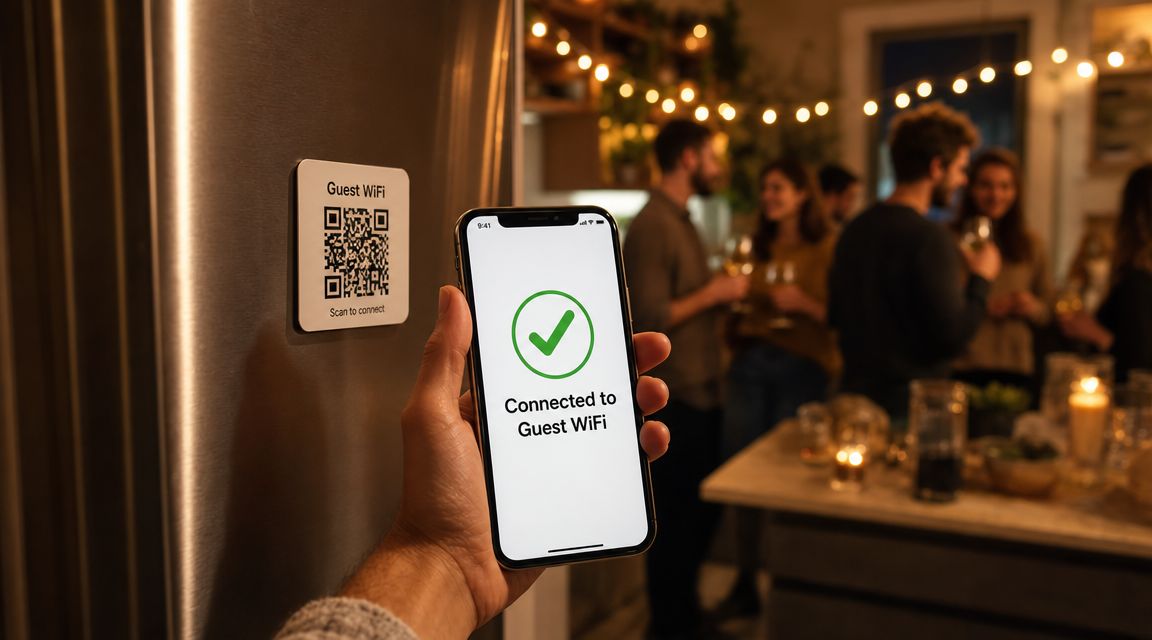
Reading a long WiFi password out loud never goes smoothly. You spell it twice, your guest still mistypes it, and everyone waits. A QR code removes that friction. Your guest points a camera, taps a prompt, and connects in about four seconds, far less time than reading out and typing a 16-character password. Scanning is already a daily habit, too. About 89 million Americans scanned a QR code in 2025, according to Statista data reported by Scanqueue, and sharing WiFi is one of the simplest ways to use one.
What You Need Before You Start
Gather three details about your network first:
Your network name (SSID), typed exactly as it appears. It is case-sensitive.
The security type. Most home routers use WPA/WPA2. Older ones use WEP, and open networks use None.
The current WiFi password.
You will usually find all three printed on a sticker on the router, or inside the router's admin settings.
How to Create a WiFi QR Code
You have three good options. The web generator works on any device and gives you a clean file to print, so start there. The built-in phone methods are handy when you would rather not open a website. Here is how they compare:
Method | Works on | Output | Print-ready? | Best for |
|---|---|---|---|---|
Web generator (FreeQR) | Any browser, any device | PNG + SVG file | Yes, high-resolution | Printing signs and table tents |
Android settings | Android 10 and later | On-screen code (screenshot) | Soft when enlarged | A quick in-person share |
iPhone settings or Shortcut | iOS 11 and later | On-screen or share sheet | Not a print file | AirDropping to a guest |
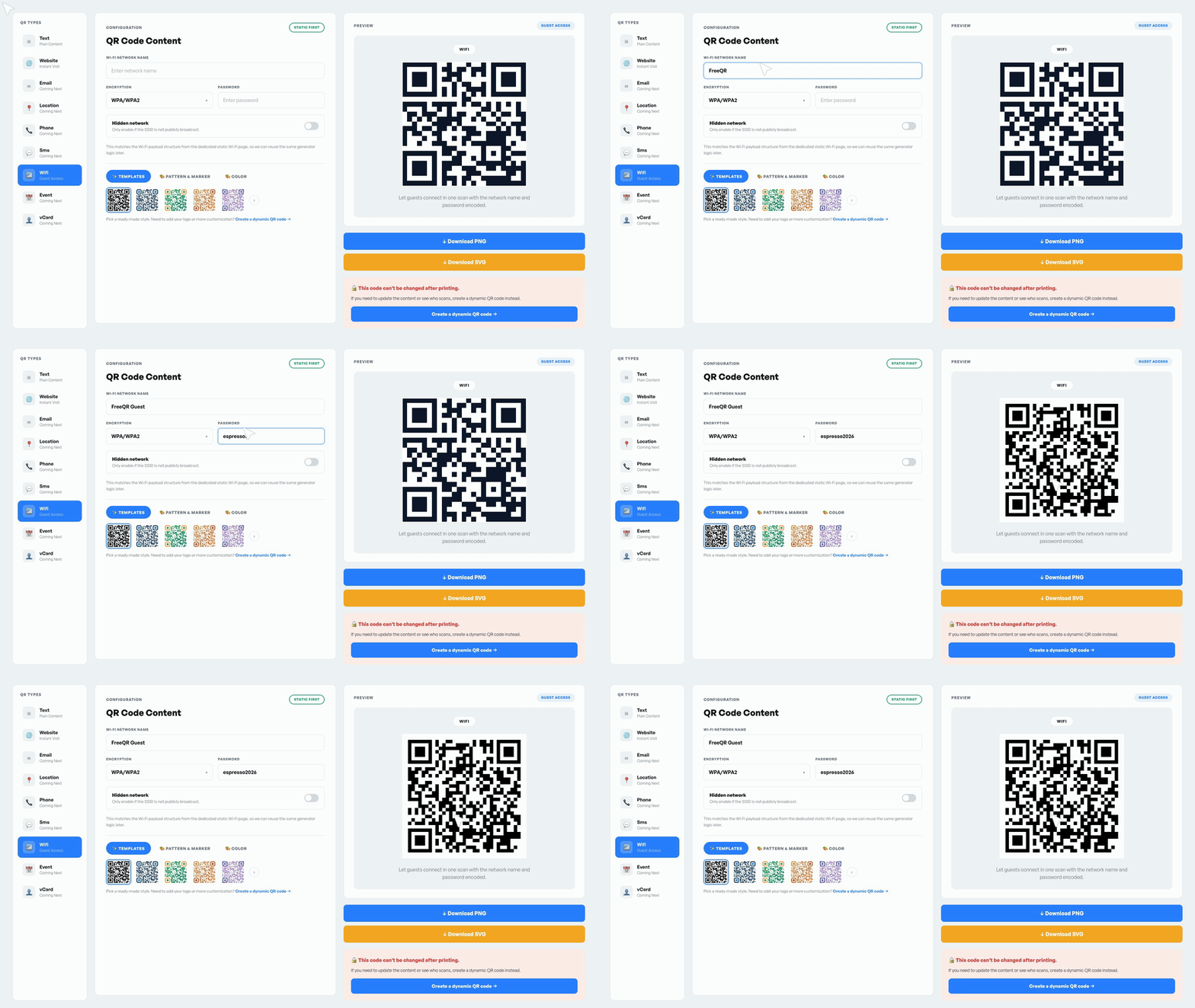
Use a Free WiFi QR Code Generator
Open a WiFi QR code generator in any browser. The steps are the same on a laptop, phone, or tablet.
Go to a generator like FreeQR and choose the WiFi code type.
Enter your network name (SSID).
Select your security type, usually WPA/WPA2, and type the password.
Generate the code, then download it. Choose PNG for screens and SVG for print.
FreeQR is free, with no watermark and no signup, so you can print the code right away. The reason a generator is the easiest route is the file it gives you. You get a high-resolution image that drops cleanly into a sign or table card, which the phone methods below cannot match.
Create a WiFi QR Code on Android
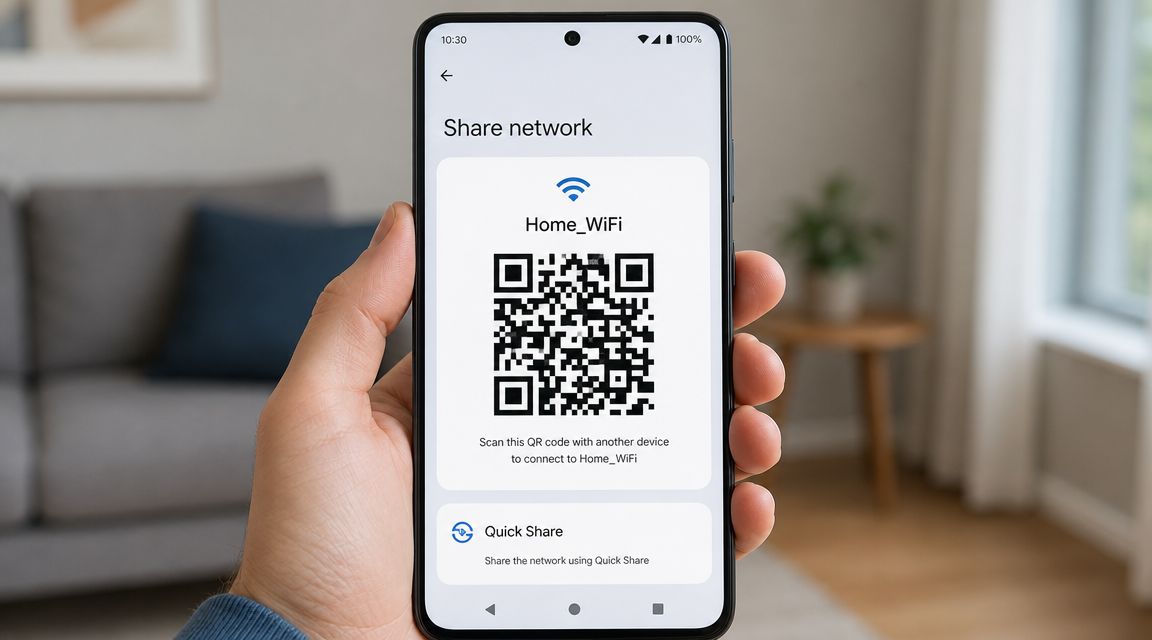
Android has this built in, so you do not need an app. The feature has shipped since Android 10, released in 2019.
Open Settings, then Network & internet, then WiFi.
Tap the network you are connected to.
Tap Share, then confirm with your fingerprint or PIN.
Your phone shows a QR code. Screenshot it or print it to reuse later.
Because the code lives only on your screen at first, save a copy if you plan to post it somewhere. One limitation: the built-in code is a screenshot, not a print file, so it can look soft when you enlarge it.
Create a WiFi QR Code on iPhone
iPhone can share a network too, though the exact path depends on your iOS version.
Open Settings, then WiFi.
Tap the information icon next to your network.
Tap Share Password or Share Network, then confirm with Face ID or Touch ID.
For older iOS versions without a share button, a Shortcut can build the code from your SSID and password. Apple added QR scanning to the Camera app back in iOS 11 in 2017, which is why most iPhones read these codes without any extra app. Once the code appears, screenshot it or AirDrop it to whoever needs it.
What Is Inside the QR Code You Just Made
A WiFi QR code is not a link. It is a short line of plain text that stores your network name, security type, and password in a set format:
WIFI:S:<network name>;T:<security type>;P:<password>;;
Knowing this explains the one real risk. That format began with the open-source ZXing project and is now part of the official WPA3 specification. When a phone scans it, the phone reads your network name and password straight off the pattern. There is no website in between. That is why scanning connects so fast, and also why anyone who scans the code can read your password. For background on how codes hold data, see our guide on what a QR code is.
WiFi QR Code Best Practices
A few habits make the code more useful and safer to share.
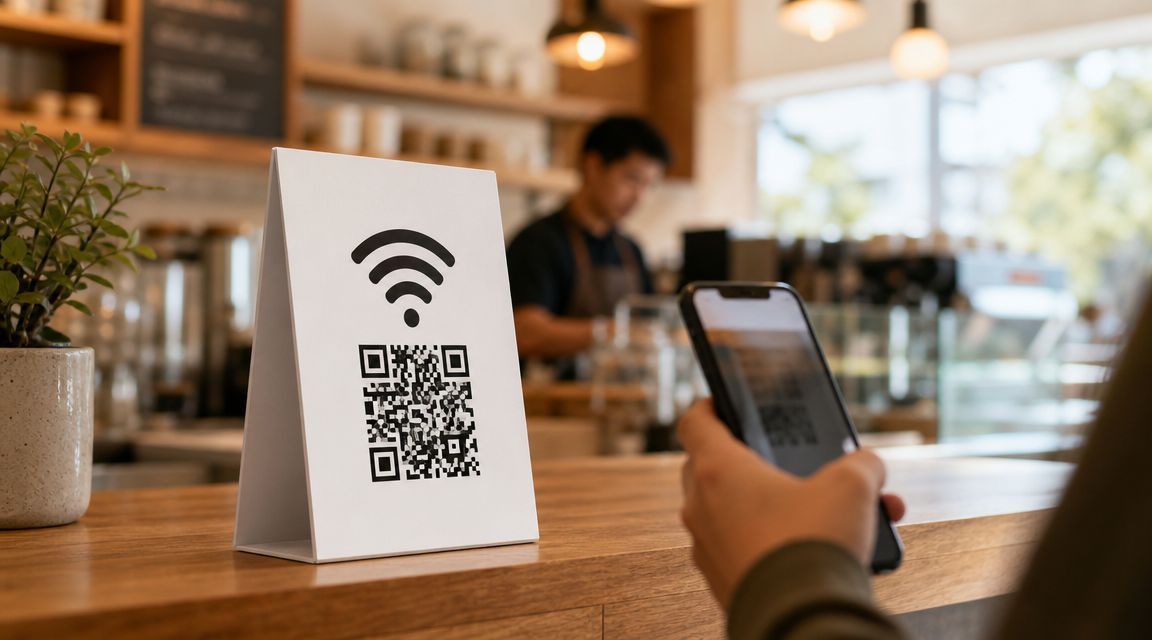
Put it where people look. Codes at eye level, like a table tent or a wall card, get scanned about three times as often as codes on receipts or floor stickers, according to Scanqueue.
Use a guest network. Security guidance from Cisco and Nile recommends keeping visitors on a separate network, so a shared code never reaches your own devices.
Print it large with good contrast. A small or low-contrast code is the most common reason a scan fails.
It works well in real venues. Cafes, short-term rentals, and offices all use printed WiFi codes, and 57% of people scanned a restaurant QR code in the past month, according to the National Restaurant Association.
What Happens When Your WiFi Password Changes
Here is the catch with any WiFi QR code: it is static. The password is baked into the pattern, so when you change your WiFi password, the old code stops working. You make a new one and reprint it. No version updates itself remotely, because the credentials live in the code, not online. If that surprises you, our guide on whether QR codes expire explains the reason.
Common WiFi QR Code Problems
Most issues fall into a few buckets:
The code will not scan. Raise screen brightness, clean the camera lens, cut glare, and move a little closer.
It scans but will not connect. Usually the password changed, the network was renamed, or the wrong security type was selected when the code was made.
An older phone ignores it. Some older devices need manual entry or a separate scanner app.
A hidden network fails. Turn on the hidden-network option when you generate the code.
For anything that still will not work, our QR code troubleshooting guide goes deeper.
Frequently Asked Questions
Can I make a WiFi QR code without an app?
Yes. A web generator works in any browser, and both Android (10 and later) and iPhone can create one from their built-in network settings.
Is it free to create a WiFi QR code?
Yes. FreeQR and the built-in tools on Android and iPhone are free, and none of them require you to sign up.
Is it safe to share my WiFi with a QR code?
It is, with one habit: use a guest network. The code stores your password as plain text, so anyone who scans it can join your network.
How do guests scan a WiFi QR code?
They point a phone camera at it and tap the prompt. iPhones (iOS 11 and later) and modern Android phones connect automatically, with no app needed.
Does a WiFi QR code work on both iPhone and Android?
Yes. The WiFi code format is universal, so a code made on one platform scans correctly on the other.
What happens when I change my WiFi password?
The old code stops working. Generate a new code with the new password and reprint it. WiFi codes cannot update on their own.
Can I print a WiFi QR code for my business?
Yes. Download an SVG or PNG and print a table tent or sign. Place it at eye level for the best scan rate.
Make Your WiFi QR Code Once
Sharing WiFi should not mean spelling out a password three times. Make the code once with a generator or your phone, put it where guests can see it, and you are done. If the password ever changes, you create a fresh one. You can make a free WiFi QR code with FreeQR whenever you are ready.
Article by the FreeQR Team. FreeQR offers free, unlimited QR codes with no sign-up required.