QR Code Not Working? How to Diagnose and Fix It
Diagnose why your QR code is not working in under two minutes. FreeQR walks you through a decision-tree of fixes, from dead codes to camera settings.
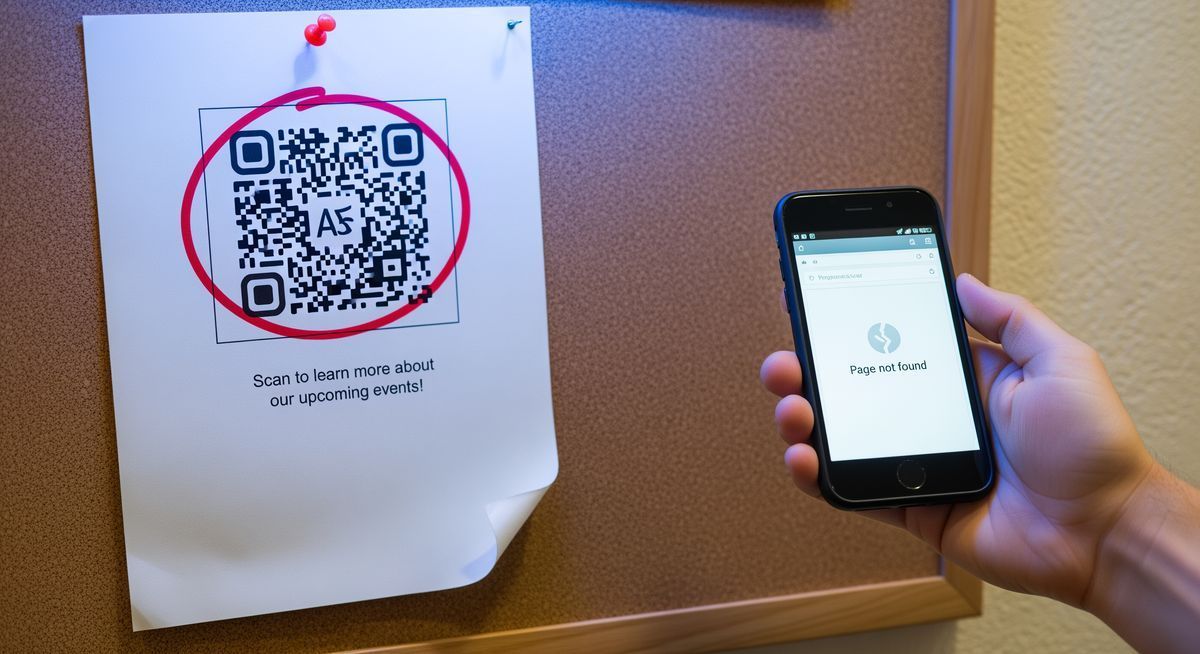
The most common reason a QR code stops working has nothing to do with your phone, the lighting, or the print quality. The platform that created the code deactivated it.
Trials expire. Scan caps hit their limit. Subscriptions lapse. The code on your flyer, menu, or business card looks the same as the day you printed it, but the server behind it stopped answering. According to a 2025 Uniqode study, 52% of consumers have encountered a dead QR code. Before you troubleshoot your camera settings, check whether the code is actually alive.
This guide walks you through a two-branch diagnostic. First you figure out whether the problem is the code or your phone. Then you apply the right fix.
Key takeaways
Platform deactivation is the #1 cause. Over half of QR code failures trace back to the platform revoking access after a trial, scan cap, or subscription lapse, not a problem with your phone or the printed code.
One test separates code problems from phone problems. Scan a QR code on product packaging. If that works, the issue is the specific code. If nothing scans, the issue is your device.
Size and format prevent most print failures. The minimum scannable size is 2 x 2 cm at arm's length, and the 10:1 rule (scanning distance / 10 = minimum code width) applies to all distances (ISO/IEC 18004:2024).
Error correction can save damaged codes. QR codes tolerate up to 30% physical damage at the highest correction level (Level H) per the ISO/IEC 18004 standard.
Dynamic and static codes break in different places. Dynamic codes break at the server level (platform deactivation, expired subscription). Static codes break at the content level (typo in URL, data too dense for the pattern).
Step one: is the code dead or is your phone the problem?
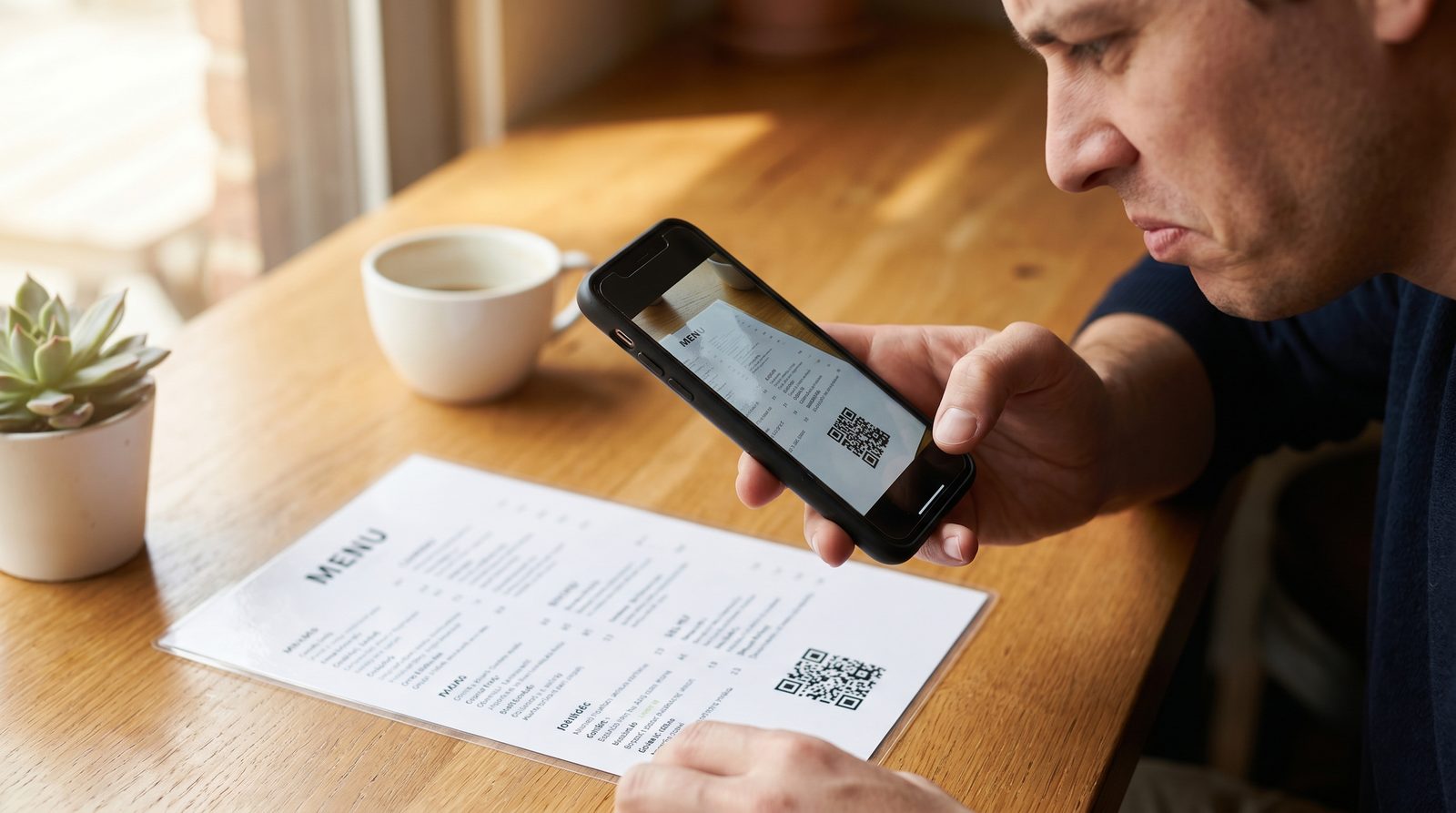
Before you change any settings, run a two-second test. Find a QR code you know works. Product packaging is the easiest source: cereal boxes, shampoo bottles, and coffee bags almost always have one. Scan it.
If that code scans fine, your phone and camera are working. The problem is the specific QR code you were trying to scan. Skip ahead to the next section.
If nothing scans at all, not even the packaging code, the problem is on your phone's side. Jump to "Your phone is the problem" below.
This single test saves you from spending ten minutes adjusting camera settings when the code itself was dead all along.
The code is the problem
You confirmed your phone scans other QR codes just fine. That means something is wrong with this specific code. Here are the five causes, ordered from most likely to least.
The platform deactivated it
Most people assume QR codes are permanent. Many are not. According to Uniqode's State of QR Codes 2025 report, 59% of consumers now scan QR codes daily, which means a single deactivated code can disappoint hundreds of people before anyone notices.
Dynamic QR codes route scans through a redirect server controlled by the platform that created them. If the platform revokes access to that redirect, the code goes dead. The pattern printed on your material has not changed. The server behind it simply stopped responding.
Here is how platforms revoke access:
Trial expirations. Some platforms advertise themselves as "free" when they are actually offering a 7-to-14-day trial. Codes created during the trial work perfectly until it ends, then every code is deactivated. QR Code Generator (Egoditor) has a 1.5 out of 5 rating on Trustpilot from over 9,200 reviews, and the most common complaint is exactly this pattern: sign up for "free," print materials, receive the deactivation email.
Scan caps. QR Tiger caps free-plan codes at 500 scans over the code's entire lifetime. QRCodeKIT limits scans to 100 per month. Hit the cap and the code goes silent, with no warning to the person scanning.
Subscription lapsed. Codes created on a paid plan are often deactivated when you downgrade or cancel. Uniqode's support team has confirmed in writing that ending a subscription means ending the service.
How to check: Log in to whatever platform you used to create the code. If the code shows as "inactive," "expired," or "trial ended," this is your answer. If you cannot log in at all, the account may have been deleted.
How to fix it: If the platform offers reactivation, you can pay to restore the code. If not, you need to create a new code and update your printed materials. To avoid this entirely, use a platform where free-plan codes stay active permanently with no scan caps. FreeQR's free plan does not expire codes or limit scans.
For a deeper look at how and why QR codes expire, see Do QR Codes Expire?.
The destination URL is broken
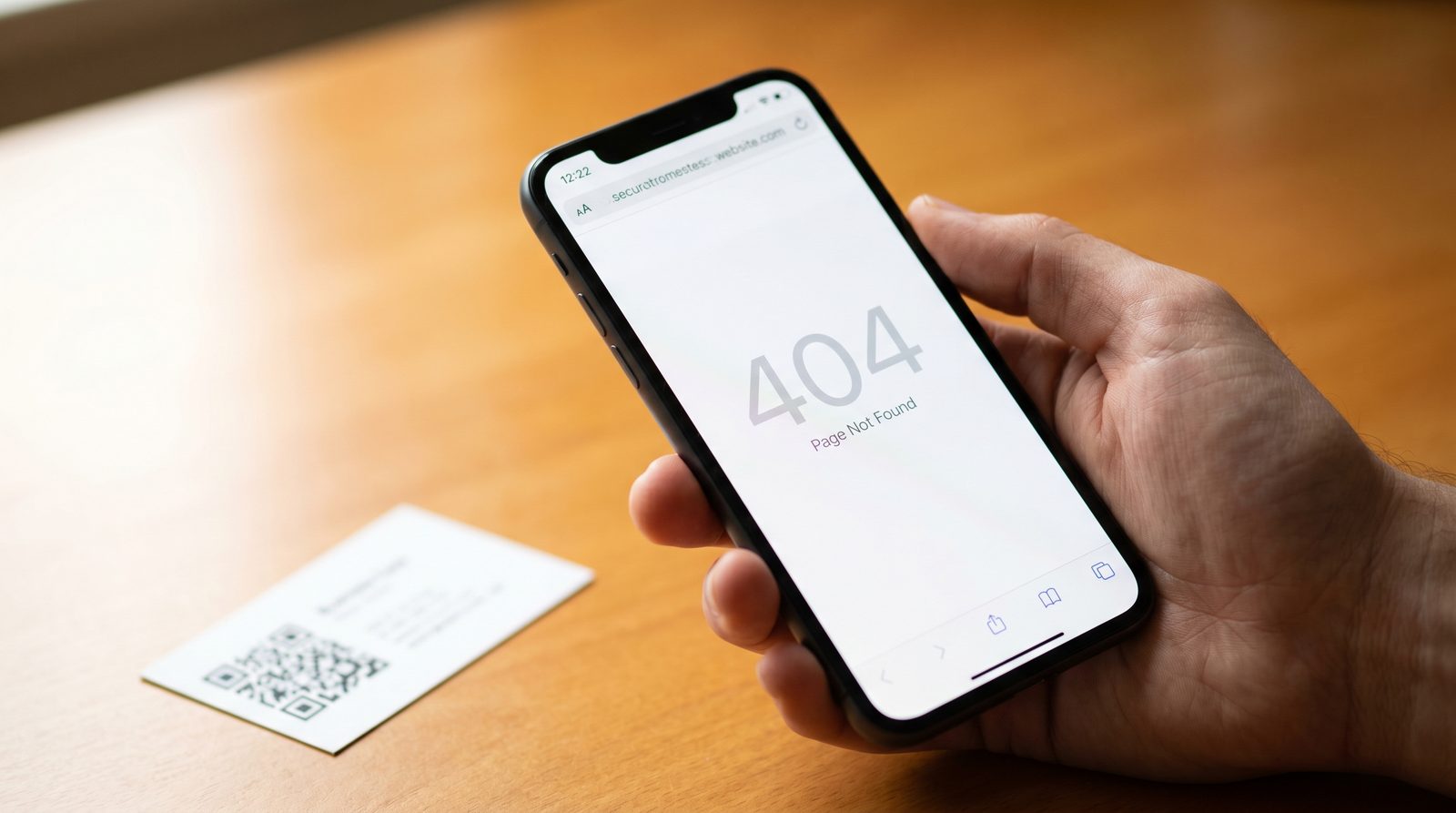
The code itself might be fine. It scans, the redirect fires, but the page it points to no longer exists or never loaded correctly.
Common causes:
Typo in the URL. A missing letter, a wrong character, or
http://instead ofhttps://can all produce a dead link.Page moved or deleted. The destination existed when you created the code but has since been taken down, reorganized, or moved to a new URL.
Domain expired. If the domain in the destination URL is no longer registered, every code pointing to it is broken.
How to fix it: If you used a dynamic QR code, log in to your QR platform dashboard and update the destination URL. The code on your printed materials stays the same. If you used a static QR code, the URL is baked directly into the pattern. You cannot change it without creating and reprinting a new code. This is one of the key differences between static and dynamic QR codes.
The code is too small, blurry, or damaged
Size is one of the most overlooked reasons a QR code won't scan. The minimum recommended size for a QR code scanned at arm's length is 2 x 2 cm (about 0.8 x 0.8 inches). Anything smaller and most phone cameras struggle to resolve the individual modules in the pattern.
For codes scanned from a distance, such as on posters or banners, use the 10:1 rule: scanning distance divided by 10 equals the minimum QR code width. A poster meant to be scanned from 2 meters away needs a QR code at least 20 cm wide. This ratio accounts for real-world variables like camera angle, ambient lighting, and minor motion blur, making it a reliable baseline across all print formats (source: QR code size guidelines by Delivr).
Blurriness is the second issue. If you downloaded your QR code as a low-resolution PNG and then scaled it up for print, the modules (the small squares that make up the pattern) become fuzzy. Scanners need sharp edges to read. Always export as SVG for print materials and high-resolution PNG (at least 300 DPI) for screen.
Physical damage is usually survivable. QR codes use Reed-Solomon error correction, defined in the ISO/IEC 18004 standard, across four levels:
Error correction level | Data recovery capacity | Best for |
|---|---|---|
L (Low) | 7% of codewords | Clean indoor environments |
M (Medium) | 15% of codewords | General-purpose printing |
Q (Quartile) | 25% of codewords | Outdoor or high-traffic use |
H (High) | 30% of codewords | Harsh conditions, logo overlays |
At Level H, up to 30% of the code can be destroyed and it will still scan. Below that threshold, the code works. Above it, the code fails. For a full explanation of how this works, see QR Code Error Correction.
The code has too much data
More data in a QR code means a denser pattern with smaller modules, and smaller modules are harder for cameras to read. This especially affects static QR codes because they store the entire payload directly in the pattern.
A QR code encoding a short URL like freeqr.com/abc produces a simple, easy-to-scan pattern. A QR code encoding a 300-character vCard or a full paragraph of text produces a dense grid that requires ideal conditions to scan.
How to fix it: Use a URL shortener to reduce the URL length before encoding it as a static QR code. Or switch to a dynamic QR code, which always encodes a short redirect URL regardless of how long the final destination is.
Design broke the scannability
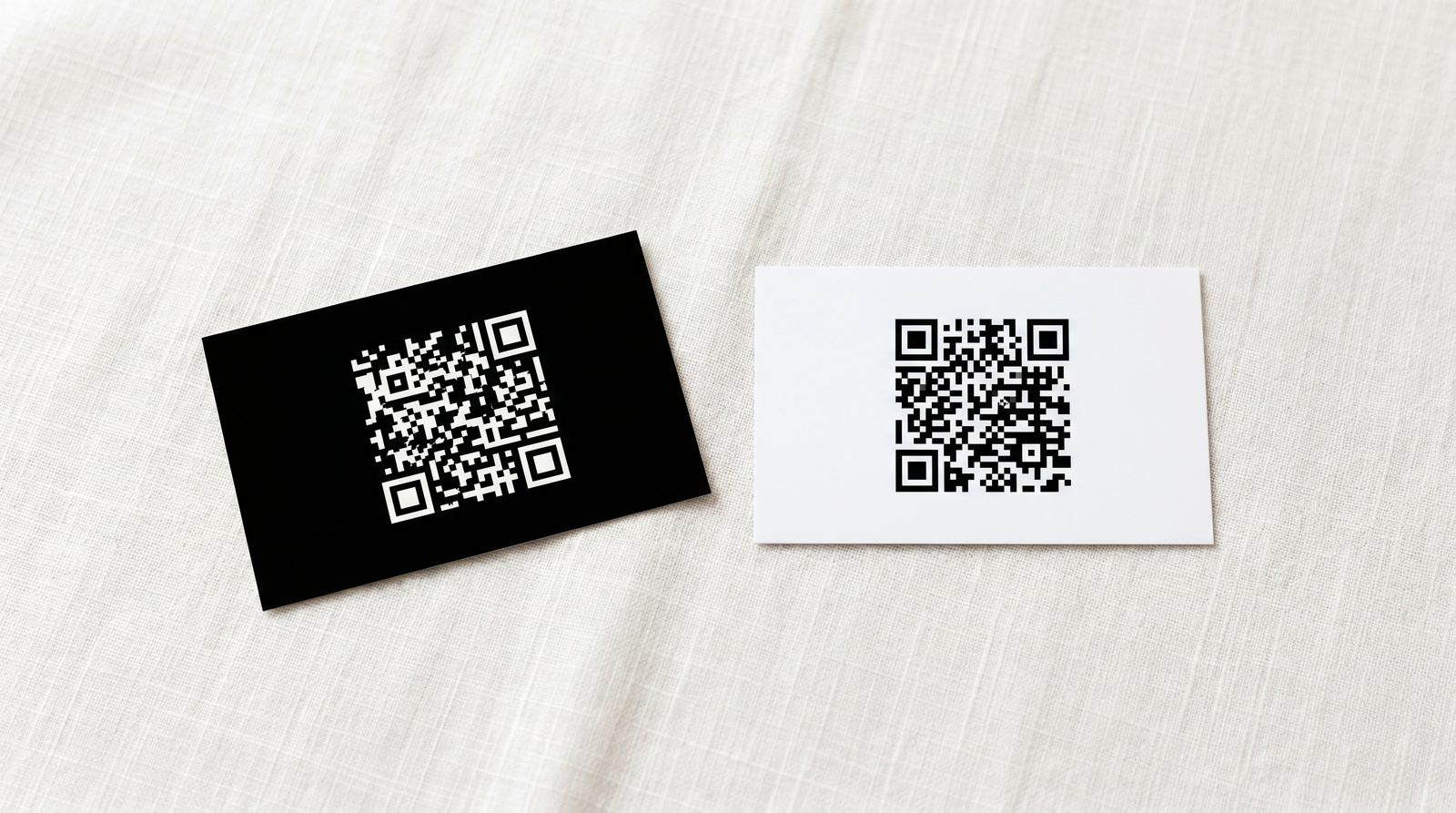
Custom-designed QR codes look great on brand materials, but design choices can break scannability.
Inverted colors. QR codes are designed to be dark modules on a light background. Flip that (light pattern on a dark background) and many scanners cannot read it. Some newer phones handle inverted codes, but older devices and third-party scanner apps often fail.
Low contrast. A dark gray code on a medium gray background might look sleek, but scanners need strong contrast between the pattern and the background. Black on white works best. If you use brand colors, make sure the difference in brightness is significant.
Missing quiet zone. The quiet zone is the empty border around the QR code, typically at least four modules wide. It tells the scanner where the code ends and the background begins. If text, images, or other design elements crowd into this space, the scanner may not detect the code at all.
Obscured finder patterns. The three large squares in the corners of every QR code (called finder patterns) are how scanners orient themselves. Logos, graphics, or excessive customization that covers these squares can prevent the code from being recognized as a QR code in the first place.
Static vs. dynamic QR code failure modes
Static and dynamic QR codes fail differently. Understanding which type you are using narrows the diagnosis immediately.
Failure mode | Static QR code | Dynamic QR code |
|---|---|---|
Platform deactivation | Not affected (no server involved) | Primary risk: trials, scan caps, and lapsed subscriptions can kill the redirect |
Broken destination URL | Cannot be fixed without reprinting | Fix by updating the redirect URL in your dashboard |
Data density too high | High risk: entire payload is encoded in the pattern | Low risk: only a short redirect URL is encoded |
Physical damage | Error correction applies (up to 30% at Level H) | Same error correction applies |
Design/contrast issues | Equally affected | Equally affected |
Expiration | Never expires (data is self-contained) | Depends on the platform's policies |
The key difference: static QR codes break at the content level (the data baked into the pattern), while dynamic QR codes break at the server level (the redirect controlled by the platform). For a detailed comparison, see Types of QR Codes.
Your phone is the problem
The packaging test failed. Nothing scans. That means the issue is on your device, not the code. According to a 2025 Bitly survey, 55% of marketers believe the largest barrier consumers face with QR codes is a lack of understanding of how to use them, which includes not knowing the right camera settings.
Camera or scanner settings
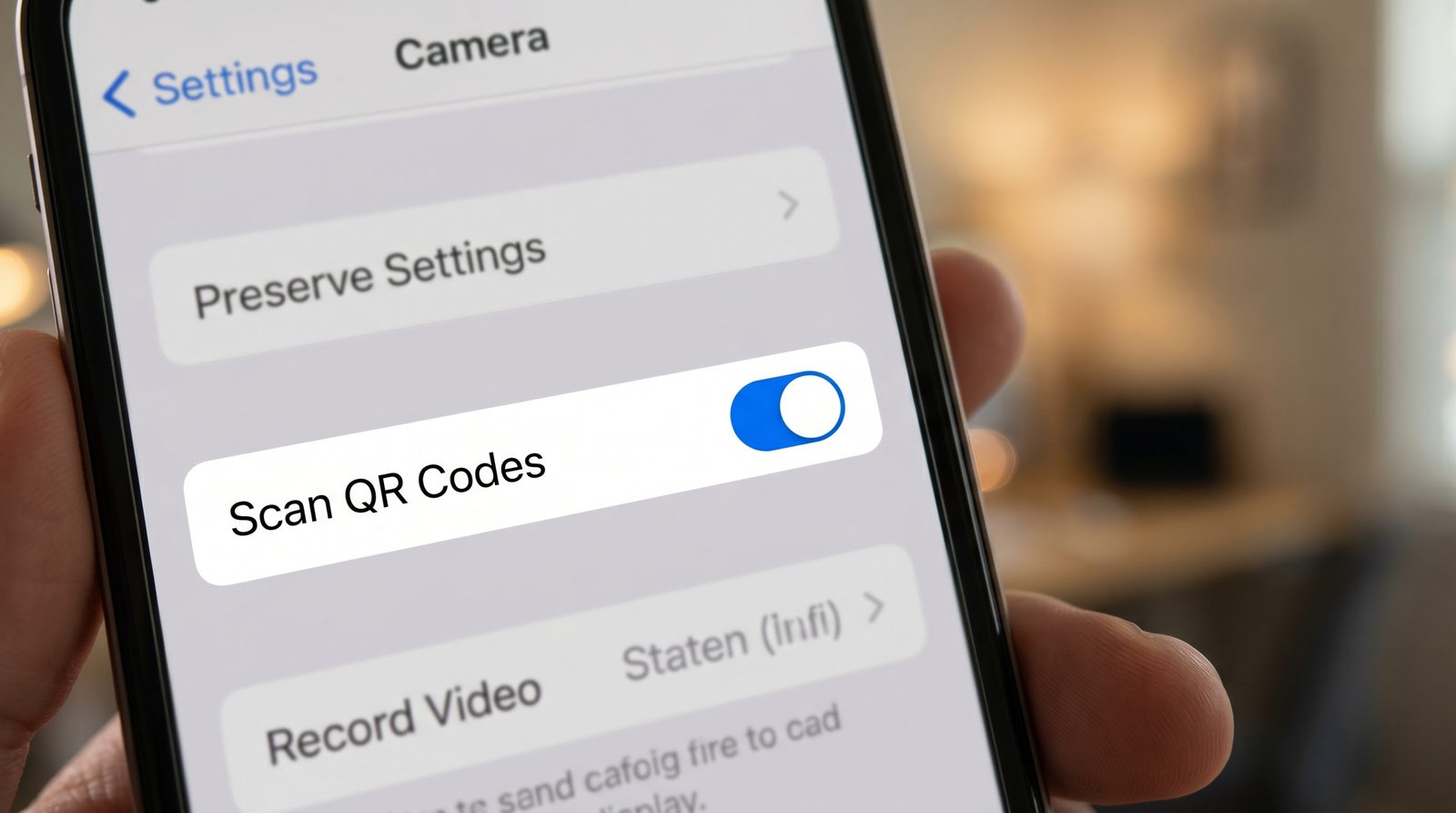
QR scanning is built into most modern phones, but it might be turned off.
On iPhone: Go to Settings, then Camera, and check that "Scan QR Codes" is toggled on. This setting is enabled by default, but it can be disabled accidentally. On older iPhones (pre-iOS 11), the built-in camera does not support QR scanning. Use the Code Scanner from Control Center instead.
On Android: The setting location varies by manufacturer. On Samsung, go to Settings, then Camera, then "Scan QR codes." On Pixel, open the camera and check that Google Lens suggestions are enabled. On other brands, search your settings for "QR" or "scan." If your Android version is older than Android 9, you may need a dedicated scanner app from the Play Store.
Also check the basics: a dirty lens, a cracked screen protector, or a phone case blocking the camera edge can all prevent a clean scan.
For a complete walkthrough of scanning on every device, see How to Scan a QR Code.
Lighting and environment
Your phone and settings might be fine, but the environment is working against you.
Too dark. The camera needs enough light to read the pattern. In dim environments, turn on your phone's flashlight (most camera apps let you toggle the flash while scanning).
Glare. Glossy surfaces like laminated menus, glass displays, or screen reflections can bounce light directly into the camera lens. Tilt your phone slightly, about 15 degrees, to reduce the glare without losing focus on the code.
Distance. Hold your phone 15 to 25 cm (6 to 10 inches) away from the code. Too close and the camera cannot focus. Too far and the pattern is too small to resolve.
App or OS issues
If the settings are correct and the environment is fine, the problem may be software.
Restart the camera app. Close it completely and reopen it. On iPhone, swipe up from the app switcher. On Android, force-stop the Camera app in Settings.
Try a dedicated QR scanner app. If the built-in camera scanner is not working, download a QR scanner app from the App Store or Google Play. These apps use the same camera hardware but sometimes handle edge cases better. (Note: only use scanner apps from reputable developers. Phishing via fake QR codes, known as "quishing," rose 587% in 2024 according to Mordor Intelligence, so avoid scanner apps that request unnecessary permissions.)
Update your operating system. QR scanning bugs are fixed in OS updates. If you are running an older version of iOS or Android, the update may resolve the issue.
How to verify a QR code before printing
Every scanning problem is easier to prevent than to fix after 1,000 copies are in circulation. With retail QR code scans growing 43% year-over-year in 2023-2024 according to QR Code KIT, more codes are in circulation than ever, and a single broken code can affect thousands of scans. Run through this checklist before you approve any print job.
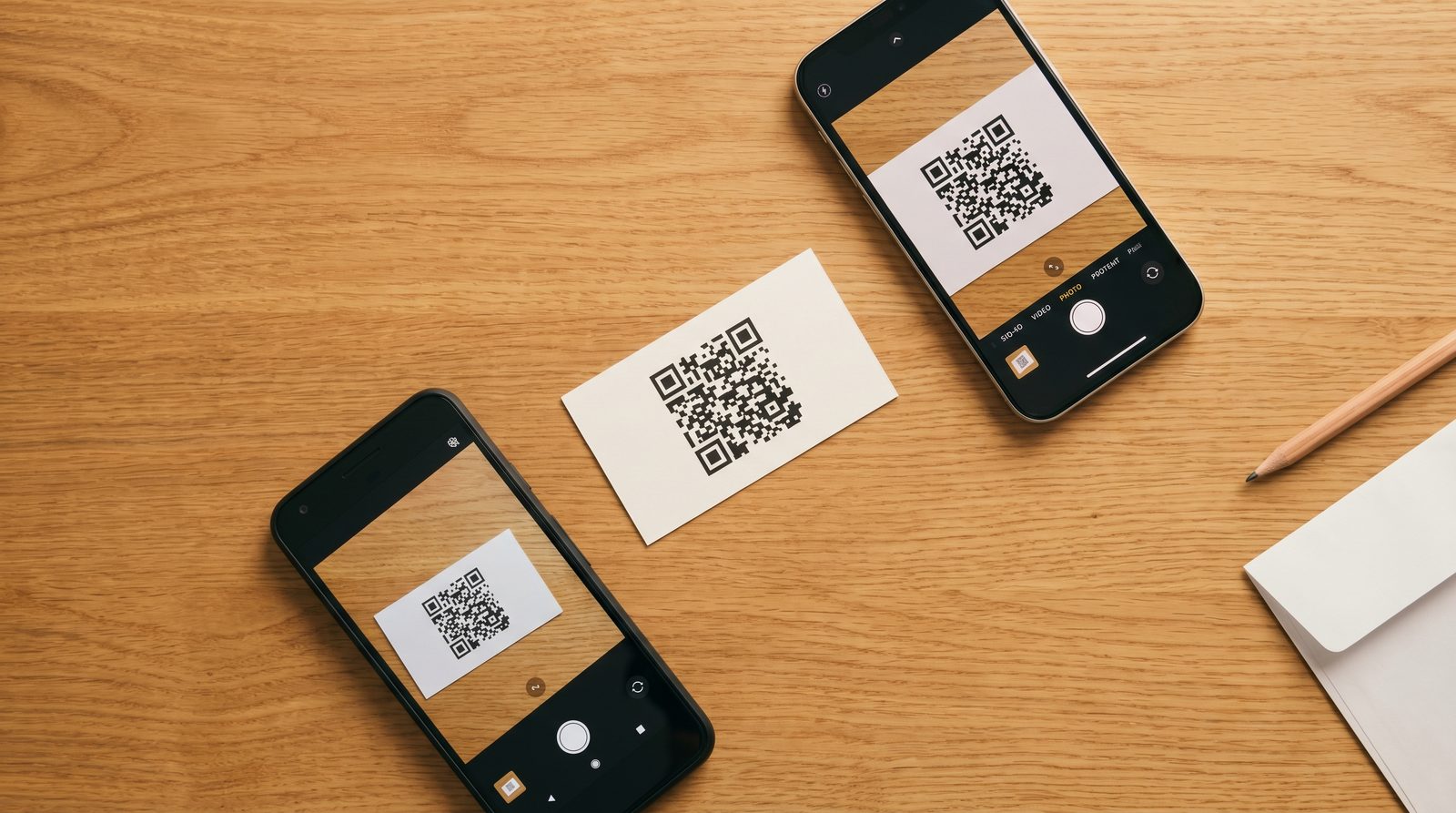
Scan on at least two different phones. Use one iPhone and one Android device. A code that scans on your iPhone may fail on an older Android phone with a lower-resolution camera.
Scan at the actual printed size. Print one test copy at full size. If the code is meant to go on a business card, test it at business card dimensions, not on a full-sheet printout.
Scan in realistic lighting. If the code will be displayed in a dimly lit restaurant, test it in dim lighting. If it will be on an outdoor sign, test it in sunlight where glare is possible.
Check that the destination URL loads correctly on mobile. Scan the code, wait for the page to load, and verify the content appears as expected on a phone screen. Desktop-optimized pages on mobile are a common disappointment after scanning.
Verify the redirect works (for dynamic codes). If you are using a dynamic QR code, confirm the redirect is active and pointing to the correct destination in your platform dashboard.
Export in the right format. Use SVG for print and high-resolution PNG (300+ DPI) for screen. Never scale up a low-resolution image.
Print format | Recommended export | Why |
|---|---|---|
Business cards, flyers | SVG (vector) | Scales to any size without pixelation |
Digital screens, email | PNG at 300+ DPI | Sharp modules at fixed display size |
Large banners, billboards | SVG or PDF (vector) | Maintains clarity at very large dimensions |
FAQ
Why is my QR code not scanning?
Start with the diagnostic test: scan a known-good QR code (product packaging works well). If that scans, the problem is the specific code, most likely a deactivated platform, a broken destination URL, or a size and print quality issue. If nothing scans, the issue is your phone's camera settings or environment.
Can QR codes expire?
Yes. Dynamic QR codes controlled by a platform can be deactivated when trials end, scan caps are reached, or subscriptions lapse. Static QR codes do not expire because the data is encoded directly in the pattern. The redirect, not the code itself, is what "expires." See Do QR Codes Expire? for the full explanation.
How small can a QR code be?
The minimum recommended size is 2 x 2 cm (0.8 x 0.8 inches) for codes scanned at arm's length. For distance scanning, divide the expected scanning distance by 10 to get the minimum code width. A code on a poster viewed from 3 meters needs to be at least 30 cm wide.
Can a damaged QR code still work?
Yes. QR codes have built-in error correction that compensates for damage, dirt, or partial obstruction. At the highest correction level (Level H), up to 30% of the code can be destroyed and it will still scan. Below that threshold, the code works. Above it, the code fails. Learn more in QR Code Error Correction.
Why did my QR code stop working after a few days?
Almost certainly a platform trial expiration. Many QR code generators offer a "free" trial of 7 to 14 days. Codes created during the trial are deactivated when it ends. If you printed those codes, the only options are reactivating through a paid subscription or creating new codes on a platform that does not expire free-plan codes.
If your QR code is not working, the fix is usually simpler than you think. Most problems trace back to the platform, not the code. If you want codes that stay active without scan limits or trial deadlines, FreeQR's free plan keeps every code live permanently.
Written by Andy Lee, QR Technology Specialist at FreeQR. FreeQR helps people create dynamic QR codes with built-in landing pages and scan analytics. Learn more about us.