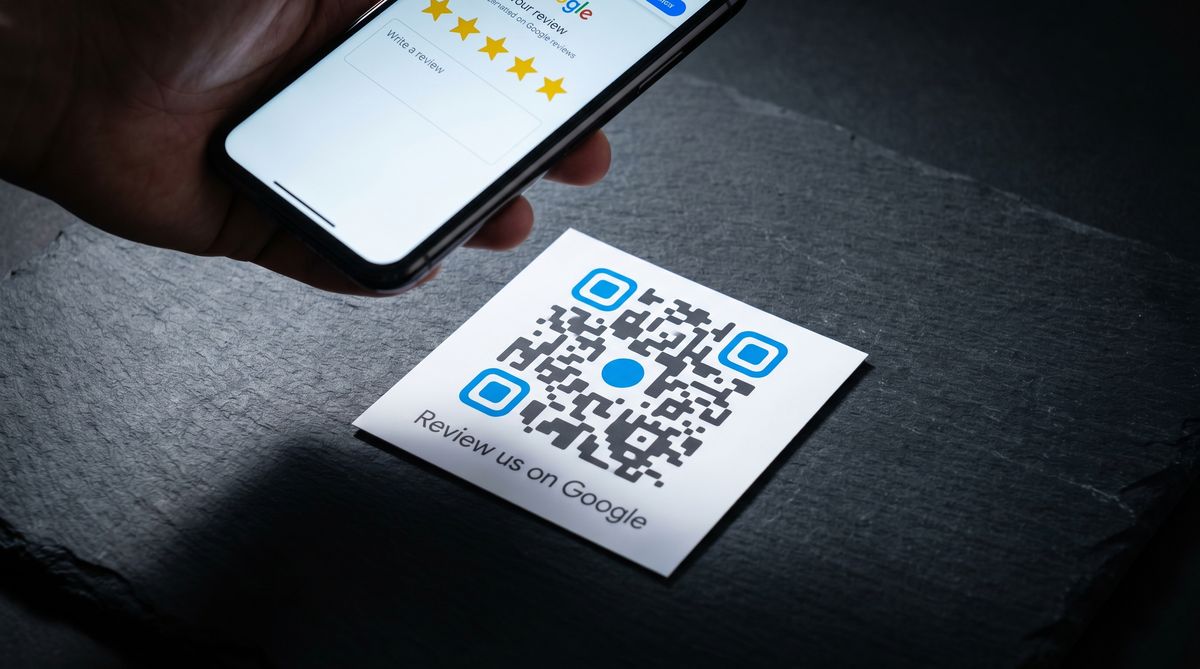
Google Review QR Code: How to Create One for Your Business
Create a Google review QR code that takes customers straight to the review form. FreeQR walks you through two methods, placement ideas, and common mistakes.
"Find us on Google and leave a review." That sentence sounds simple, but it asks a customer to open their browser, search for your business name, find the right listing, scroll to the review section, click the star rating, and then type something. Most people intend to leave a review but never follow through because every extra step is a chance to get distracted or forget.
A Google review QR code removes all of those steps. The customer scans with their phone, the review form opens, and the only thing left is typing their thoughts. The gap between "I had a good experience" and "review submitted" shrinks to seconds.
Key takeaways
A Google review QR code links directly to your Google Business Profile review form, cutting the process to a single scan.
Google now offers a built-in QR code in your Business Profile dashboard (desktop only), or you can create a custom, trackable one with a QR code generator.
Dynamic QR codes let you update the destination URL without reprinting if Google changes the link format.
Where you place the code matters as much as creating it. Receipts, table tents, packaging inserts, and follow-up cards are the highest-performing locations.
What is a Google review QR code?
A Google review QR code is a scannable code that links directly to a Google Business Profile review page, opening the review form on a customer's phone with a single scan. No searching, no navigating, no finding the right listing. The customer points their camera at the code, and the review form appears.
If you're new to QR codes in general, see What Is a QR Code? for a quick primer on how they work.
Google introduced a built-in QR code feature inside Google Business Profile in 2025. You can download it directly from your dashboard. You can also create a custom QR code for Google reviews using any QR code generator by pasting your review link as the destination URL.
Both approaches produce a scannable code that drops the customer straight into the review form. The difference is in what happens after: whether you can track scans, customize the design, or update the link later.
Feature | Google's built-in QR code | Custom QR code (e.g., FreeQR) |
|---|---|---|
Cost | Free | Free (most generators offer free plans) |
Customization | None (black and white only) | Brand colors, logo, CTA frame |
Scan tracking | No | Yes (scan count, time, location) |
Editable URL | No (static) | Yes (dynamic, update without reprinting) |
Works on mobile | Desktop browser only | Any device |
Multi-location support | One code per profile | Separate trackable codes per location |
Why Google reviews matter for local businesses
Reviews aren't a vanity metric. They directly affect whether customers find you and whether they choose you over a competitor.
According to the BrightLocal 2024 Local Consumer Review Survey, 76% of consumers regularly read online reviews when browsing for local businesses. That number has held steady for several years. Reviews aren't a trend. They're how people make decisions.
Google's local pack (the map and three business listings at the top of local searches) weighs proximity, relevance, and prominence. Reviews are a core part of prominence. More reviews and higher ratings mean appearing more often in that pack, which is where most local clicks happen.
Star rating affects behavior too. The same BrightLocal survey found that only 3% of consumers would consider using a business with an average rating of 2 stars or fewer. Businesses below 4.0 stars lose clicks. One star can be the difference between a phone call and a scroll-past.
Recency counts as well. A business that received 30 reviews over the past month looks different from one that collected 30 reviews over the past three years. Google's algorithm and potential customers both notice the difference.
Research from Podium shows that 77% of consumers say they'd be willing to leave a review if asked. Most happy customers don't need convincing. They need fewer steps between the intention and the action. A QR code for Google reviews removes those steps.
How to create a Google review QR code
There are two ways to get a Google review QR code. The first uses Google's own built-in feature. The second uses a QR code generator, which gives you more control over design, tracking, and long-term reliability.
Method 1: use Google Business Profile's built-in QR code
Google added a QR code feature directly inside the Business Profile dashboard. Here's how to access it, based on Google's official support documentation:
Open a desktop browser and go to business.google.com.
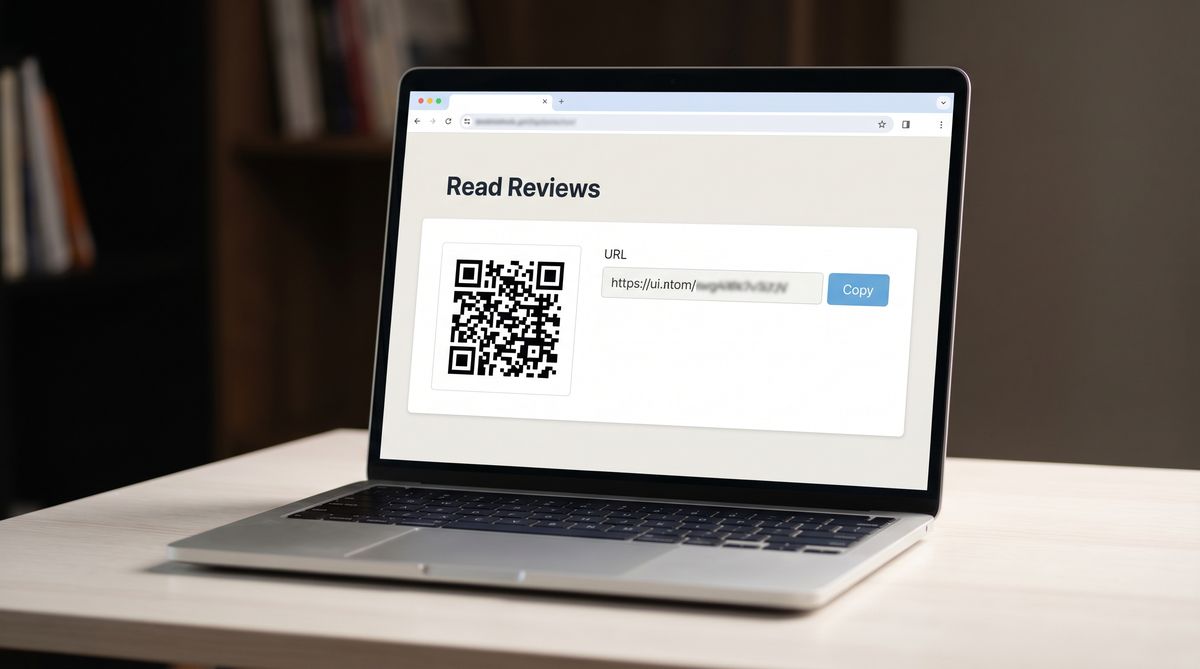
Select Read Reviews from your Business Profile dashboard.
You'll see a shareable review link and a QR code on the same page.
To copy the review link, click Copy.
To download the QR code, right-click the QR code image and select Save image as.
This is the fastest way to get a Google business review QR code. No third-party tools, no account creation, no cost.
Limitations to know about:
Desktop only. Google's QR code can only be generated from a desktop browser. You can't access it on mobile devices.
No customization. The QR code is plain black and white. No brand colors, no logo, no call-to-action frame.
No scan tracking. You won't know how many people scanned the code, when they scanned it, or where.
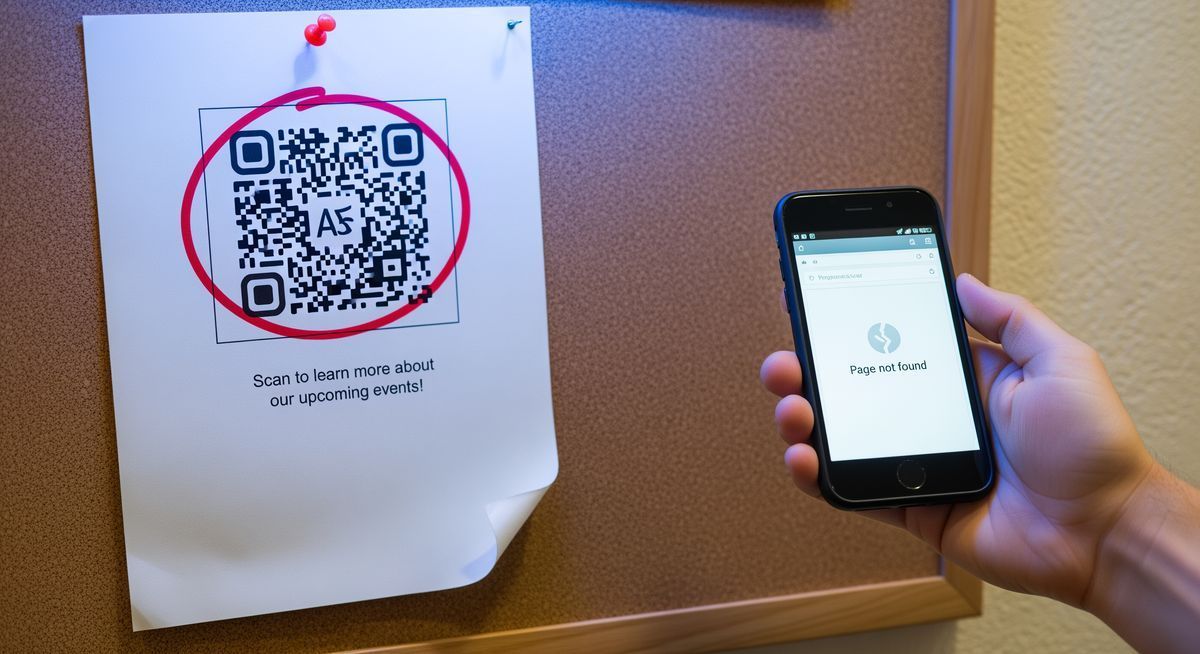
Static code. If Google changes the review URL format in the future, the printed code could stop working. You'd need to generate and reprint a new one.
Method 2: create a custom QR code with FreeQR
If you want tracking, custom design, or the ability to update the destination URL without reprinting, create your QR code with a generator. Here's how to do it with FreeQR:
Get your Google review link. Follow steps 1 through 4 in Method 1 above to copy your review link from Google Business Profile.
Go to the FreeQR dashboard at freeqr.com and create a new QR code.
Select "Link to Website" as the QR code type.
Paste your Google review link as the destination URL.
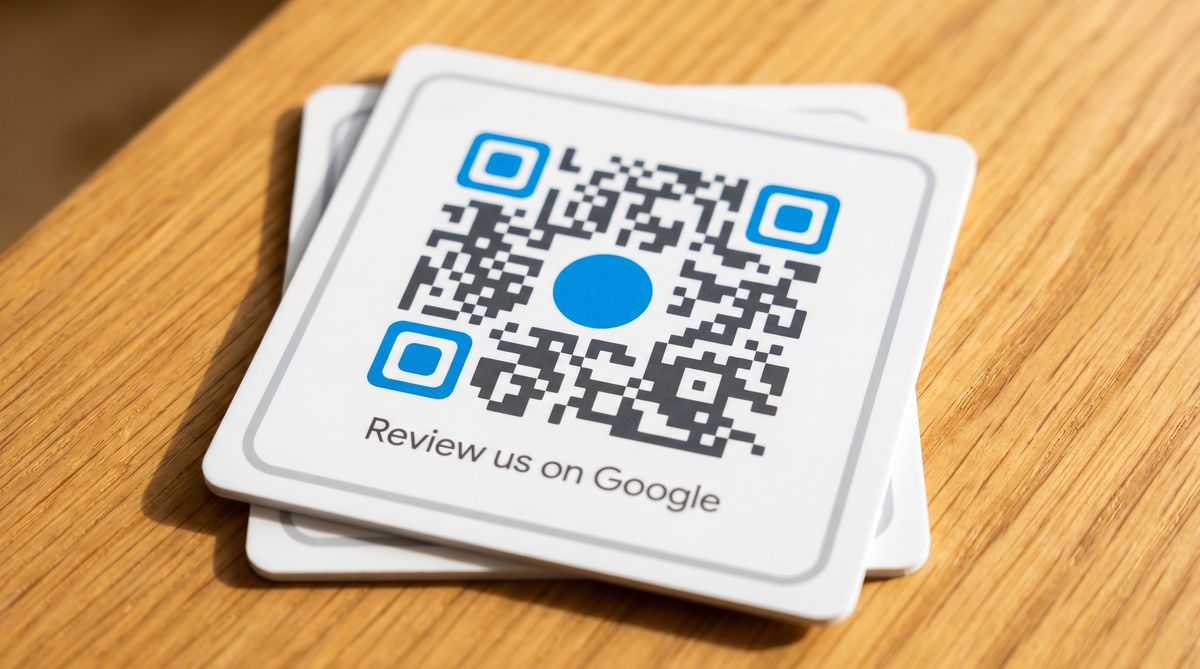
Customize the design. Add your brand colors, upload your logo, and choose a frame with call-to-action text like "Review us on Google."
Download and print. Export as SVG for print materials or high-resolution PNG for digital use.
For a step-by-step walkthrough of creating a Link to Website QR code, see our help center guide [our help center guide].
Why this method is better for most businesses:
Changeable. If Google updates the review URL format, you update the destination in FreeQR without reprinting anything. This is the core advantage of a dynamic QR code.
Trackable. See how many people scanned, when they scanned, and from which location. This tells you which placements are actually working.
Customizable. A branded QR code with a clear "Review us on Google" frame gets scanned more than a plain black-and-white square with no context.
FreeQR's free plan includes dynamic QR codes with scan analytics, so you get tracking without paying.
Where to put your Google review QR code
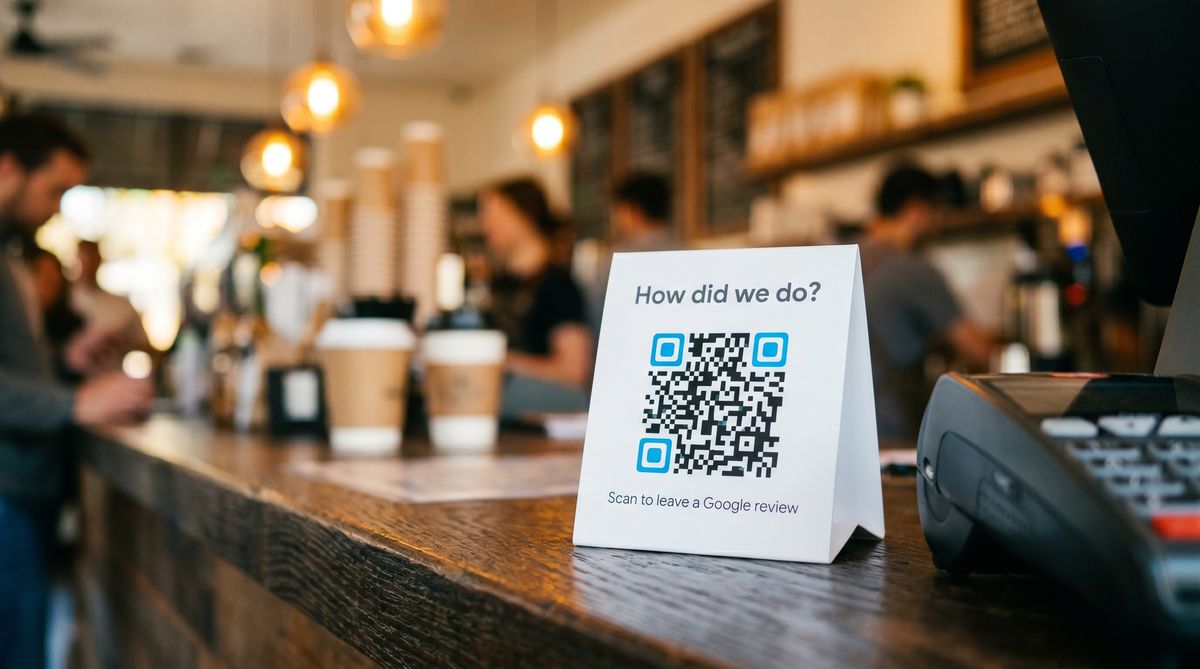
Creating the code is half the job. Placing it where customers actually see it (and scan it) is the other half. Here are ten placements that work well, roughly ordered from highest to lowest scan rates.
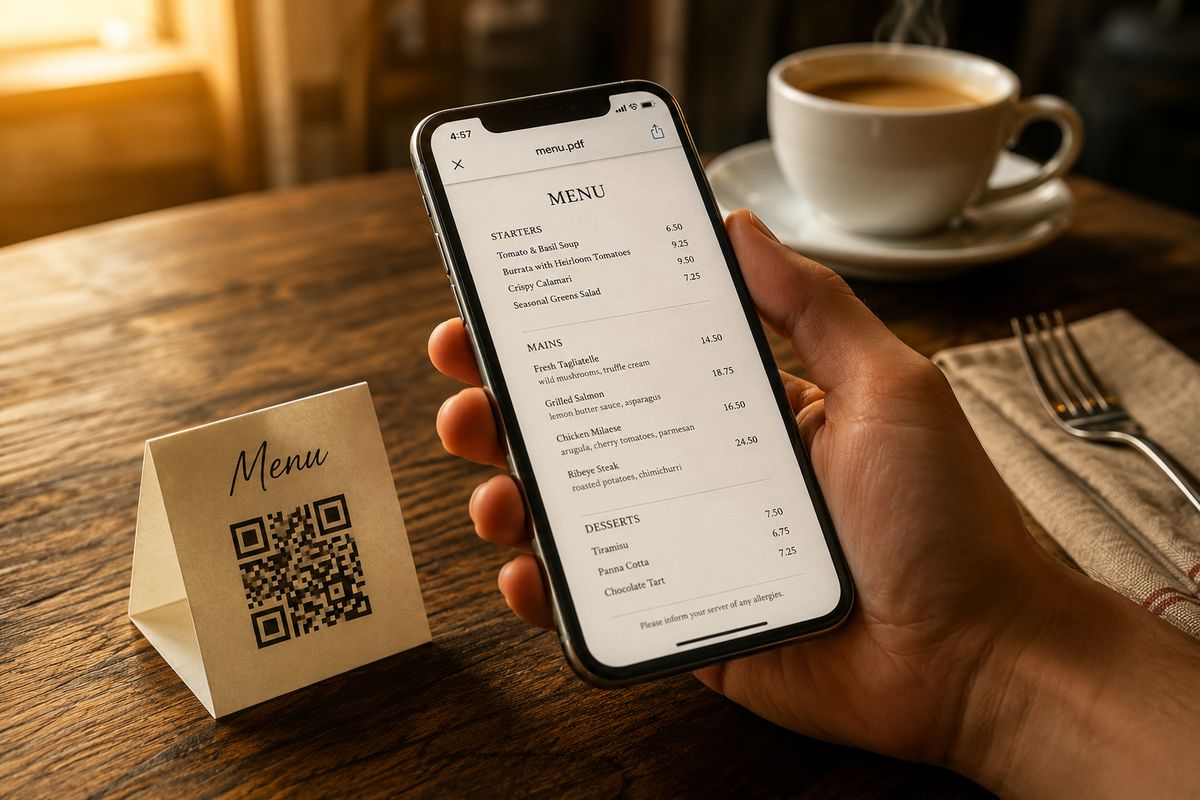
Table tents and counter stands. Place a small sign next to the register or on dining tables. This catches customers at the moment of purchase or right after a meal, when satisfaction is highest. Tip: pair the QR code with a short prompt like "How did we do? Scan to leave a review."
Receipts and invoices. Print the QR code directly on the receipt. Customers already look at the receipt, so the code gets seen without extra effort. Works especially well for service businesses that email invoices.
Follow-up thank-you cards. Include a Google review QR code on a card that goes into the bag, box, or package. A handwritten "thanks" next to a QR code feels personal, not transactional.
Packaging inserts. For product businesses, a card inside the box with a QR code catches the customer during the unboxing moment. This is when excitement about the product is highest.
Business cards. Add the review QR code to the back of your business card. The front handles contact information. The back earns you a review.
Window stickers and door signs. A Google review QR code sign on your front door or window reaches every person who walks in. Use weather-resistant material for outdoor placement. Tip: minimum size of 2 x 2 cm at arm's length, per the ISO/IEC 18004 standard, but for a door sign scanned from one meter away, 10 x 10 cm is more reliable.
Menus and menu inserts. Restaurants, cafes, and bars can add a small QR code to the bottom of the menu or on a separate table insert. Place it near the bottom so it doesn't compete with the food.
Email signatures. Add a small QR code image or a "Review us on Google" link to your email signature. Every email you send becomes a passive review request.
Social media posts. Share your Google review QR code as a post or story on Instagram, Facebook, or LinkedIn. Include the QR code image and a direct link for people who can't scan from a screen. For details on how scanning from images works, see How to Scan a QR Code.
Service completion screens or follow-ups. If your business has a digital checkout or appointment system, display the QR code on the confirmation screen or send it in the follow-up email.
The common thread: put the code where someone's positive experience is still fresh. A card in the bag right after purchase works. An email three days later, less so.
Free vs paid QR code generators for Google reviews
Not all QR code generators work the same way. The differences matter when you're printing something that has to work for months.
Key distinction: A static QR code embeds the URL directly in the code pattern. Once printed, the destination cannot be changed. A dynamic QR code points to a short redirect URL controlled by the generator, allowing you to change the destination anytime without reprinting the code.
What a free static QR code gets you:
A QR code that encodes your Google review URL directly into the pattern
No scan tracking
No design customization beyond basic black and white
No ability to change the URL after printing (if Google changes the format, you reprint everything)
What a freemium or paid generator adds:
Dynamic codes. The QR code points to a short redirect URL. You can change the destination anytime without reprinting.
Scan analytics. See how many scans, when, and from where.
Custom design. Brand colors, logo, call-to-action frames.
Bulk codes. If you have multiple locations, generate a unique Google review QR code for each one and track them separately.
FreeQR's free plan includes dynamic QR codes with scan analytics, so you get tracking without paying. For a Google review QR code specifically, the free plan covers everything most single-location businesses need.
If you're comparing Google review QR code generators, ask three questions: Does the free plan actually create dynamic codes? Are there scan limits or expiration dates? Can you add your logo and brand colors? The answers tell you whether a generator will serve you long-term or lock you in later.
Common mistakes that reduce scans
A QR code is only useful if people scan it. These five mistakes are the most common reasons a Google review QR code underperforms.
No call to action. A QR code by itself is just a square. People need to know what it does. Always include text like "Scan to leave a Google review" or "How did we do?" next to the code.
Code is too small. The minimum scannable size is 2 x 2 cm at arm's length (ISO/IEC 18004). For codes on posters, signs, or anything scanned from more than arm's length, use the 10:1 rule: scanning distance divided by 10 equals the minimum code width.
Using a static code when the review link could change. Google has changed URL formats in the past. If your QR code is static and the link format changes, every printed code breaks. A dynamic code lets you update the destination without reprinting.
Offering incentives for reviews. This is explicitly prohibited by Google's review policies. Offering discounts, freebies, or any reward in exchange for a review can result in Google removing the reviews and potentially penalizing your listing. Ask for reviews. Do not buy them.
Printing without scanning first. Always scan your QR code on at least two different phones (one iPhone, one Android) at the actual printed size before sending anything to the printer. A code that works on screen can fail on paper if it's too small or the resolution is too low.
FAQ
How do I create a QR code for Google reviews?
There are two ways. First, open your Google Business Profile on a desktop browser, select "Read Reviews," and download the built-in QR code. Second, copy your Google review link from that same page and paste it into a QR code generator like FreeQR, which gives you a customizable, trackable dynamic code. Both methods produce a code that opens the review form when scanned.
Is there a free Google review QR code generator?
Yes. Google's own Business Profile dashboard provides a free QR code, though it is static and offers no tracking or customization. For a free Google review QR code with scan analytics and custom design, FreeQR's free plan creates dynamic QR codes at no cost, with no scan limits or expiration dates.
Can I track how many people scan my Google review QR code?
Only if you use a dynamic QR code from a generator that includes analytics. Google's built-in QR code does not track scans. With a tool like FreeQR, you can see the total number of scans, the time and date of each scan, and the general location. This helps you figure out which placements are working and which are not.
Does Google Business Profile have a built-in QR code?
Yes. Google added this feature in 2025. You can find it by logging into your Business Profile at business.google.com on a desktop browser and selecting "Read Reviews." The QR code appears alongside your shareable review link. It is a basic black-and-white code with no customization or tracking.
What size should a Google review QR code be for printing?
The minimum recommended size is 2 x 2 cm (about 0.8 x 0.8 inches) for codes scanned at arm's length, based on the ISO/IEC 18004 standard. For signs, posters, or any material scanned from a distance, divide the expected scanning distance by 10. A code on a poster meant to be read from 2 meters away should be at least 20 cm wide. Always export as SVG for print to avoid resolution issues.
Written by Andy Lee, QR Technology Specialist at FreeQR. FreeQR helps people create dynamic QR codes with built-in landing pages and scan analytics. Learn more about us.