How to Scan a QR Code: Step-by-Step for Every Device
Learn how to scan a QR code on iPhone, Android, or from a screenshot. Simple step-by-step instructions for every device, plus fixes when it won't work.
How to Scan Any QR Code in 5 Seconds, on Any Device.
Open FreeQR's web scanner in any browser, point your camera at the code or drop in a screenshot, and the link is yours.
Key takeaways:
iPhone: Open Camera, point at the code, tap the yellow banner. Done.
Android: Open Camera, point at the code, tap the popup link. If nothing happens, use Google Lens.
Screenshot or image? Use Google Lens (Android), long-press in Photos (iPhone iOS 16+), or upload to FreeQR's free web scanner.
Won't scan? Hold 15-30 cm away, improve lighting, clean your lens.
How to Scan a QR Code on iPhone
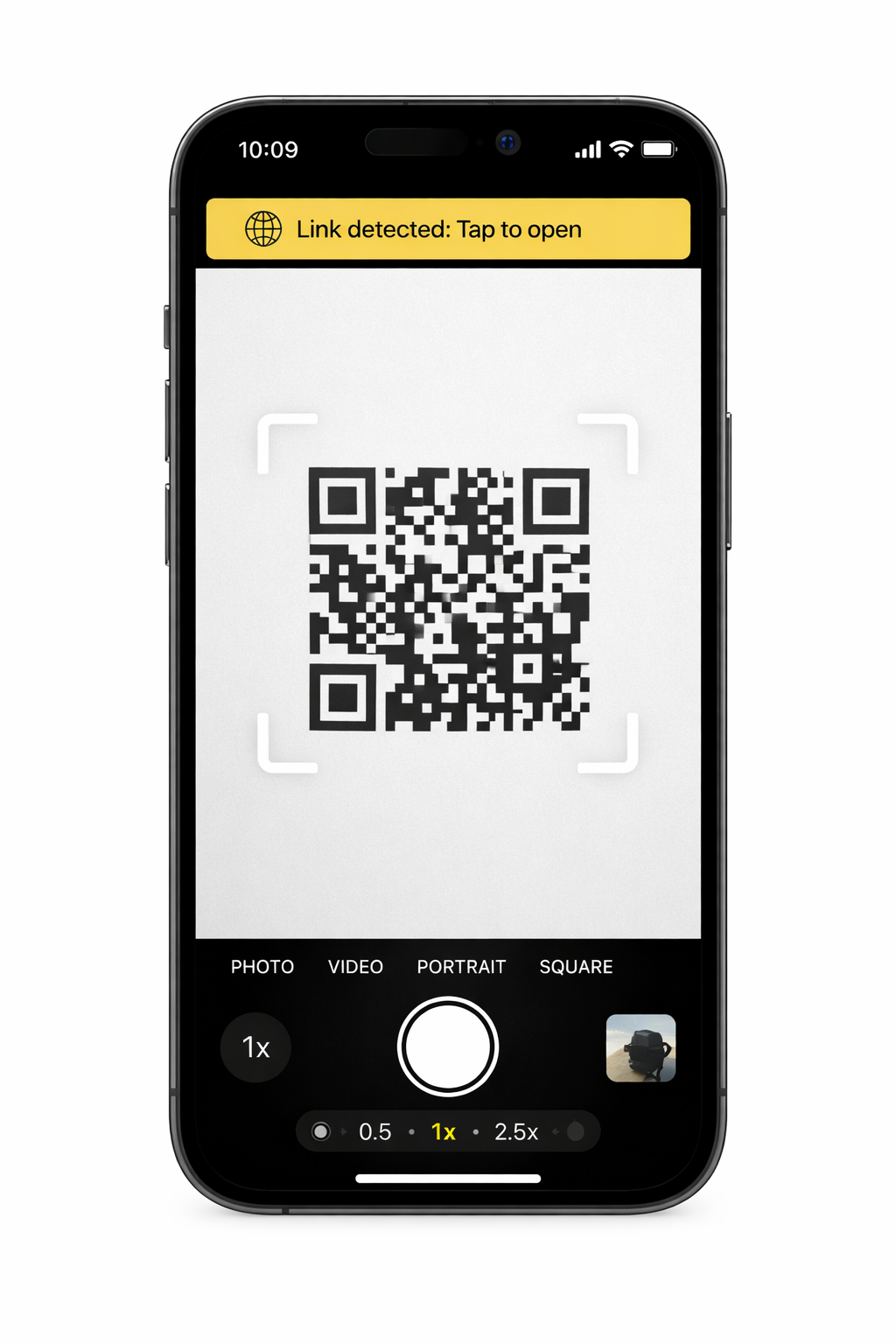
Open your Camera app and point it at the QR code. A banner appears at the top of the screen. Tap it. That's it. Apple added native QR scanning in iOS 11 (September 2017), so every iPhone from the 5s onward supports this.
Open the Camera app (the default one, not a third-party camera).
Hold your phone so the QR code is visible in the viewfinder. You don't need to take a photo.
A yellow banner appears at the top. Tap it to open the link.
Camera not detecting it? Open Control Center (swipe down from top-right), tap the Code Scanner icon, and point at the code. If you don't see it, add it through Settings > Control Center. You can verify scanning is enabled at Settings > Camera > Scan QR Codes.
For device-specific details including Live Text and iOS version differences, see our iPhone and Android scanning guide.
How to Scan a QR Code on Android
Open your Camera app, point it at the QR code, and tap the link that appears. Native QR scanning works on most Android phones running Android 9 or later (released August 2018).
Open the Camera app.
Point it at the QR code. Hold steady for a second.
A link or popup appears on screen. Tap to open.
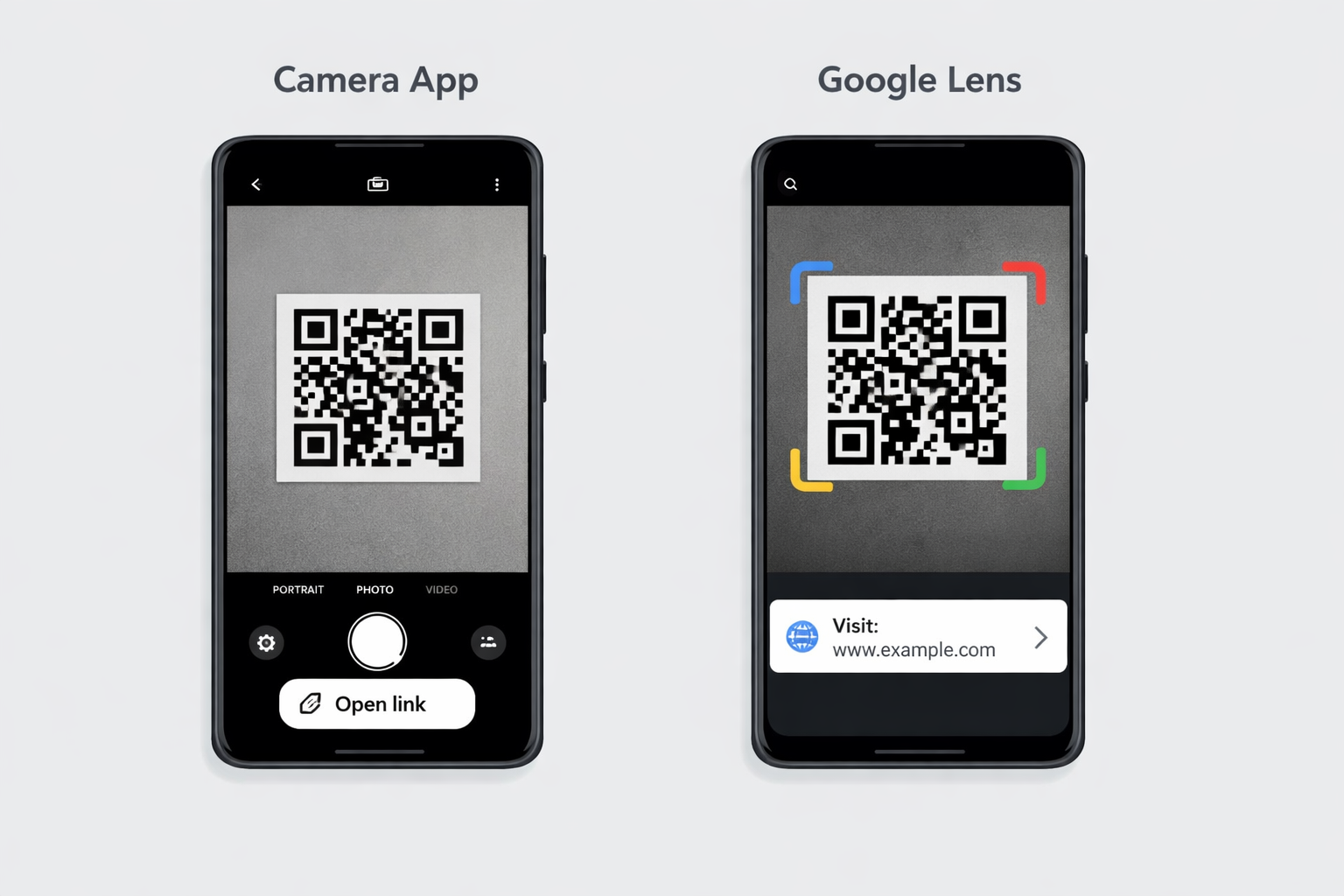
Camera not detecting it? Open Google Lens (through the Google app or the Lens icon in your camera). Point at the code and tap the link. Google Lens is built into most Android phones and handles QR codes reliably.
Samsung Galaxy? Swipe down twice to open Quick Settings, tap the Scan QR code tile. If you don't see it, tap the edit icon to add it.
Scanning Method Comparison
Method | Works on | Best for | Scans from photo? |
|---|---|---|---|
Camera app | iPhone (iOS 11+), most Android (9+) | Physical QR codes in front of you | No |
Code Scanner | iPhone (iOS 11+, via Control Center) | When Camera app fails to detect | No |
Google Lens | Android, iPhone (via Google app) | Physical codes and saved images | Yes |
Photos long-press | iPhone (iOS 16+, XS and later) | Screenshots and saved images | Yes |
Samsung Quick Tile | Samsung Galaxy (Android 9+) | Quick access shortcut | No |
Any device with a browser | Screenshots, saved images, older phones | Yes |
How to Scan a QR Code from a Screenshot
You don't need a second device. You can scan a QR code from a screenshot or saved image directly on your phone.
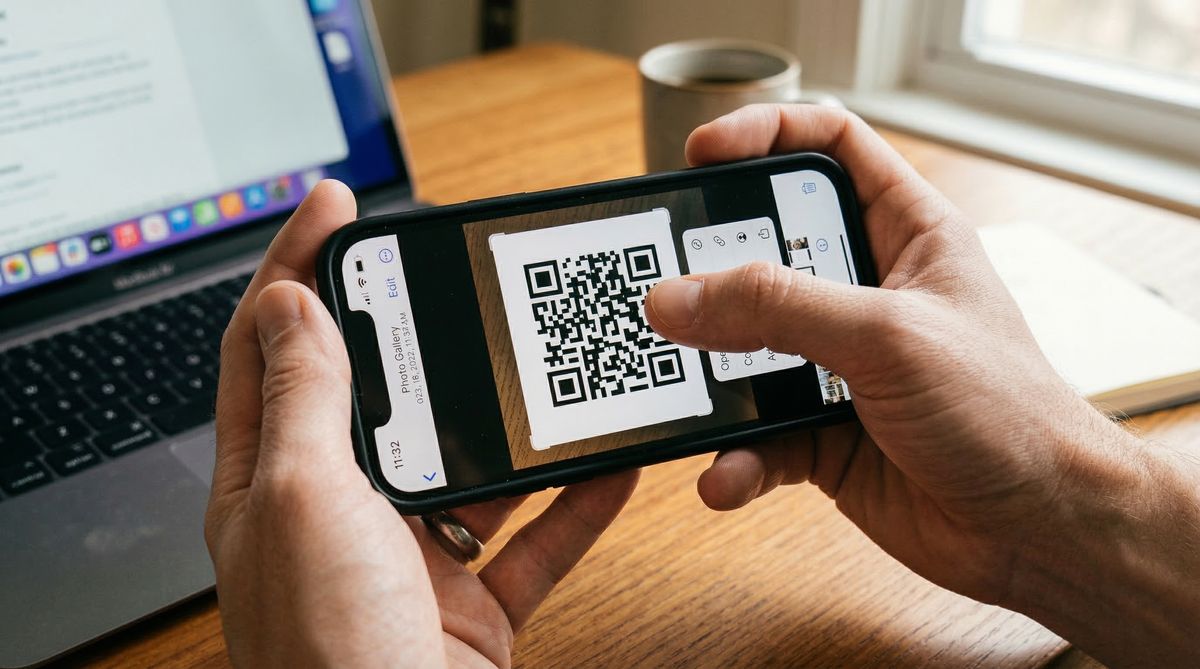
If the QR code is on your screen right now, screenshot it first: Power + Volume Down (Android) or Side Button + Volume Up (iPhone). Then:
On Android: Open the image in Google Photos, tap the Google Lens icon. Lens detects the QR code and shows the link.
On iPhone (iOS 16+): Open the screenshot in Photos, tap and hold on the QR code. A menu appears with Open in Safari.
On any device: Open FreeQR's web scanner in your browser, upload the image, and it reads the code instantly. No app needed.
What If Your Camera Won't Scan?
The most common causes are distance, lighting, a dirty lens, or a damaged code.
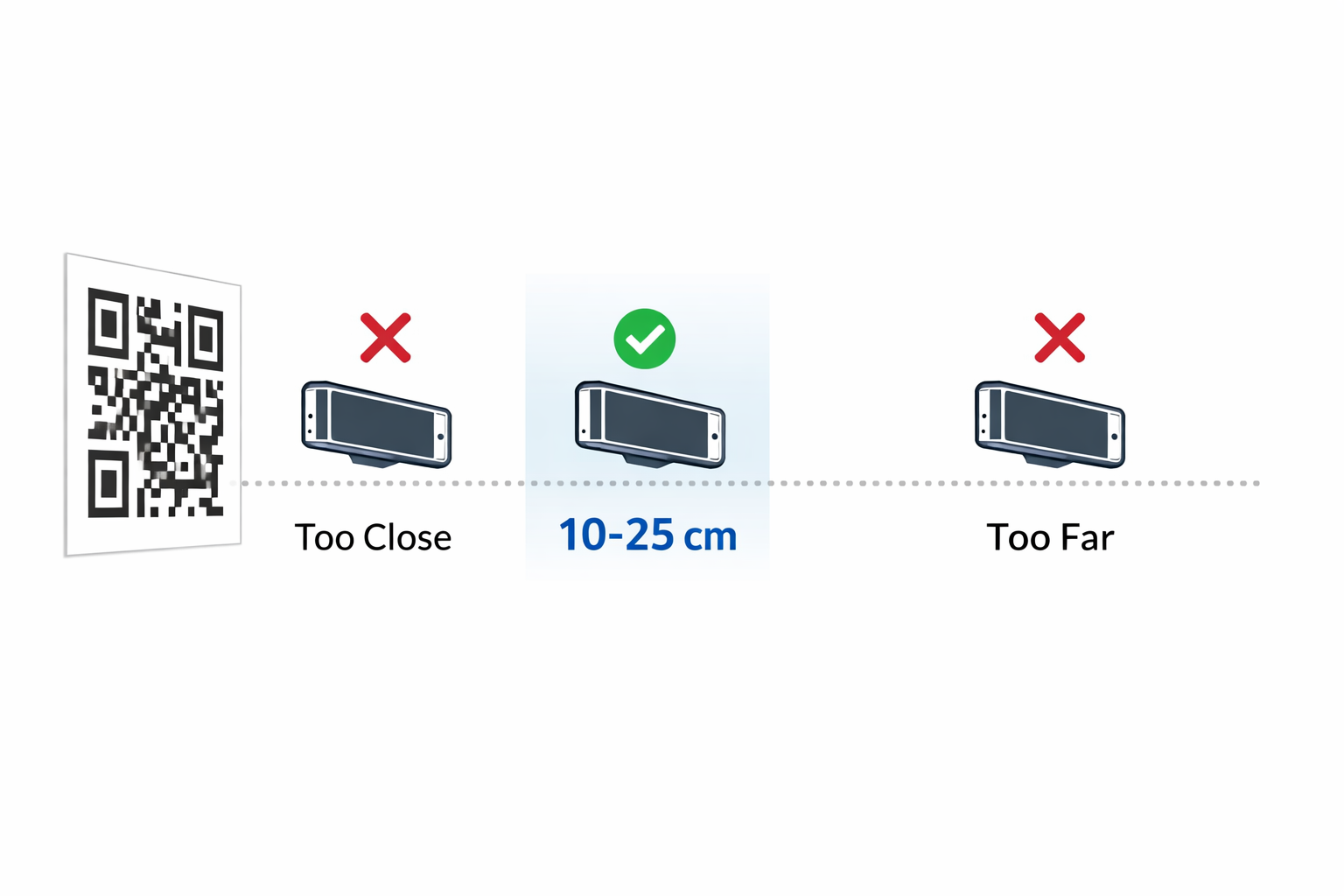
Check your distance. Hold your phone 6 to 12 inches (15 to 30 cm) from the QR code. Too close and the camera can't focus. Too far and the code is too small to read. A useful rule of thumb: the scanning distance should be no more than 10 times the width of the QR code. A 1-inch (2.5 cm) code, for example, needs to be scanned from 10 inches (25 cm) or closer.
Improve the lighting. QR codes need enough contrast between the dark and light areas. If you're in dim light, turn on a nearby light or use another phone's flashlight to illuminate the code.
Clean your camera lens. A smudged or fingerprinted lens is one of the most common (and most overlooked) reasons scanning fails. Wipe it with a soft cloth.
Check for damage or low contrast. If the QR code is faded, partially torn, or printed with low contrast (light gray on white, for example), the scanner may struggle. QR codes use Reed-Solomon error correction that can recover from some damage — up to 7% at Level L and up to 30% at Level H, according to the ISO/IEC 18004 standard. But severe wear or very low contrast exceeds those thresholds and makes the code unreadable.
Try Google Lens or a web-based scanner. If your default Camera app consistently fails, Google Lens tends to be more forgiving. On iPhone, the Code Scanner in Control Center is often more sensitive than the regular Camera app. You can also use FreeQR's web scanner from any browser — upload a photo or screenshot of the code and it decodes it instantly.
Quick Troubleshooting Reference
Problem | Fix |
|---|---|
Camera doesn't detect the code | Hold phone 6-12 inches (15-30 cm) away |
Code won't focus | Move further back, clean the lens |
Nothing happens when scanning | Check Settings > Camera > Scan QR Codes (iPhone) |
Code is too faded or damaged | Try Google Lens or FreeQR's web scanner |
Dim lighting | Use another phone's flashlight to illuminate the code |
What Happens After You Scan a QR Code?
Your phone decodes the pattern of black and white squares and takes the appropriate action, usually opening a link in your browser. The entire process takes less than a second. Your phone's camera captures the image, uses the three large square finder patterns in the corners to determine orientation, reads the encoded data modules, applies error correction, and routes the result to the right app.
But QR codes can trigger other actions too: adding a contact to your phone, connecting to Wi-Fi, opening an app, or displaying plain text. For a full explanation of how QR codes store and encode data, see our guide on what a QR code is and how it works.
Some QR codes lead to dedicated landing pages built for mobile visitors, with menus, contact details, links, and more. These are created with dynamic QR codes, which can be updated after printing and track every scan.
Frequently Asked Questions
Do I need an app to scan a QR code?
No. Every iPhone running iOS 11 or later (released September 2017) and most Android phones running Android 9 or later (released August 2018) can scan QR codes using the built-in Camera app. No separate download is needed. Virtually all smartphones sold since 2019 include native QR scanning. For a deeper look at why scanner apps still exist and the problems they can cause, see do you need a QR code scanner app.
Where is the QR code scanner on my phone?
On iPhone, it's in the Camera app. Just open Camera and point it at the code. You can also add Code Scanner to your Control Center through Settings. On Android, open the Camera app or use Google Lens through the Google app.
Can I scan a QR code from a photo or screenshot?
Yes. On Android, open the image in Google Photos and tap the Google Lens icon. On iPhone running iOS 16 or later, open the image in Photos and long-press the QR code. Both methods detect the code and give you the link without needing a second device.
Is it safe to scan QR codes?
Scanning a QR code itself is safe. The code simply contains data, usually a URL. The risk is the same as clicking any unknown link: the destination could be a phishing site or malicious download. Before tapping, check the URL that appears on screen. If it looks unfamiliar or suspicious, don't open it.
Why won't my phone scan a QR code?
The most common reasons are: holding the phone too close or too far (the ideal range is 6–12 inches / 15–30 cm), poor lighting, a dirty camera lens, or a damaged or low-contrast code. QR codes can tolerate some damage thanks to Reed-Solomon error correction (up to 30% at the highest level, per ISO/IEC 18004), but severe wear or glare will prevent scanning. Try Google Lens or the iPhone Code Scanner in Control Center, as they tend to be more sensitive than the default Camera app.
For a deeper look at how QR codes store data, what the different types are, and when you'd choose one kind over another, read our full guide: What Is a QR Code? The Complete Beginner's Guide.
Written by Andy Lee, QR Technology Specialist at FreeQR. FreeQR helps people create dynamic QR codes with built-in landing pages and scan analytics. Learn more about us.