How to Scan QR Codes on iPhone and Android (2026)
Learn how to scan a QR code on iPhone and Android using your built-in camera app. Step-by-step for every method on iOS 11+ and Android 9+. No app needed.
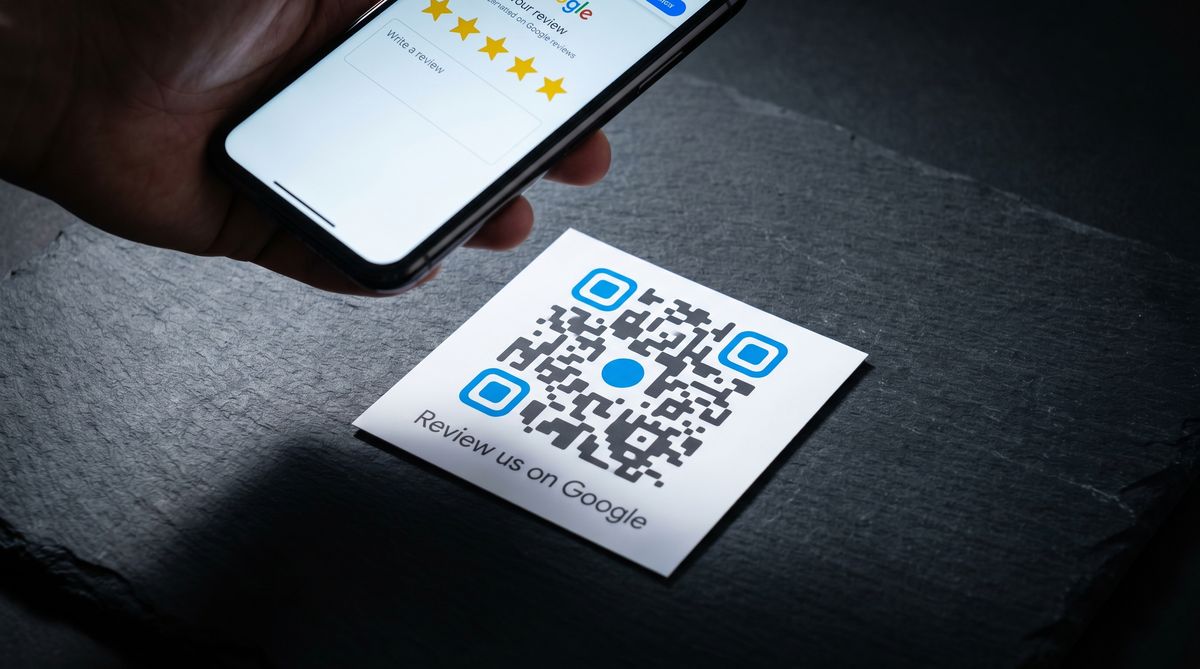
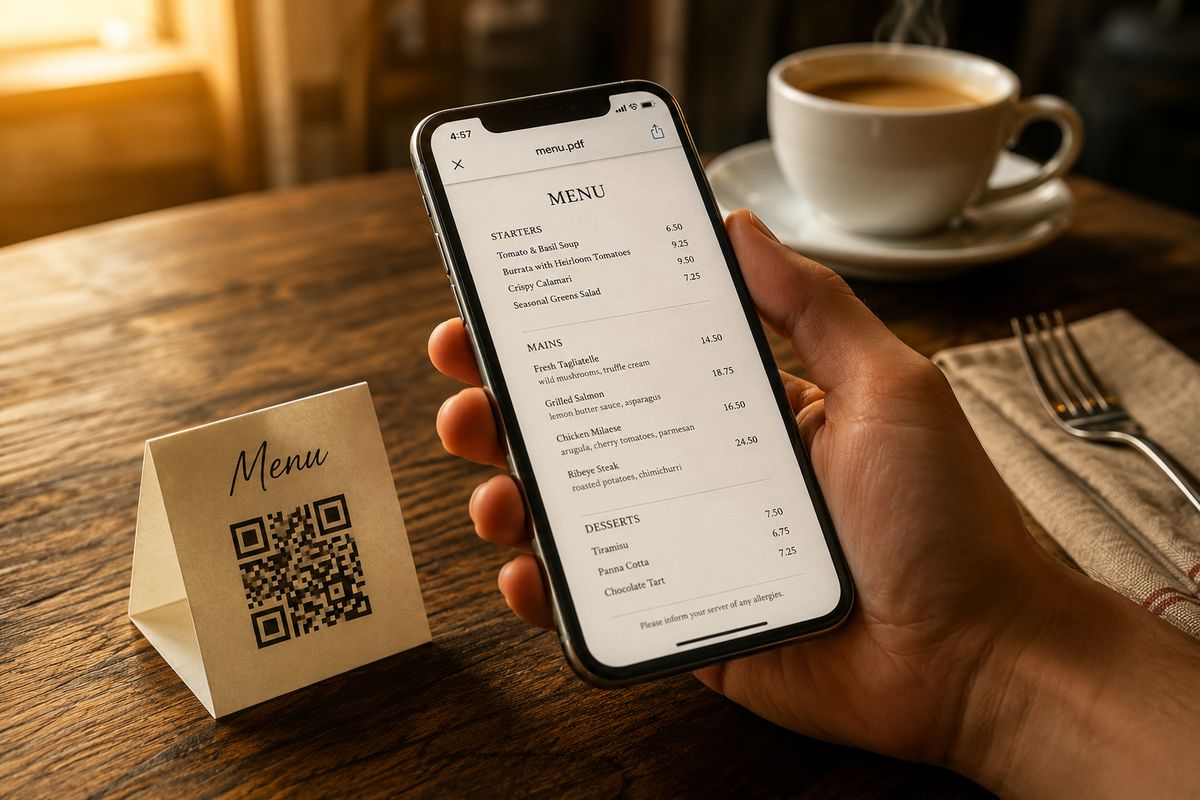
Every modern smartphone can scan a QR code without downloading anything. If you're wondering how to scan a QR code on iPhone or Android, the answer is simpler than most guides make it sound: open your Camera app, point it at the code, and tap the link that appears. That's it for most people.
But "most people" doesn't cover every situation. Maybe your camera isn't detecting the code. Maybe the QR code is a screenshot sitting in your photo gallery. Maybe you just got a new phone and the scanner feels different from your last one.
This guide covers every method on both platforms, with the specific settings paths and OS versions that actually matter. For a broader overview of scanning across all devices (including computers), see our complete QR code scanning guide.
Key takeaways:
Every iPhone since iOS 11 (2017) and most Android phones since Android 9 (2018) scan QR codes natively through the Camera app. No download needed.
iPhone offers three scanning methods: Camera app, Code Scanner in Control Center, and Live Text for screenshots.
Android offers four methods: Camera app, Google Lens, Quick Settings tile (Samsung), and Circle to Search (2024+ devices).
Apple reports that 96% of active iPhones run iOS 16 or later. Google's distribution data shows 93% of active Android devices run Android 9 or later.
If scanning fails, the cause is almost always distance, lighting, or a disabled settings toggle.
Feature | iPhone | Android |
|---|---|---|
Native scanning since | iOS 11 (September 2017) | Android 9 Pie (August 2018) |
Primary method | Camera app | Camera app |
Secondary method | Code Scanner (Control Center) | Google Lens |
Screenshot scanning | Live Text (iOS 16+) | Google Lens / Circle to Search |
Quick access shortcut | Control Center | Quick Settings tile (Samsung) |
Settings path | Settings > Camera > Scan QR Codes | Camera app > gear icon > Scan QR codes |
How to Scan a QR Code on iPhone

Apple added native QR code scanning to the iPhone Camera app in iOS 11, released September 2017. According to Apple's support data, 96% of active iPhones run iOS 16 or later. If your iPhone was made in the last eight years, it scans QR codes out of the box.
Using the Camera App (iOS 11+)
This is the method you'll use 95% of the time.
Open the Camera app (the built-in one, not a third-party camera).
Point your phone at the QR code. You don't need to take a photo.
A yellow banner appears at the top of the screen showing the link.
Tap the banner to open it in Safari.
The camera detects QR codes automatically. There's no special mode to activate and no button to press. Just point and wait about one second.
If the yellow banner doesn't appear, check that scanning is enabled: go to Settings > Camera > Scan QR Codes and make sure the toggle is on. It's enabled by default, but occasionally gets turned off during an iOS update or by accident.
Using Code Scanner in Control Center
The iPhone has a dedicated Code Scanner tool that's separate from the Camera app. It's useful when the Camera app isn't picking up a code, because Code Scanner uses a slightly different detection method and auto-opens links without showing a banner first.
Open Control Center (swipe down from the top-right corner, or swipe up from the bottom on iPhones with a Home button).
Tap the Code Scanner icon. It looks like a QR code inside a viewfinder frame.
Point your phone at the QR code. It opens the link automatically.
If you don't see Code Scanner in your Control Center, add it through Settings > Control Center, then tap the green plus icon next to Code Scanner.
Scanning a QR Code from a Screenshot or Saved Image
If the QR code is a screenshot or saved photo on your iPhone, you don't need a second phone to scan it.
Open the image in the Photos app.
Tap and hold your finger on the QR code in the image.
A menu appears. Tap Open in Safari (or the relevant action).
This uses Apple's Live Text feature, available on iPhone XS and later running iOS 16+. Live Text recognizes QR codes in images the same way it recognizes text. It runs on-device, works offline, and takes about two seconds.
For older iPhones that don't support Live Text, you can upload the screenshot to FreeQR's web scanner in your browser. No app install required.
For a full walkthrough of every screenshot scanning method, see our guide on how to scan a QR code from a picture.
How to Scan a QR Code on Android

Native QR code scanning became standard on Android with Android 9 Pie, released August 2018. According to apilevels.com, 93% of active Android devices run Android 9 or later. The exact scanning interface varies by manufacturer, but the core process is the same across Pixel, Samsung, OnePlus, and most other brands.
Using the Camera App (Pixel, Samsung, OnePlus)
Open the Camera app.
Point it at the QR code and hold steady for a second.
A link or popup appears on screen. Tap it to open.
On Google Pixel phones, the Camera app shows a small chip at the bottom of the viewfinder with the detected link. Tap to open.
On Samsung Galaxy phones, a popup overlay appears on the viewfinder. If the camera isn't detecting QR codes, open your Camera settings (tap the gear icon inside the Camera app) and make sure Scan QR codes is toggled on.
On OnePlus phones, the process is the same as Pixel. The link appears as a banner or chip overlay on the camera preview. If it's not working, check Camera Settings > Scan QR codes.
Using Google Lens
Google Lens comes preinstalled on most Android phones and handles QR codes well, whether the code is in front of you or saved as an image.
Open the Google app or Google Lens directly.
Tap the camera or Lens icon in the search bar.
Point your phone at the QR code.
Lens identifies it and shows the link. Tap to open.
On many phones, you can access Google Lens from inside the Camera app. Look for a small Lens icon in the corner of the camera interface.
Google Lens also scans QR codes from saved images. Open any photo in Google Photos, tap the Lens icon at the bottom, and it detects QR codes in the image. This is the easiest way to scan a QR code from a screenshot on Android.
Using Quick Settings Tile
Samsung Galaxy phones have a dedicated QR scanner in the Quick Settings panel.
Swipe down from the top of your screen twice to open Quick Settings.
Look for the Scan QR code tile. (You may need to swipe left to find it, or tap the pencil/edit icon to add it.)
Tap it, then point your camera at the code.
This shortcut opens a lightweight scanner without loading the full Camera app. It's faster for one-off scans.
Using Circle to Search (2024+ Devices)
Circle to Search is a newer feature available on Pixel 6 and later, Samsung Galaxy S21 and later, and select other Android devices (rolled out through 2024). It lets you scan a QR code that's already on your screen without taking a screenshot first.
Long-press the Home button or navigation bar on any screen that shows a QR code.
Circle to Search activates. Circle or tap the QR code on screen.
Google identifies the code and shows the link.
If someone sends you a QR code in a message or email, this saves you from screenshotting and opening it in Lens. You scan it right from the conversation.
Which Method Should You Use?
Most of the time, the Camera app is all you need. But some situations call for a different approach. Here's a quick reference:
Situation | iPhone | Android |
|---|---|---|
QR code in front of you | Camera app | Camera app |
Camera app not detecting | Code Scanner (Control Center) | Google Lens |
QR code in a screenshot | Long-press in Photos (Live Text) | Google Lens in Google Photos |
QR code in a text message | Screenshot, then Live Text | Circle to Search (long-press nav bar) |
Low light or damaged code | Code Scanner (has built-in flashlight) | Google Lens (more forgiving detection) |
Fastest possible scan | Camera app from Lock Screen | Quick Settings tile (Samsung) |
What If It Doesn't Work?

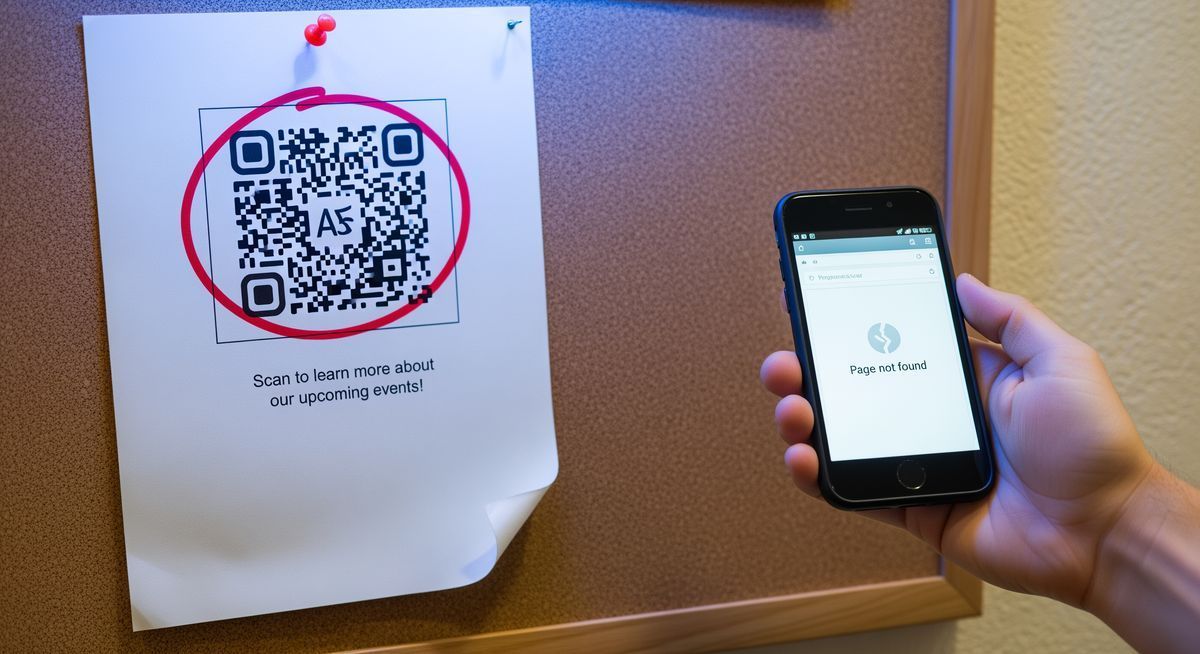
If your phone isn't detecting a QR code, the problem is almost always one of three things: a settings toggle, distance, or lighting.
Check your settings first. On iPhone, go to Settings > Camera > Scan QR Codes and confirm the toggle is on. On Android, open your Camera app settings (the gear icon inside the Camera app) and look for a "Scan QR codes" option. Samsung, Pixel, and OnePlus all have this toggle, though the exact label varies.
Adjust your distance. Hold your phone 15 to 30 cm (6 to 12 inches) from the QR code. Too close and the camera can't focus. Too far and the code is too small to read. A good rule: the scanning distance should be no more than 10 times the width of the QR code.
Improve the lighting. QR codes need enough contrast between the dark and light modules. In dim conditions, use another phone's flashlight or move to a brighter spot.
Clean your camera lens. A smudged lens causes more scanning failures than people realize. Wipe it with a soft cloth.
Try a different scanner. If the Camera app fails, Google Lens tends to be more forgiving with damaged or low-contrast codes. On iPhone, the Code Scanner in Control Center often detects codes that the Camera app misses.
For a full troubleshooting walkthrough with more edge cases, see our complete QR code scanning guide.
Do You Need a QR Code Scanner App?
No. Every iPhone since iOS 11 (2017) and every major Android phone since Android 9 (2018) scans QR codes with the built-in Camera app. Third-party scanner apps replicate a function your phone already has, and many of them show ads between scans or request permissions they don't need.
An estimated 89 million Americans scanned a QR code in 2024 (Statista), and most of them used their phone's native camera, not a downloaded app.
The one situation where a separate tool helps is scanning a QR code from a screenshot or saved image. But even that is handled natively by Live Text on iPhone and Google Lens on Android, no download required.
For the full breakdown of why scanner apps still exist and what problems they can cause, see our article on whether you need a QR code scanner app.
Frequently Asked Questions
How do I scan a QR code with my iPhone?
Open the Camera app and point it at the QR code. A yellow banner appears at the top of the screen with the link. Tap it to open. This works on any iPhone running iOS 11 or later (September 2017 onward). No app download needed. If the banner doesn't appear, check Settings > Camera > Scan QR Codes.
How do I scan a QR code on Android?
Open the Camera app and point it at the QR code. A link or popup appears on screen. Tap to open. This works on most Android phones running Android 9 or later (August 2018 onward). If your Camera app doesn't detect codes, open Google Lens instead and point it at the code.
Can I scan a QR code from a screenshot?
Yes. On iPhone (iOS 16+), open the screenshot in Photos and long-press the QR code. On Android, open the image in Google Photos and tap the Google Lens icon. Both methods detect the code and give you the link. For the full walkthrough, see our guide on scanning QR codes from pictures.
Do I need to download a QR code scanner app?
No. Your phone's built-in Camera app handles QR code scanning on both iPhone and Android. Third-party scanner apps add ads and unnecessary permissions without adding anything your camera can't do. For a deeper look at why these apps still exist, see do you need a QR code scanner app.
Why won't my phone scan a QR code?
The most common causes are distance (hold the phone 15 to 30 cm away), poor lighting, a dirty camera lens, or a disabled setting. On iPhone, check Settings > Camera > Scan QR Codes. On Android, check your Camera app settings for a "Scan QR codes" toggle. If the Camera app still fails, try Google Lens or the iPhone Code Scanner in Control Center.
Written by Andy Lee, QR Technology Specialist at FreeQR. For a deeper understanding of how QR codes store and encode data, read our guide on what a QR code is and how it works.