How to Scan a QR Code from a Picture on Your Phone or Computer
Learn how to scan a QR code from a picture, screenshot, or saved photo on iPhone, Android, Mac, and Windows. No app needed.
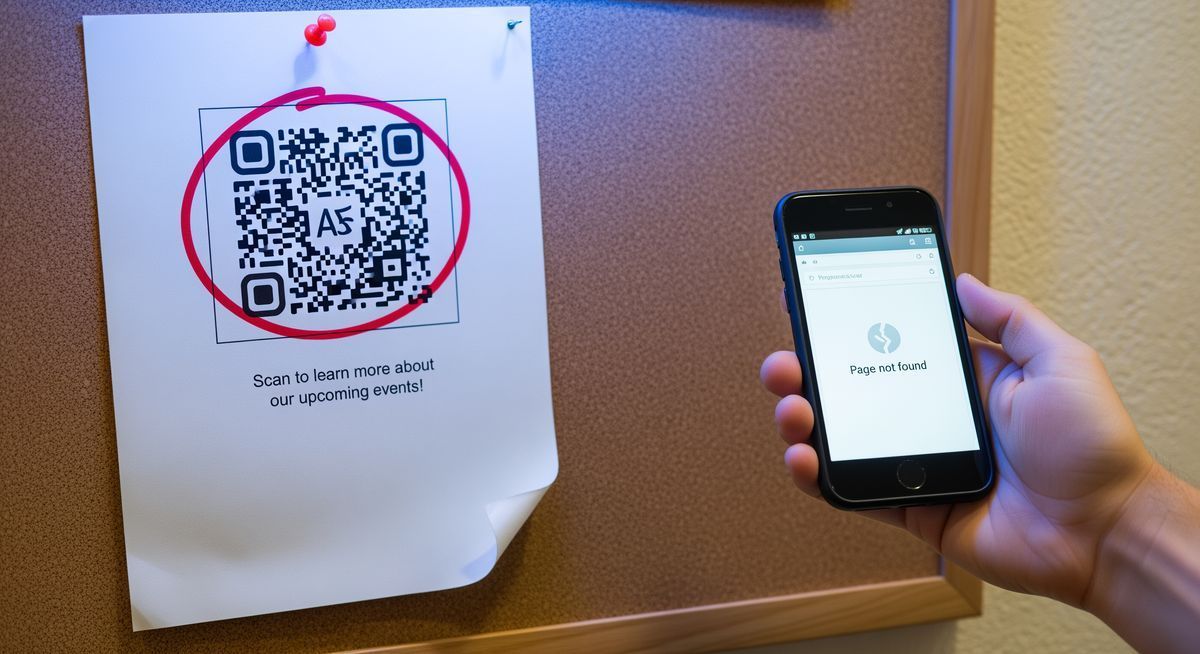
Someone texts you a QR code. Or you screenshot one from a website. Now you're staring at a picture of a QR code on the same device you'd normally use to scan it. You can't exactly point your camera at your own screen.
I've been there more times than I can count. You can scan a QR code from a picture without a second phone and without downloading anything. Your phone and computer already have the tools built in.
Quick answer: On iPhone (iOS 16+), open the image in Photos and long-press the QR code. On Android, open the image and tap the Google Lens icon. On Mac, open the image in Preview or Quick Look. On any computer, right-click a QR code image in Chrome and choose "Search image with Google Lens."
Key takeaways:
Every iPhone since the XS (2018) can scan QR codes from saved images using Live Text, introduced in iOS 15 and expanded to QR codes in iOS 16.
Google Lens, available on over 3 billion Android devices as of 2024, reads QR codes from any photo in your gallery.
macOS Ventura (2022) added native QR code detection in Preview and Quick Look. No third-party app needed.
Chrome's built-in Google Lens integration works on Windows, Mac, and Linux for QR codes on webpages.
An estimated 89 million Americans scanned a QR code in 2022 (Statista).
Here's every method I've found that actually works.
How to Scan a QR Code from a Screenshot (iPhone and Android)

This is the situation most people land in. You took a screenshot of a QR code, and now you need to open whatever it links to. Both methods below use on-device recognition, so they work offline and don't send your image to any server.
iPhone: Live Text long-press (iOS 16+)
Apple added Live Text in iOS 15 for recognizing text in images, then expanded it to QR codes in iOS 16. It runs on-device, works offline, and supports any iPhone with an A12 chip or later (XS, XR, and everything since).
If you're on iOS 16 or later, this takes about two seconds.
Open the screenshot in the Photos app.
Tap and hold your finger on the QR code in the image.
A menu pops up. Tap Open in Safari (or whatever action the QR code triggers).
Live Text reads the QR code pattern the same way it reads text in photos. No camera involved.
If nothing happens when you long-press, check two things: make sure the QR code is at least 100x100 pixels in the image (pinch to zoom or crop to enlarge it), and confirm your phone is running iOS 16 or later through Settings > General > About.
Android: Google Lens from gallery
Google Lens is Google's visual search tool. It comes preinstalled on most Android phones and is also a free download for iPhone. It reads QR codes, text, and objects from any image.
Open the screenshot in Google Photos (or your default gallery app).
Tap the Google Lens icon at the bottom of the screen.
Lens detects the QR code and shows the link. Tap to open.
If you don't see the Lens icon in your gallery, open Google Lens directly, tap the image icon in the top left, and select your screenshot from there.
For a complete walkthrough of all scanning methods (including live camera scanning), see our full guide on how to scan a QR code.
How to Scan a QR Code from a Photo in Your Gallery

Screenshots and saved photos work the same way. Any image in your gallery that contains a QR code can be scanned using the methods above. But a few extra options are worth knowing.
Google Photos works on both Android and iPhone. Open the photo, tap the Lens icon. If you already use Google Photos as your default gallery, you've had this the whole time.
Samsung phones have Bixby Vision built into the gallery app. Open the photo, tap the eye icon, and it picks up QR codes in the image. I find it slightly less reliable than Google Lens, but it works.
If you scan QR codes from photos regularly on iPhone, you can build a Shortcut for it. Open the Shortcuts app, create a new one, and add the "Scan QR/Barcode from Image" action. Faster than long-pressing every time.
You don't need a special "QR code scanner from photo" app for any of this. For more context on how QR codes encode and store data, see our guide on what a QR code is and how it works.
How to Scan a QR Code on Your Computer

You're at your desk. Someone sends you a QR code in an email or Slack message. You don't want to pull out your phone just to scan it.
Mac
If you're running macOS Ventura (13) or later, your Mac can read QR codes natively through Visual Look Up. I tested all three methods below on a MacBook Air M2 running Sonoma 14.4.
Right-click the image file and choose Quick Look (or press Space). If macOS detects a QR code, it shows a clickable link in the bottom-right corner. Same thing works in Preview.
If the image is in your Photos library, open it and look for the Live Text indicator in the corner. Click it, then click the QR code. The link appears as an overlay.
On Safari, right-click a QR code image on any webpage and look for "Open Link" or the detected URL. This uses Visual Look Up, which landed in macOS Sonoma.
Windows / Chrome
Windows doesn't have a built-in QR code reader as polished as macOS, but Chrome fills the gap.
In Chrome, right-click any QR code image on a webpage and select "Search image with Google" (or "Search image with Google Lens" depending on your version). Lens reads the code and shows the URL.
If the QR code is a saved file rather than on a webpage, go to Google Lens, click the camera icon, and upload it.
Windows does have a camera app with barcode mode, but honestly, the Chrome method is faster for anything already on your screen.
The Browser Shortcut (Long-Press QR Code Images on the Web)

When you see a QR code image on a website, you don't always need to screenshot it first.
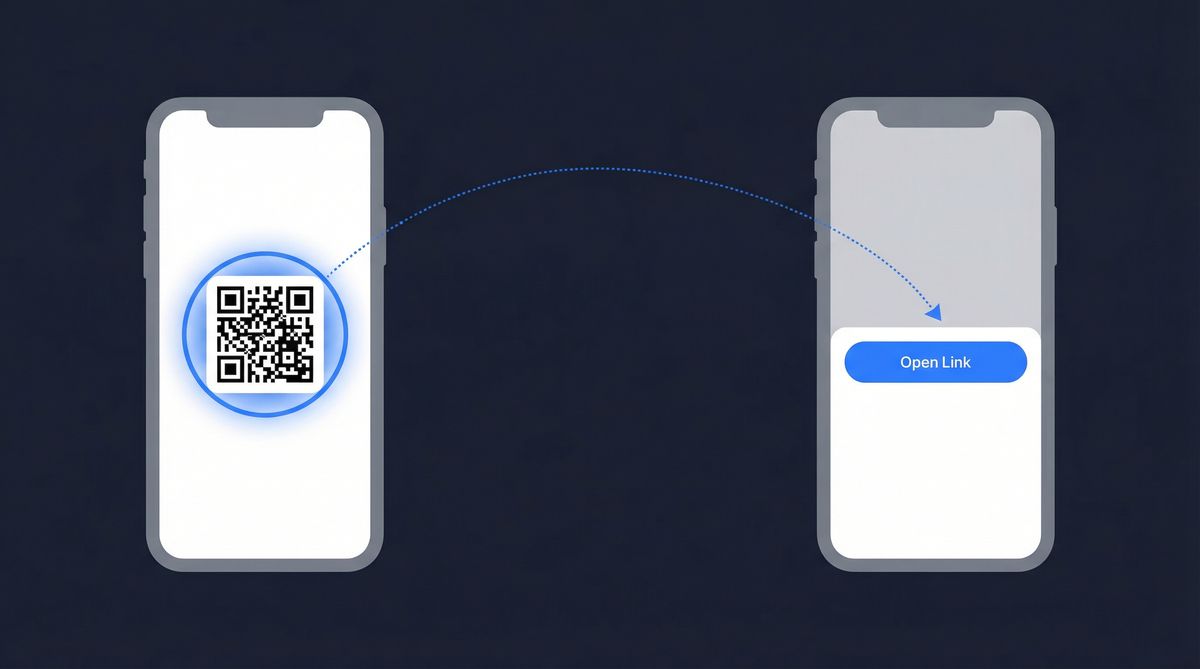
On iPhone, long-press the QR code image in Safari. If it detects the code, the context menu shows "Open Link" right at the top. Tap it. Done.
On Android, long-press the image in Chrome and select "Search image with Google Lens." Lens reads the code and shows the link.
On desktop Chrome, right-click and choose "Search image with Google Lens." It decodes in the side panel.
This works most of the time. It fails when the QR code is embedded in a larger image (like a flyer mockup), when the website blocks right-click/long-press, or when the image is a CSS background rather than a proper <img> element. In those cases, screenshot first, then use the gallery methods above.
When to Use a Web-Based Scanner Instead
Sometimes the native tools don't cooperate. The image is too small. The QR code is buried in a busy background. Your phone is running an older OS version that doesn't support Live Text or Lens.
If you'd rather skip the screenshot step entirely, FreeQR's web scanner lets you upload or paste any image containing a QR code and decodes it in seconds. Works in any browser, no install required.
A web-based scanner is also useful when you're on a computer without Chrome (so no Lens integration), or when you need to decode several QR codes from different images quickly.
Quick Reference: Every Method by Device
Device | Method | Where to Find It | Min OS Version |
|---|---|---|---|
iPhone | Long-press in Photos | Photos app → tap and hold QR code | iOS 16 (2022) |
Android | Google Lens | Gallery → Lens icon, or Google Lens app | Android 8+ (2017) |
Samsung | Bixby Vision | Samsung Gallery → eye icon | One UI 1.0+ |
Mac | Quick Look / Preview | Right-click → Quick Look, or open in Preview | macOS Ventura (2022) |
Mac (Safari) | Visual Look Up | Right-click QR image → Open Link | macOS Sonoma (2023) |
Any (Chrome) | Google Lens | Right-click image → Search with Google Lens | Chrome 92+ (2021) |
Any browser | Web scanner | Upload image to web-based scanner | Any |
Frequently Asked Questions
Can you scan a QR code from a screenshot?
Yes. On iPhone (iOS 16 or later), open the screenshot in Photos and long-press the QR code to get the link. On Android, open the screenshot and tap the Google Lens icon. Both methods work without a second device or any app download. If your phone is older, upload the screenshot to a web-based scanner instead.
How do you scan a QR code on iPhone from the screen?
Open the image containing the QR code in the Photos app, then tap and hold on the QR code itself. A popup menu appears with the option to open the link in Safari. This uses Apple's Live Text feature and requires an iPhone XS or newer running iOS 16+. For older iPhones, use Google Lens through the Google app, which is a free download.
How do you scan a QR code on a Mac or computer?
On Mac (macOS Ventura or later), open the image in Preview or Quick Look and macOS detects the QR code automatically, showing a clickable link. On any computer, right-click a QR code image in Chrome and choose "Search image with Google Lens" to decode it. You can also upload the image to Google Lens or a web-based scanner.
Do I need a special app to scan QR codes from pictures?
No. iPhone, Android, Mac, and Chrome all have built-in tools that read QR codes from saved images. On iPhone, it's Live Text in Photos. On Android, it's Google Lens. On Mac, it's Preview and Quick Look. On any browser, it's Google Lens via Chrome or a web-based scanner. Third-party QR scanner apps are unnecessary for this.
Why won't my phone scan a QR code from a photo?
The most common reasons: the QR code is too small in the image (it needs to be roughly 100x100 pixels minimum for reliable detection; try zooming in or cropping), your phone is running an older OS that doesn't support image-based QR detection (iOS 15 and earlier, Android 7 and earlier), or the QR code in the image is blurry or low-resolution. QR codes use Reed-Solomon error correction to handle some damage, but a blurry image reduces contrast between the black and white modules to the point where the decoder can't distinguish them. If the code is clear but your phone won't read it, try uploading the image to Google Lens or a web-based scanner as a fallback.
Written by Andy Lee, QR Technology Specialist at FreeQR. FreeQR helps people create dynamic QR codes with built-in landing pages and scan analytics. Learn more about us.