How to Create a QR Code for a PDF for Free
Share any PDF with a free QR code. Five-step walkthrough with FreeQR (no expiry, no signup limits), plus a DIY guide if you host the file yourself.
How to Create a QR Code for a PDF
By the end of this guide you will have a working QR code for your PDF, free, ready to print or share digitally, with no app required for scanners.
Here's how to create QR code for PDF: sign up for a free dynamic QR code generator, pick a File Sharing or PDF template, upload your PDF, customize the design, then download the code. The walkthrough below uses FreeQR because the codes never expire and the free plan has no signup limit. Most tools work the same way.
A QR code cannot store the PDF itself; it links to where the PDF lives online, which is why this needs a dynamic generator (one with built-in file hosting).
Key Takeaways
A QR code cannot store the PDF itself; it links to where the PDF lives online.
Use a dynamic QR code (one whose destination URL can be edited after printing) that accepts file uploads. Most free generators do.
FreeQR's File Sharing template is on the free plan and the codes never expire.
Five steps cover the main path: sign up, pick template, upload PDF, customize, download.
If you already host the PDF, you can point a URL QR code at it instead. See our URL QR guide.
Pick dynamic for any PDF you might update later, so you can swap the file without reprinting.
Why a PDF QR Code Matters
Most readers want to share a PDF (a restaurant menu, a property brochure, a class handout) without making people download an attachment or type a URL. Most guides skip the part that actually matters, which is why your usual QR generator will not accept a file upload, and what to do instead.
About 68% of US consumers scanned a QR code in the past year, and restaurant menus alone account for 48% of those scans (Teamlewis 2024). PDFs sit at the same intersection: a printed surface that wants to deliver a document.
Two paths exist. By the end of this guide you will have a working QR code that opens your PDF on any phone with no app required, and you will know when to pick the easy dynamic path versus host the file yourself. This article leads with the easy one.
What You Need Before You Start
The PDF you want to share. Most PDFs under 25 MB work on any free plan without compression.
A free account on a dynamic QR code generator. The walkthrough uses FreeQR.
Optional: your brand color and a logo, if you want to style the code.
Optional: a printed surface (flyer, table tent, poster) so you can size the code correctly.
How to Create a QR Code for a PDF in 5 Steps
The walkthrough below uses FreeQR's File Sharing template. Any dynamic QR generator that accepts file uploads works the same way. If your tool calls the option "PDF" or "Document" instead of "File Sharing," pick that. The "dynamic" part matters, and we cover the reason later. Five steps, well under ten minutes.

Step 1: Sign Up for a Free Dynamic QR Generator
Open the FreeQR signup page and create an account. The free plan does not require a card, and the QR codes never expire.
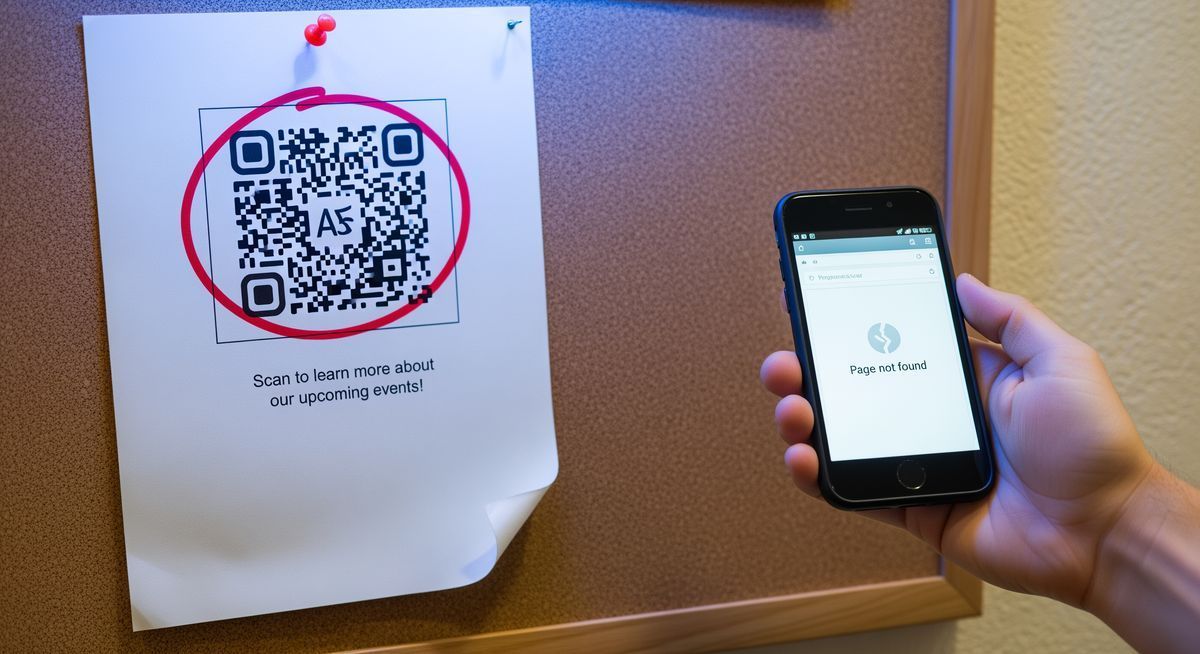
Most dynamic QR tools offer a free plan. Some expire codes after 14 days or after a fixed number of scans. Check the policy before printing anything physical. A dynamic QR code that has been deactivated by the provider cannot be recovered, so a printed handout would need a fresh QR code and a new print run.
Once you are in the dashboard, click "Create new QR code." The next screen shows the template picker, which is Step 2.
Step 2: Pick the File Sharing Template
Pick File Sharing. On FreeQR this is one tile in the template grid. Other tools may call the same option PDF, Document, or File Upload. Pick whichever your generator uses for file hosting.
Here is why this template over a URL QR code: the File Sharing flow routes the file through the platform's hosting and a small landing page. You upload, the platform stores, and the QR code points to a short redirect URL that the platform owns.
The other templates exist for different jobs. vCard for contact cards, WiFi for network credentials, Menu for restaurant lists. See our overview of other QR code types for the full set. File Sharing is the one for a PDF.
Step 3: Upload Your PDF
Drag your PDF into the upload zone or click to browse. FreeQR accepts most common PDF sizes. Very large catalogs (over 50 MB) may need to be compressed first.
Fill in a title and a short description. These appear on the landing page that scanners see before the file opens. Use plain language: a menu code can say "Lunch Menu" and "Current items and prices" rather than anything cute. The description also doubles as the tab title on most phones.
If your PDF is over the file size cap, compress it with any free tool, or switch to the alternative method below (you host the file, the QR code points to your URL).
Step 4: Customize the Landing Page and QR Code Design
Customization has two parts: the landing page that opens after a scan, and the QR code itself.
Landing page settings: add a header image, set a brand color, and write a short call to action below the PDF preview. A typical line is "Open menu" or "Download a copy." The preview shows the first page of your PDF and a button to view or download it.
QR code design: change the foreground and background color, swap the corner patterns for rounded shapes, drop a logo into the center. Keep good contrast between the code and the background. Dark code on a light surface scans best; the inverse often fails.
If you want a plain black-on-white QR code, skip this step entirely. The default works.
Step 5: Download and Share the QR Code
Click Download and choose PNG or SVG. PNG is the right choice for digital sharing (email, slides, social posts) and for any print job under 10 cm. SVG scales to any size without quality loss, so use it for posters and signage.
Before any print run, test the QR code with at least two phones from the distance you expect people to scan. Five minutes here saves the cost of a full reprint.
Once tested, the QR code goes wherever the PDF needs to. Print it on a flyer, table tent, or business card, or paste it into emails and slide decks.
Is This Free?
Yes. On FreeQR the File Sharing template is part of the free plan. The QR code never expires and there is no scan cap.
This matters more than most readers expect. Many "free" dynamic QR generators expire codes after a trial period, throttle them after a set number of scans, or delete codes that have been inactive for a few weeks. A deactivated dynamic QR code printed on physical materials cannot be reactivated. You would need to reprint with a new code.
Check the expiry policy of any provider before printing.
Where Can You Use a PDF QR Code?
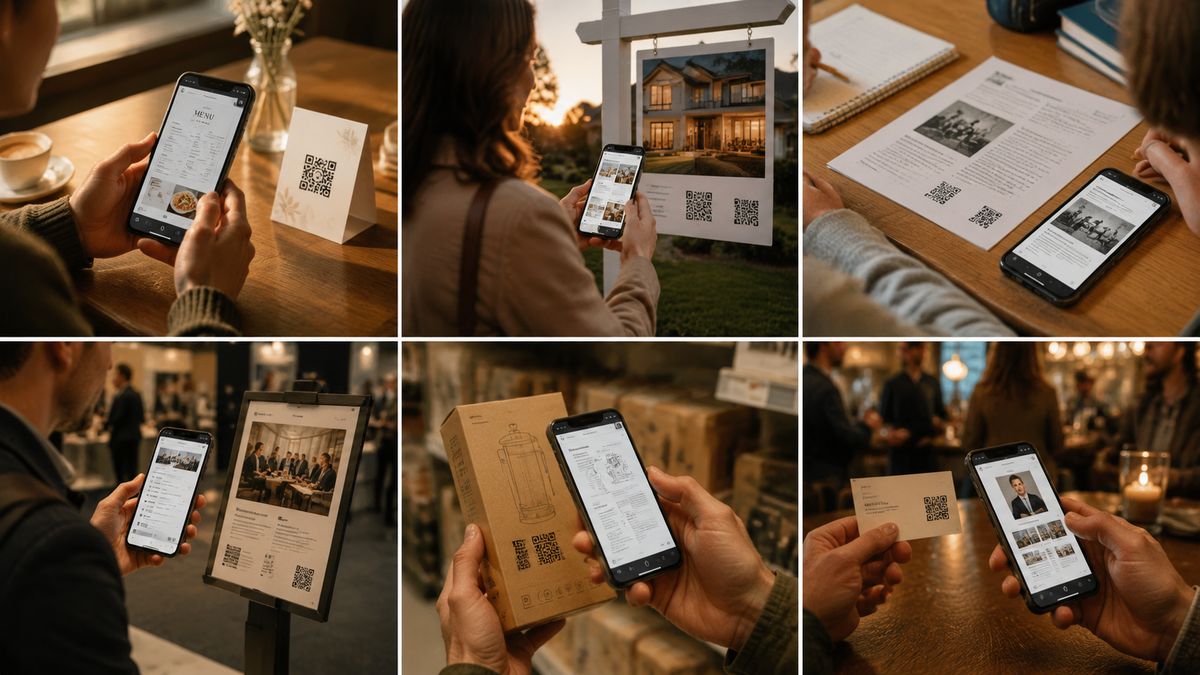
Six places where this format saves printing budget or speeds up sharing.
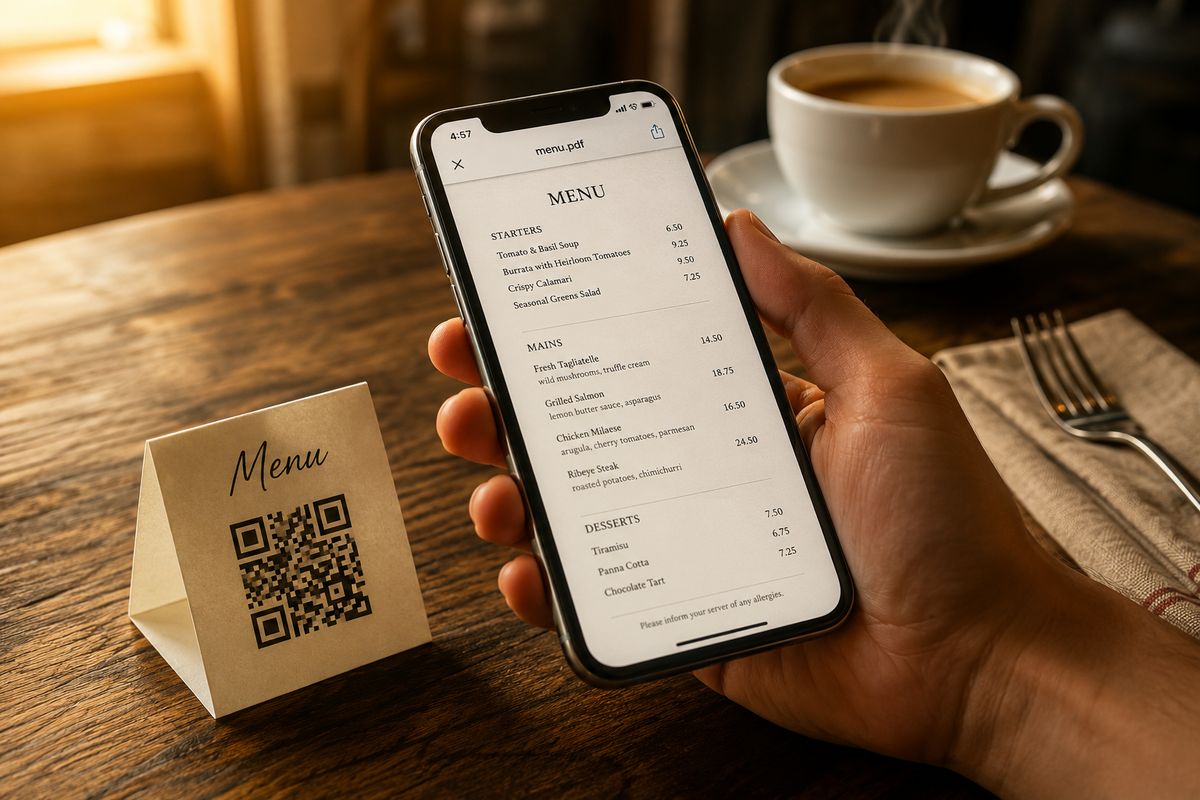
Restaurant menus. About 75% of restaurants worldwide use QR codes for digital menus (tableqr.co 2026). A PDF menu is the simplest setup, no app or custom builder required.
Real estate. Printed property brochures cost around two to four dollars per copy and cannot be updated after printing (Supercode 2026). A PDF QR code on a property card delivers the same brochure for a fraction of a cent per view.
Classroom and conference handouts. Skip the photocopier; share a multi-page reading without the printing budget.
Event flyers and posters. Agenda, speaker bios, parking map, all behind one code.
Product packaging. Link to the full manual, warranty, or assembly instructions.
Business cards. Adds a portfolio or media kit on top of the vCard contact entry.
Alternative Method: Host the PDF Yourself
The DIY path makes sense if you already host the PDF (corporate site, learning platform) or if compliance rules require the file to stay on your own infrastructure.
Hosting options vary in storage and control.
Host | Free storage | Best for |
|---|---|---|
15 GB | Personal sharing, quick setup | |
2 GB | Cross-platform teams | |
Your own website or CMS | Varies | Compliance, full URL control |
All three give you a public URL that anyone with the link can open.
Once you have the URL, you have two sub-options. A static URL QR code encodes the URL directly into the printed pattern; it never changes and you cannot edit it after printing. A dynamic URL QR code wraps the URL in a redirect you control, so you can swap the destination later without reprinting.
The full walkthrough for both sub-options lives in our URL QR guide.
What's Actually Happening Behind the Scenes
Static QR codes are like printed labels. Whatever you encode is fixed forever the moment you generate the code. They are perfect for short permanent URLs (a homepage, a vCard).
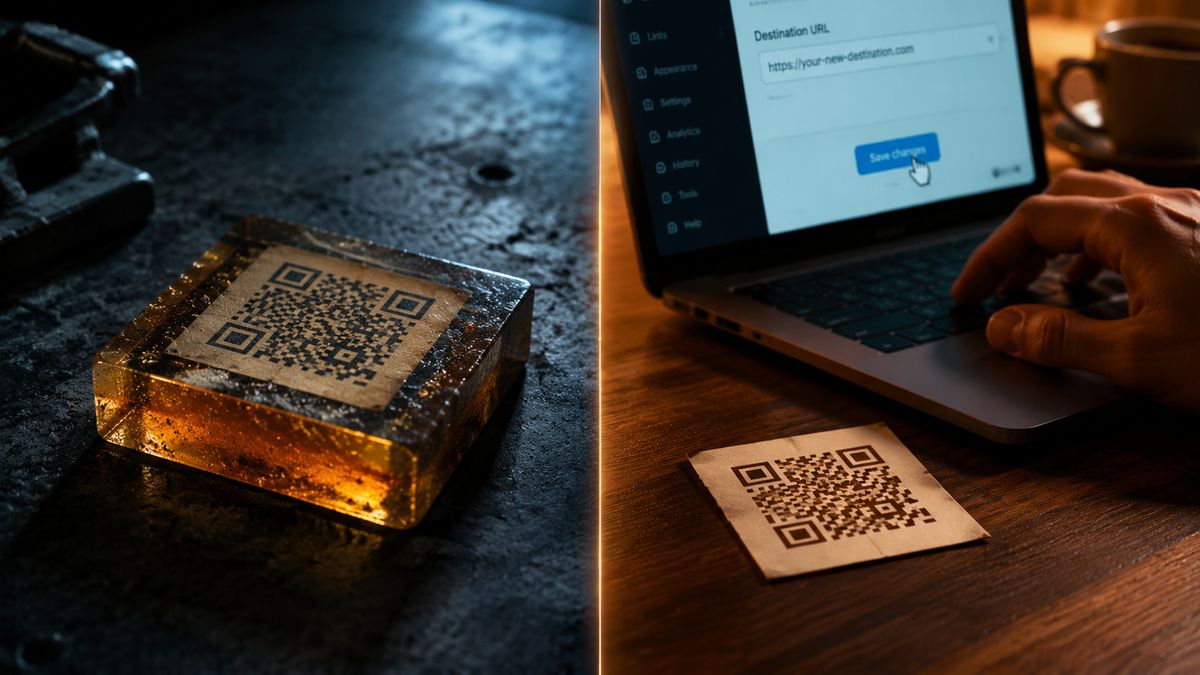
Dynamic QR codes work differently. The QR pattern points to a short redirect URL that the tool owns. When someone scans, the tool looks up where to send them. That is how the platform can host your PDF and serve it to scanners.
This is why a static QR generator cannot accept a file upload. There is nowhere for the file to live. Dynamic generators store the file on their servers and link the QR to it.
About 64% of QR codes in business use today are dynamic (Grand View Research 2024).
Static vs Dynamic: Which Should You Pick for Your PDF?
Default answer: dynamic. PDFs get updated. Menus change weekly, brochures get new photos, manuals get version bumps. Dynamic lets you swap the file from the dashboard without touching the printed code.
Feature | Static URL QR | Dynamic QR |
|---|---|---|
Edit destination after print | No | Yes |
File hosted by generator | No | Yes |
Scan analytics | No | Yes |
Tool dependency | None | Required |
Best for PDFs | Permanent archive URLs | Files you will update |
Static is fine if the PDF lives at a permanent URL you control (a published research paper, an archived report) and the URL will never change.
Dynamic is the only option if you want the QR tool to host the file for you, which is the easy path in this article.
A practical perk: dynamic codes show scan counts and basic scan analytics. FreeQR includes this on the free plan.
Dynamic codes achieve about 48% higher scan rates than static codes (market.us 2024). Shorter redirect URLs print smaller and scan more reliably.
Print Sizing and Common Pitfalls
The 10:1 rule covers most situations. A QR code's smallest side should be roughly one tenth of how far away people will scan from.
Scanning distance | Minimum QR size |
|---|---|
Phone in hand (25 cm) | 2.5 cm |
Table tent or counter (50 cm) | 5 cm |
Wall poster (1 m) | 10 cm |
Trade-show banner (3 m) | 30 cm |
Source: Nielsen Norman Group QR sizing guidance, summarized by SproutQR.
The practical minimum for any printed code is 2 cm by 2 cm (about 0.8 inches). Below that, most phone cameras struggle to focus on the individual modules.
Long URLs make codes denser and harder to print small. A raw Google Drive share link can run 100 characters or more, which forces a bigger minimum size. Dynamic QR tools use short redirects, so the printed code stays compact.
QR codes are standardized under ISO/IEC 18004 with built-in error correction, so small smudges and printer flaws usually still scan.
FAQ
Can you create a QR code for a PDF?
Yes. A QR code does not store the PDF file itself; it points to a copy hosted online. The easiest way is a dynamic QR generator with built-in file hosting (FreeQR is one option), which handles the hosting for you so you do not need a separate URL.
How do I convert a PDF to a QR code for free?
Use a free dynamic QR generator that accepts file uploads. Sign up, pick a File Sharing or PDF template, upload your PDF, customize the design, then download the code. FreeQR offers this on the free plan with no expiry and no scan cap.
Does Adobe have a QR code generator?
Yes. Adobe Express has a free QR code generator that produces static URL QR codes. It does not host PDF files directly. You would host the PDF elsewhere first (Google Drive, Dropbox, your website), then paste the URL into the generator.
Do QR codes work on PDFs?
Yes, and in two ways. You can create a QR code that opens a PDF (the focus of this article), or you can embed a clickable QR code inside a PDF document. Both are common; the first is what most people need when they search this question.
Can you edit an existing QR code to link to another PDF?
Only if the code is a dynamic QR code. Dynamic codes let you swap the destination from your dashboard without reprinting. Static codes have the URL baked into the printed pattern, so the link is permanent and cannot be changed after generation.
What happens if I edit the PDF after I create the QR code?
For a dynamic QR code with platform hosting, replace the PDF in your dashboard and the QR keeps working. For a static QR code pointing to a self-hosted PDF, replace the file at the same URL path. Either way, no reprint is needed.
How do I create a QR code for a PDF in Google Drive?
Upload the PDF to Google Drive, set sharing to "Anyone with the link," copy the share URL, then create a URL QR code with that link. Drive URLs run long, so the resulting QR code needs a slightly larger minimum print size to stay reliably scannable.
Pick the Dynamic Path First
Two paths cover almost every PDF QR code job. The easy one uses a dynamic QR tool with built-in hosting; the DIY one starts with your own URL and adds a URL QR code on top.
For most readers the dynamic path is faster and the printed code stays smaller. FreeQR's File Sharing template handles upload, hosting, and design in five steps, and the codes never expire on the free plan.