How to Make a QR Code for a Google Form: Free Guide
Google Forms has no built-in QR generator. Copy your form's share link, turn it into a QR code with FreeQR, then test it before you print.
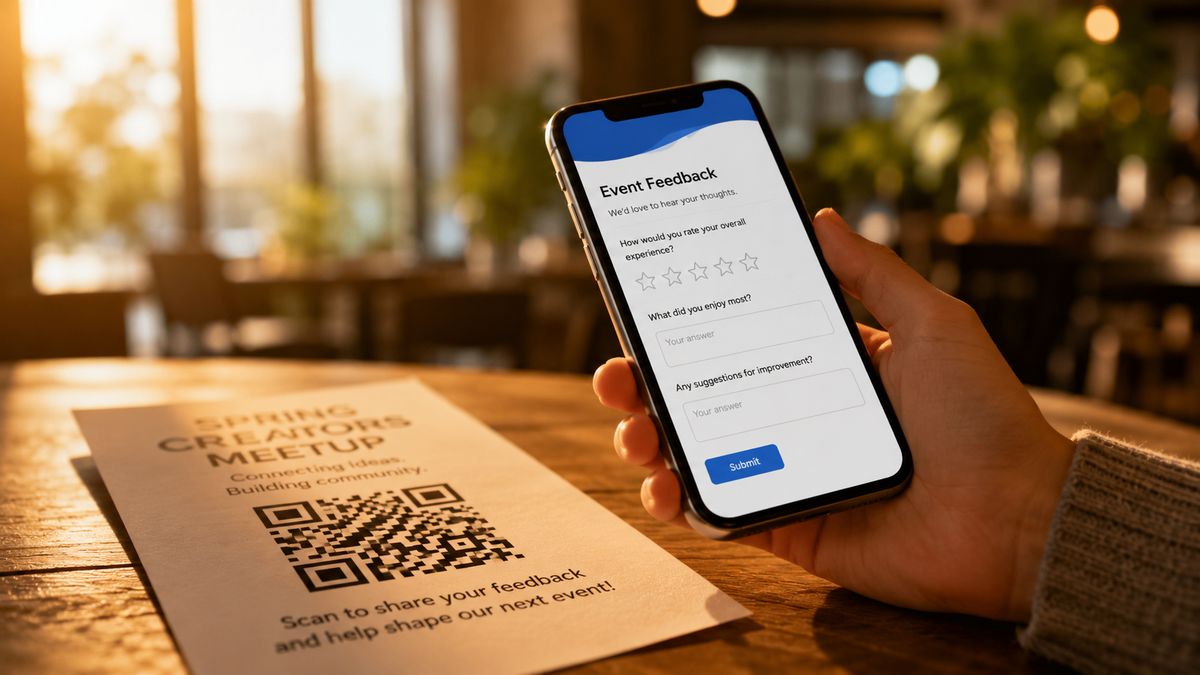
To make a QR code for a Google Form, copy the form's share link, paste it into a QR code generator, then download the code. Google Forms has no built-in QR tool, so you always start from the share link. The fastest free option is FreeQR's Google Form QR code generator, which also lets you change the destination later and count scans.
No account needed to start, and it takes under a minute.
Pick a code you can edit later if you plan to print or reuse it.
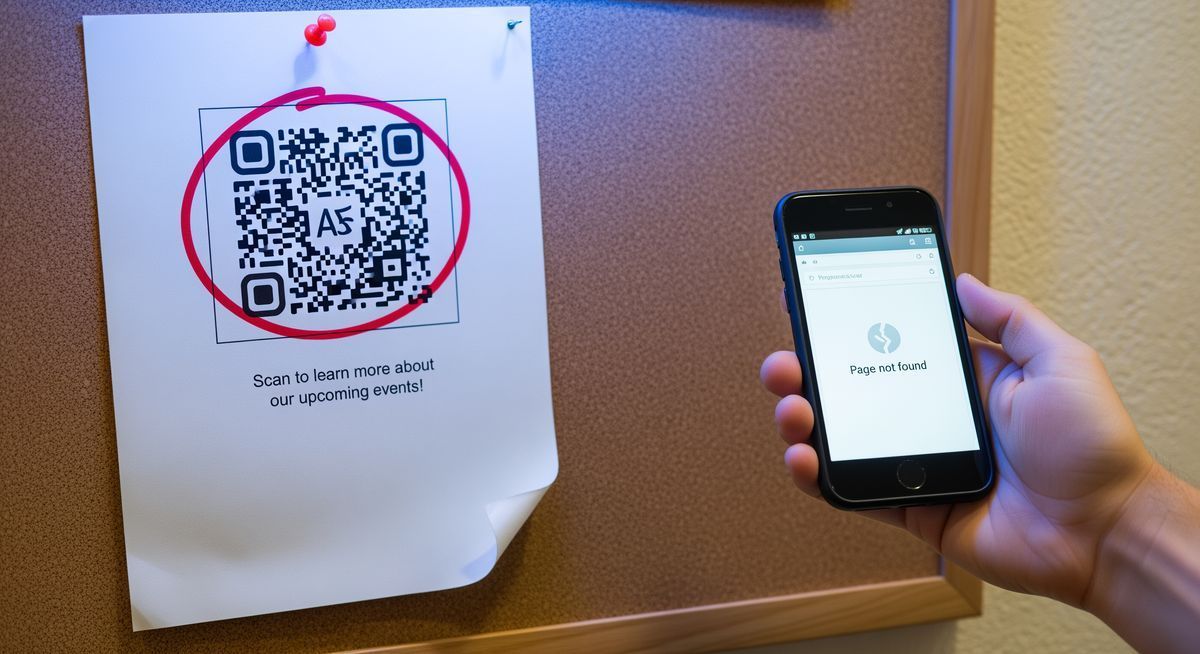
Always scan the code once yourself before you print.
Why Put a QR Code on Your Google Form
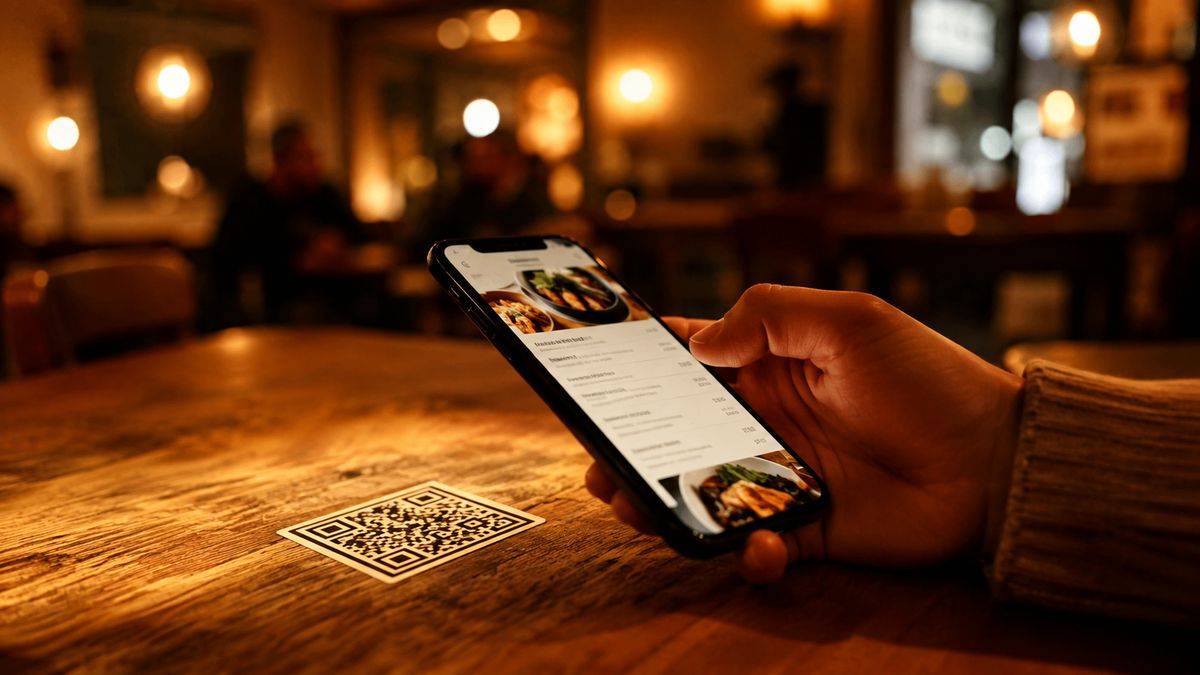
A long Google Forms link is hard to type on a phone, and every extra step costs you responses. A QR code removes that step. People point their camera, tap once, and your form opens.
The payoff is measurable. In one study, a QR code on survey materials nearly doubled the share of people who finished on their phone, 65.5% versus 34% (Survey Methods). QR codes fit event check-in, classroom surveys, attendance, and in-store feedback.
What You Need
A published Google Form that accepts responses.
A QR code generator. FreeQR works free.
An idea of where the code will go, such as a poster, slide, or handout.
Make the QR Code: Step by Step
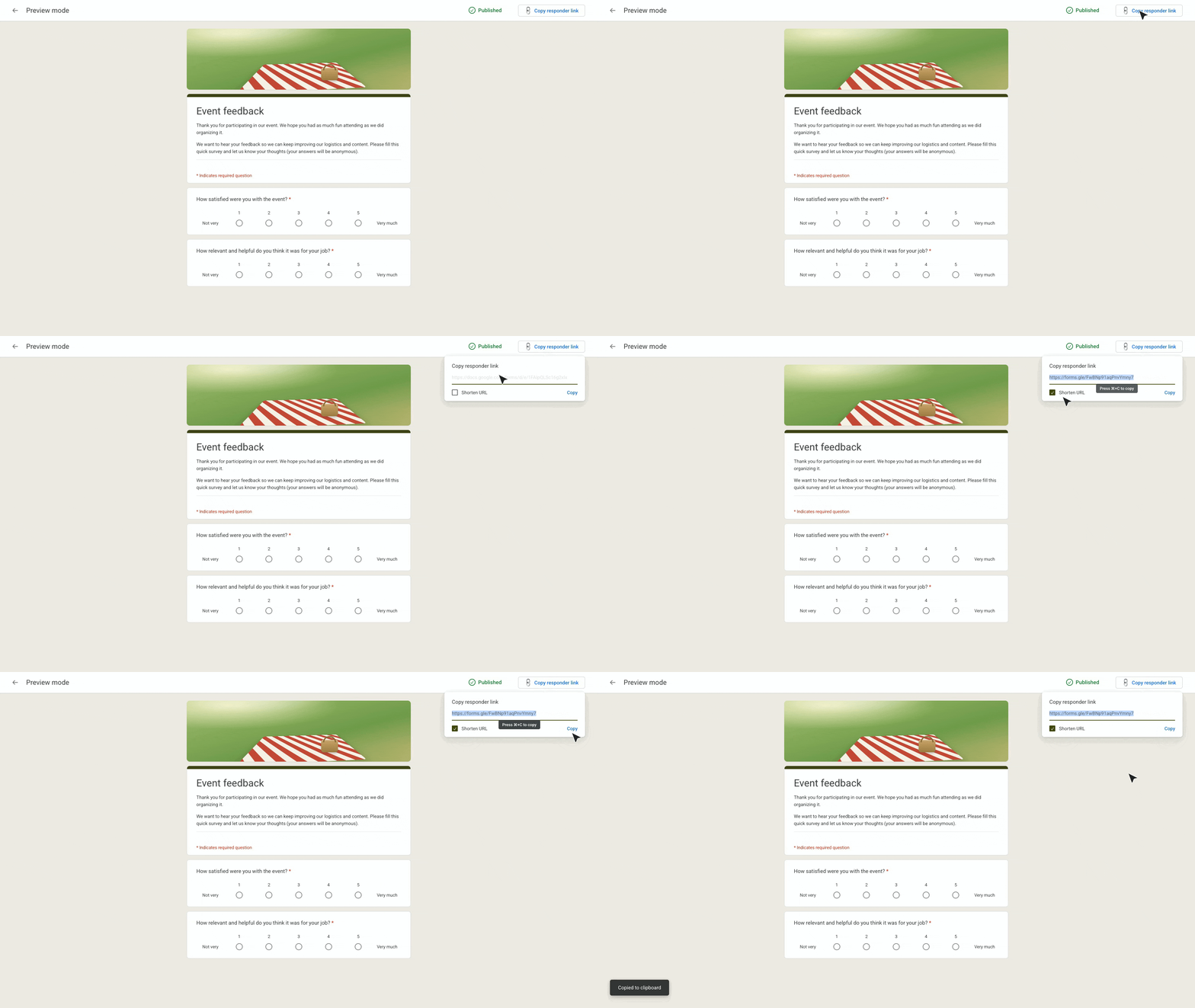
Open your form and click Send. In the share window, choose the link tab, the icon that looks like a chain. Tick "Shorten URL" for a tidier link.
Click Copy to grab the form's share link.
Paste the link into FreeQR's Google Form QR generator. The QR code appears right away.
Adjust the look if you want. Keep strong contrast between the code and its background so phones read it easily.

Download the code. Choose PNG for screens and slides, or SVG for print, which stays sharp at any size.
Scan the code yourself before you share it. Scan it with your phone to confirm it works and opens the right form.
Static vs Dynamic QR Codes for a Form
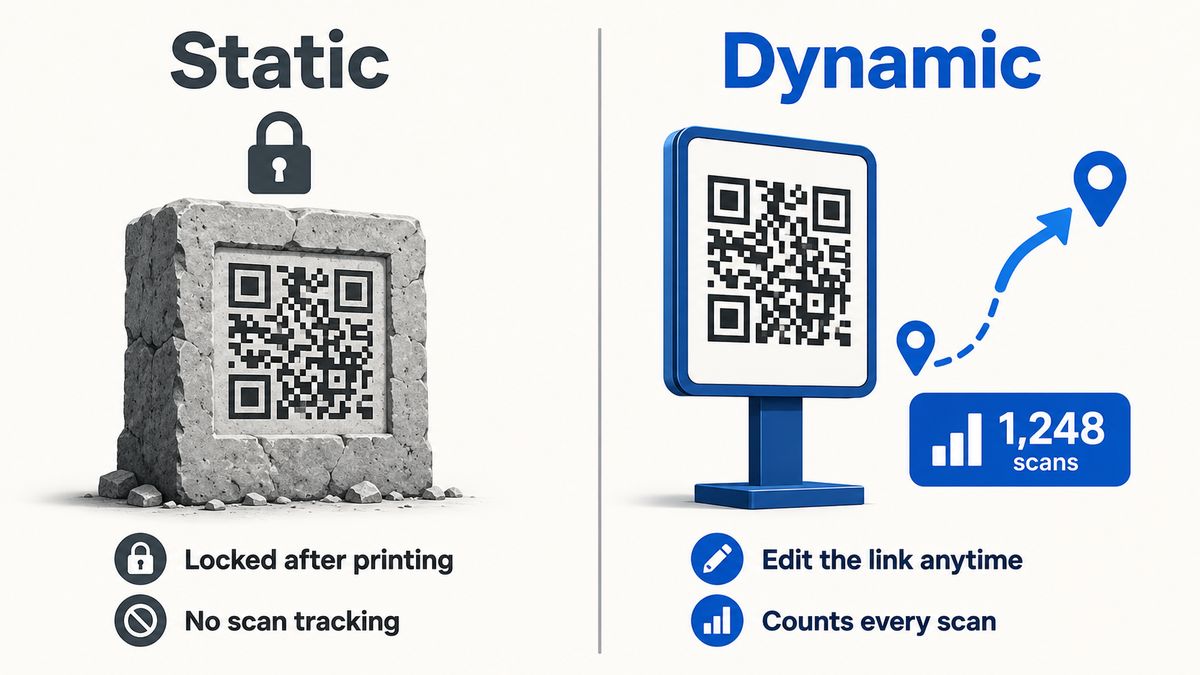
A static QR code holds the form link inside the pattern itself. It is free, never expires, and works forever. The catch: you cannot change where it points once you print it.
A dynamic QR code points to a short redirect instead. You can send it to a new form anytime, and the printed code stays the same. It also records each scan, so you can see how many people opened your form.
Feature | Static QR code | Dynamic QR code |
|---|---|---|
Change the destination after printing | No | Yes |
See how many people scan | No | Yes |
Expires | Never | Stays active while the redirect is live |
Best for | One-time digital links | Printed or reused materials |
For anything you plan to print or reuse, a dynamic QR code is the safer choice. For a one-time digital link, static is fine.
Before You Print: Test and Check Access
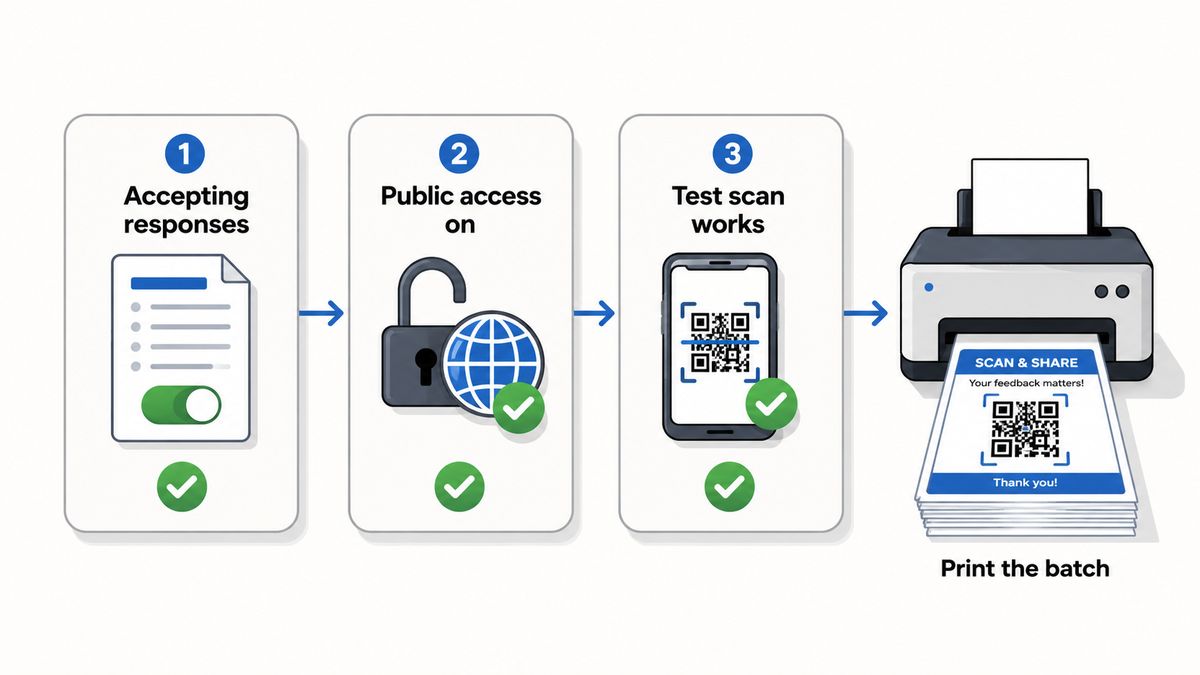
Run these checks before you print anything.
Confirm the form is set to accept responses. A closed form shows an error when scanned.
Turn off "Restrict to users in your organization" if the public needs access. With it on, outside scanners get locked out.
Test the code at its final printed size. Small codes on busy backgrounds can fail, so increase the size or contrast if your phone hesitates.
Print one copy first and scan it. Run the full batch only after a real scan works end to end.
Technical Note: How a Google Form QR Code Works
The QR code stores your form's share URL, nothing more. When someone scans it, their phone opens that link in a browser. A static code writes the URL straight into the pattern. A dynamic code stores a short link that redirects to your form, so you can change the destination later while the printed code stays the same.
Frequently Asked Questions
Does Google Forms have a built-in QR code generator?
No. Google Forms gives you a share link, not a QR code. You copy that link into a separate QR code generator to create one. The form itself does not change.
Can I make a QR code for a Google Form for free?
Yes. FreeQR creates a Google Form QR code at no cost, and you can start without an account. A free QR code works the same as a paid one when you only need a link.
How do I get the QR code from a Google Form?
Open your form, click Send, and copy the link. Paste it into a QR code generator and download the result as a PNG or SVG. The whole process takes about a minute.
Will my QR code still work if I edit the form?
Yes, as long as the share link stays the same. Editing questions does not change the link. If you might swap the form entirely, use a dynamic QR code so you can repoint it.
Will a Google Form QR code expire?
A static code never expires, because the link is fixed. A dynamic code lasts as long as its redirect stays active. For the full answer, see whether QR codes expire.
Make Your Google Form QR Code
Making a QR code for a Google Form takes three moves: copy the share link, generate the code, and test it before you print. Pick a dynamic code if you plan to print or reuse it, so you can fix the link later. When you are ready, create a Google Form QR code free, or turn a PDF into a QR code the same way.
Written by Andy Lee, QR Technology Specialist at FreeQR. FreeQR helps people create dynamic QR codes with built-in landing pages and scan analytics. Learn more about us.