Do You Need a QR Code Scanner App? (No, and Here's Why)
Your phone already scans QR codes without an app. Learn why third-party QR code scanner apps exist, what risks they carry, and when you actually need one.
No. You do not need a QR code scanner app. Every iPhone since 2017 and every major Android phone since 2018 scans QR codes through the built-in Camera app. No download required.
A QR code scanner app is a third-party application that reads QR codes using your phone's camera. These apps replicate a function that Apple and Google built into their operating systems years ago. According to Statista (2025), over 89 million Americans scanned a QR code in 2024, and most of them used their phone's default Camera app.
So why is "QR code scanner app" still one of the most-searched terms in both app stores? Because there's money in making you think you need one. Here's what's actually going on.
Key takeaways:
Every iPhone since iOS 11 (2017) and most Android phones since Android 9 (2018) scan QR codes natively through the Camera app.
Third-party QR code scanner apps exist because they make money through ads and affiliate commissions.
A 2023 Pradeo study found that many popular scanner apps request permissions far beyond what scanning requires, including contacts, location, and photo library access.
A Zscaler ThreatLabz report (2024) identified over 200 malicious apps on the Google Play Store with more than 8 million combined installs, many disguised as utility tools like QR scanners.
The only real exception is scanning a QR code from a screenshot or saved image, and your phone handles that natively too.
Your Phone Already Has a QR Code Scanner
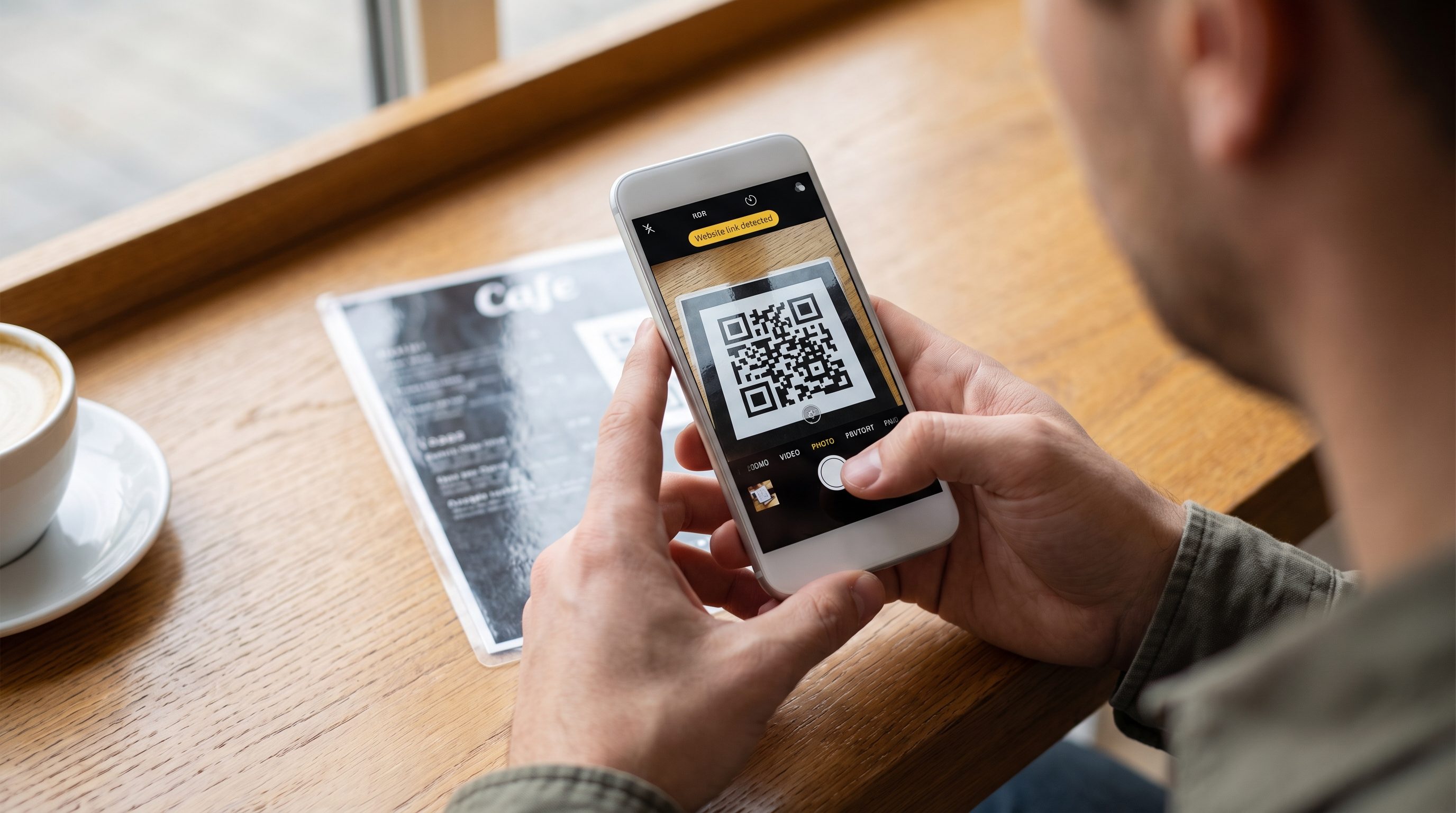
Your phone's camera already does this. Here's how.
iPhone (built in since iOS 11, 2017)
Apple added native QR code scanning to the Camera app in iOS 11, released September 2017. Every iPhone sold in the last eight years scans QR codes out of the box. Apple reports that over 96% of active iPhones run iOS 16 or later, so this covers nearly every iPhone in use today.
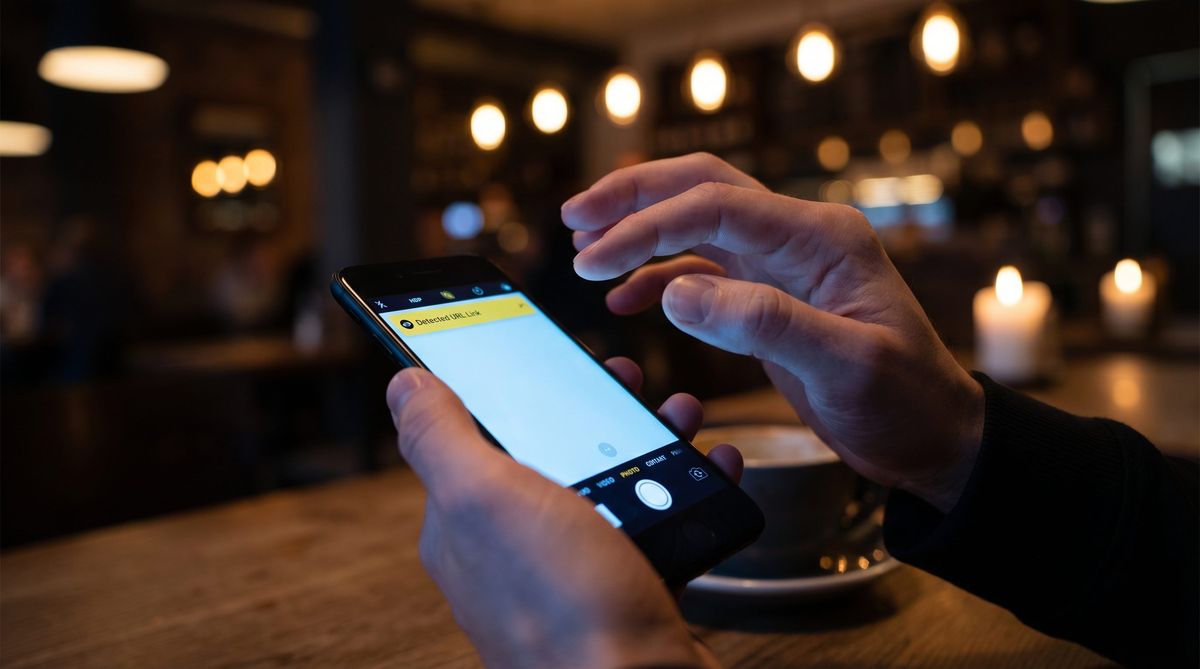
Open the Camera app.
Point it at the QR code.
Tap the yellow banner that appears at the top of the screen.
Three steps. No extra app, no toggle to enable (it's on by default). See our step-by-step guide for a full walkthrough with screenshots.
Apple also includes a dedicated Code Scanner in Control Center. Add it through Settings > Control Center if you don't see it.
Android (built in since Android 9, 2018)
Most Android phones gained native QR scanning with Android 9 Pie in August 2018. Google's distribution data shows that over 93% of active Android devices run Android 9 or later, so the built-in scanner covers the vast majority of Android phones in use today. The exact method varies by manufacturer, but the core steps are the same.
Open the Camera app.
Point it at the QR code.
Tap the link that appears on screen.
Samsung, Google Pixel, OnePlus, and most other major brands have this built in. If your Camera app doesn't detect the code, open Google Lens (preinstalled on most Android phones) and point it at the code instead.
A QR code scanner app for Android from the Play Store does the exact same thing your Camera app already does. The difference is that the Camera app doesn't show you ads between scans.
Why QR Code Scanner Apps Still Exist (and Why They Rank)
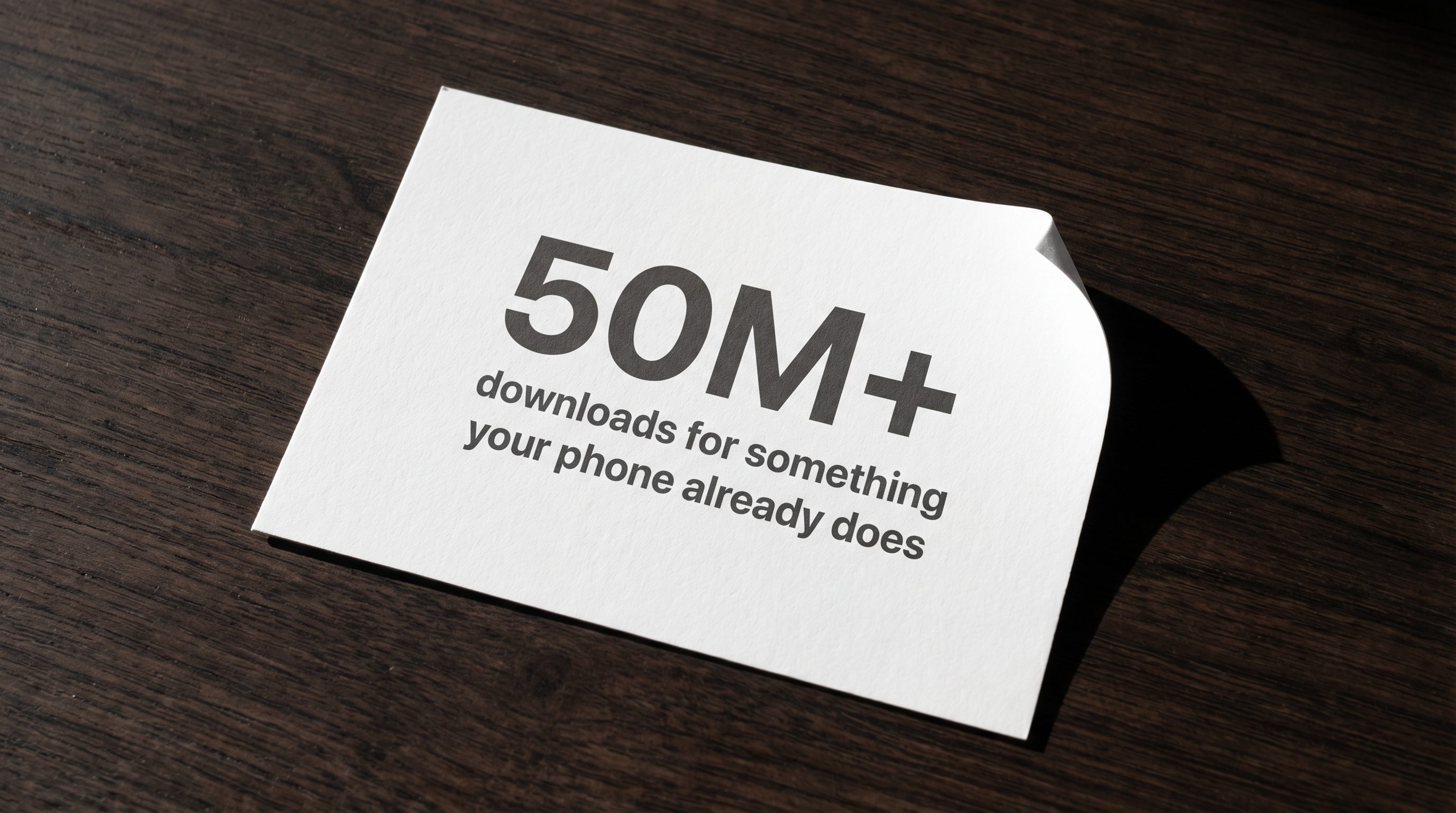
If phones have had this built in for years, why do scanner apps still dominate the search results?
Short answer: money.
"QR code scanner" is one of the highest-volume search terms in both the App Store and Google Play, with an estimated 9,900 monthly searches in the US alone (Semrush, 2026). The top-ranked scanner apps on Google Play each show 50 million to 100 million installs. At that scale, even a basic app showing one ad per scan makes real money. The apps themselves are simple to build, which is why there are hundreds of them competing for the same search term.
The web results aren't much better. Many "best QR code scanner app" articles exist because the author earns a commission when you install a recommended app. The recommendation is based on whether the click pays, not whether you need the app.
Apple and Google haven't helped. There's no "QR Scanner" icon on your home screen. The feature is inside the Camera app, which most people don't think of as a scanning tool. Third-party apps fill that awareness gap.
The cycle feeds itself. People search, find apps, download them, leave reviews, push those apps higher in the rankings. The native scanner sits inside Camera with no listing and no reviews.
This also creates a security problem. Deepen Desai, Chief Security Officer at Zscaler, put it plainly in their 2024 mobile threat report: "Threat actors are increasingly targeting mobile users through malicious apps that masquerade as legitimate tools." QR scanner apps are a common disguise. They're simple to build, people actively search for them, and they're easy to get published.
None of this means every scanner app is harmful. But for the basic task of pointing your phone at a QR code and opening a link, they add nothing your Camera app can't already do. Many make it worse with ads and unnecessary permissions.
The Problems with Third-Party QR Code Scanner Apps
Not all scanner apps are harmful. But many of the most popular ones share patterns worth understanding before you install.
Feature | Built-in Camera Scanner | Typical Third-Party App |
|---|---|---|
QR code scanning | Yes | Yes |
Ads between scans | No | Often (interstitial + banner) |
Permissions required | Camera only | Camera, contacts, location, storage |
Data sent to third parties | No | Often (ad networks, analytics) |
Redirect through app servers | No | Sometimes |
Cost | Free (included with OS) | Free with ads, or paid to remove |
Scan history | No | Usually yes |
Aggressive ads between scans
Many free QR code scanner apps display full-screen ads after every scan. You point your phone at a code, the app reads it, and then you wait three to five seconds watching an ad before you can open the link. The native Camera app opens the link immediately.
Some apps also display banner ads during scanning, which can slow down the interface and make it harder to line up the viewfinder.
Unnecessary permissions
QR code scanning requires one thing: camera access. That's it.
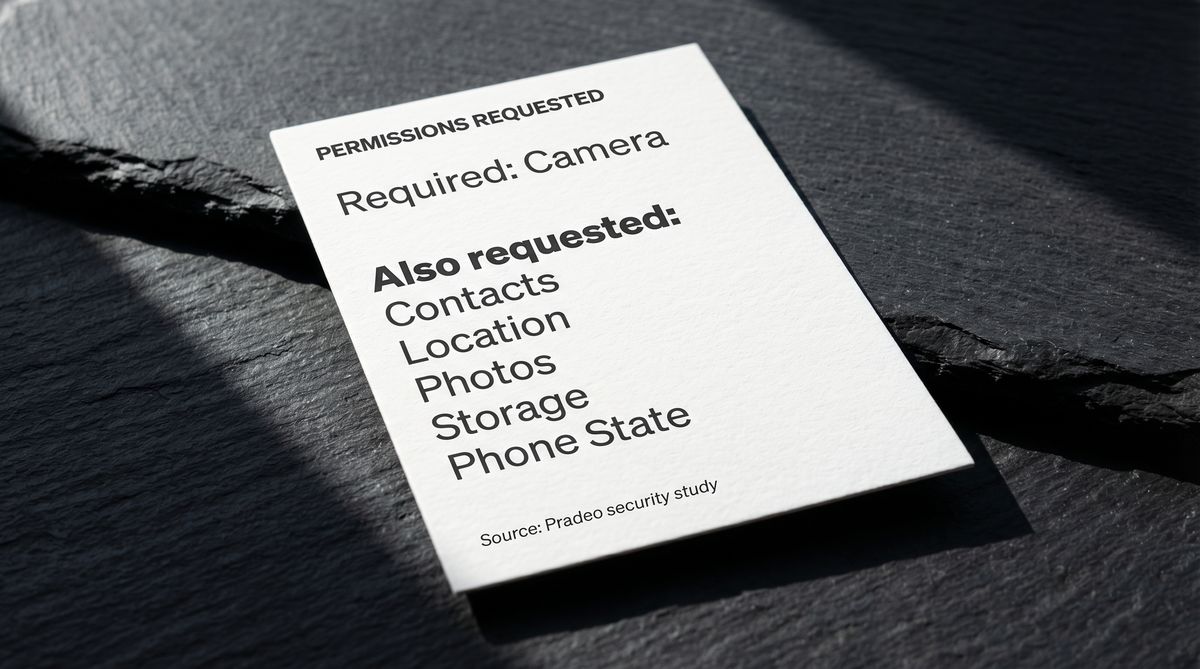
Yet a 2023 study by Pradeo, a mobile security firm, found that many popular QR scanner apps on the Google Play Store request permissions far beyond what scanning requires. Common requests include access to contacts, precise location, photo library, phone state, and storage. The study also identified malicious QR scanner apps that had been downloaded over 10,000 times before being removed from the Play Store.
There's no technical reason a QR code scanner needs your contacts or location. If an app asks for those, it's collecting data for ad networks or enabling features you never asked for.
Check the permissions list before installing any scanner app. If it asks for more than camera access and internet, that's a red flag.
Affiliate redirects before your actual destination
Some scanner apps insert an intermediate page between the scan and the destination. You scan a code that points to a restaurant menu, but the app first routes you through its own server, sometimes displaying an affiliate link or promotional content before forwarding you to the actual URL.
When an app routes your scans through its servers, the operator can see every URL you visit through QR codes. Which restaurants you go to. Which products you look at. A 2024 report from Zscaler ThreatLabz found over 200 malicious apps on the Google Play Store, many posing as utility tools like QR scanners, with more than 8 million combined installs. Your phone's native scanner opens links directly in your browser. No middleman.
The One Exception: Scanning QR Codes from Images
There is one situation where your camera genuinely can't help: when the QR code is already on your screen. You can't point your camera at the screen it's looking through.
If someone texts you a QR code, or you screenshot one from a website, you need a different approach. You still don't need a third-party app, though.
iPhone (iOS 16+): Open the image in Photos and long-press the QR code. A menu appears with the link.
Android: Open the image in Google Photos and tap the Google Lens icon.
For a full walkthrough of every method (including Mac, Windows, and browser-based options), see our guide on how to scan a QR code from a picture.
For codes on your screen, another option is a web-based scanner. No app, no install, no permissions. Upload the image and get the link.
How to Check If Your Phone's Built-in Scanner Is Enabled
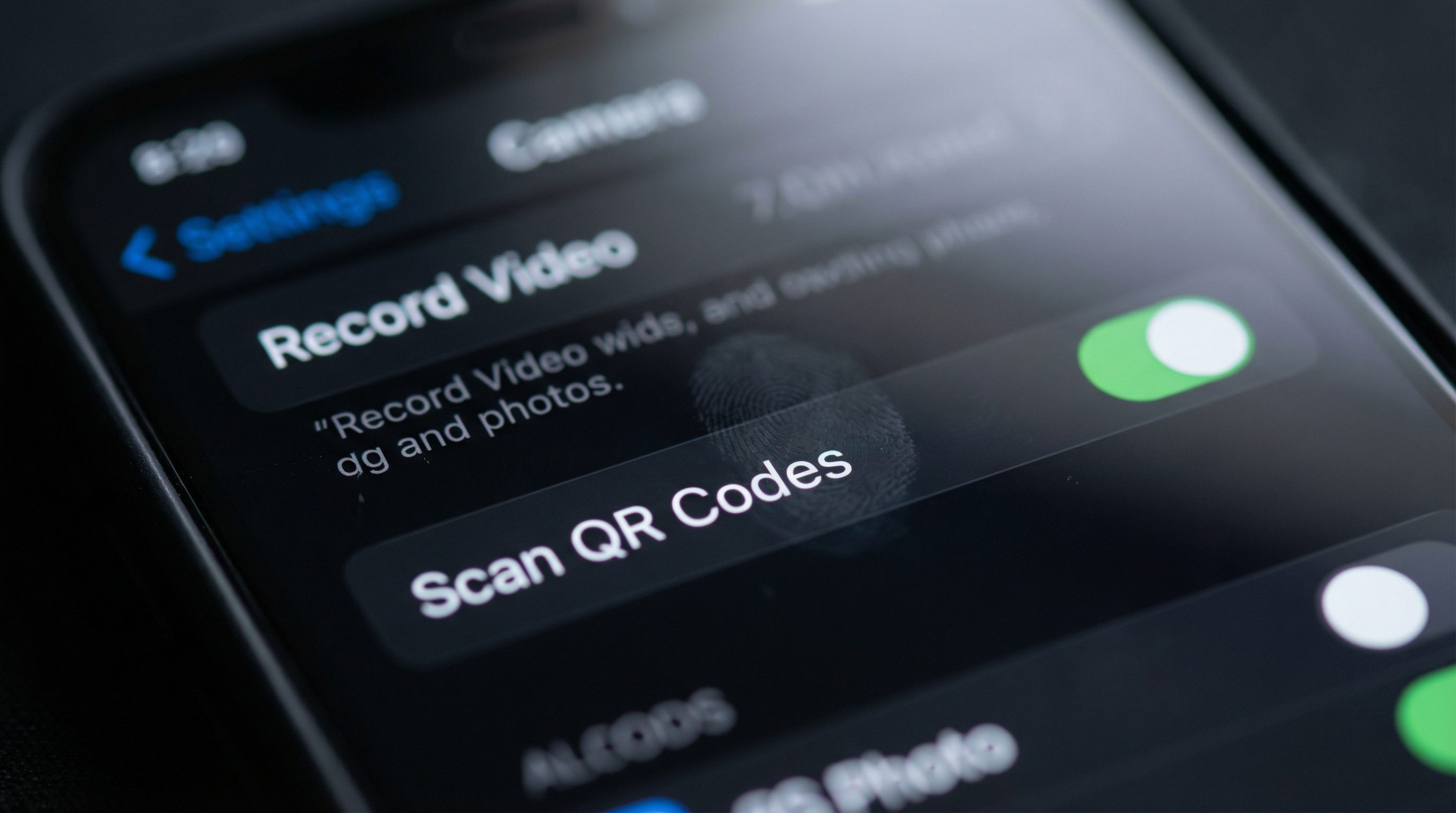
If you pointed your camera at a QR code and nothing happened, the scanner might be turned off. Here's how to check.
iPhone
Open Settings.
Scroll down and tap Camera.
Make sure Scan QR Codes is toggled on (green).
This toggle has been on by default since iOS 11. If it was off, someone turned it off manually.
Android
The exact location varies by manufacturer:
Google Pixel: Open Camera > tap the gear icon > look for "Google Lens suggestions" or "QR code scanning."
Samsung: Open Camera > tap the gear icon > enable "Scan QR codes."
OnePlus / Xiaomi / other brands: Open Camera > Settings > look for a QR code toggle.
If you can't find a setting, try opening Google Lens directly. It's preinstalled on most Android phones and reads QR codes from both the live camera and saved images.
Your phone's camera reads the QR code pattern directly using the same image processing it uses for autofocus and text recognition. A third-party app doesn't add anything to this.
If none of these steps work, the problem is almost always distance, lighting, or a damaged code. Hold the phone 15 to 30 cm (6 to 12 inches) away and make sure the code is well-lit. Our scanning guide covers troubleshooting in detail.
Frequently Asked Questions
Do I need to download an app to scan a QR code?
No. Every iPhone running iOS 11 or later (2017) and most Android phones running Android 9 or later (2018) scan QR codes through the built-in Camera app. Open Camera, point it at the code, and tap the link that appears. A QR code scanner without app is already on your phone.
Does my phone have a QR scanner?
If your phone was made after 2018, almost certainly yes. iPhones have it in the Camera app (check Settings > Camera > Scan QR Codes). Android phones vary by manufacturer, but Google Lens works on nearly all of them.
What is the safest QR code scanner app?
The one already on your phone. Your built-in Camera app doesn't collect data, show ads, or route scans through anyone else's servers. For scanning saved images, Apple's Live Text and Google Lens both process on-device.
Is there a truly free QR code reader for iPhone?
Yes, and you already have it. The iPhone Camera app scans QR codes with no ads, no subscriptions, no in-app purchases. Apple also includes Code Scanner in Control Center, another free QR code scanner app built into iOS.
Does Android have a built-in QR reader?
Yes. Most Android phones running Android 9 (2018) or later handle QR codes through the default Camera app. Google Lens, preinstalled on most devices, also works on both live camera and saved photos. A separate QR code scanner app for Android is unnecessary.
Written by Andy Lee, QR Technology Specialist at FreeQR. FreeQR helps people create dynamic QR codes with built-in landing pages and scan analytics. Learn more about us.