QR Code for Amazon Registry or Wish List: Free in 4 Steps
Amazon gives you a share link and no code. Turn it into one free with FreeQR, set the list public first, and test it before the invitations go to print.
By the end of this guide you will know how to get a QR code for Amazon registry and wish list pages, tested and ready to print.
Amazon does not give you a QR code. Its Share menu hands you a link, and that is genuinely all you need, because a link is the one thing every QR generator accepts. Copy it, paste it into FreeQR's link QR code generator, and download the result. Four steps. They work the same for a baby, wedding, or gift registry.
Key Takeaways
FreeQR's free link QR generator turns that link into a code in about a minute, and no account is required.
Set the registry to public first. A private registry produces a code that opens nothing for your guests.
Registry or wish list? Both share the same way, but only a registry carries the completion discount.
You are laying out shower invitations and you want one scan to take people straight to the registry. So you open the Share menu, expect a code, and find a link and some social buttons instead.
The link is not a consolation prize. It is the only ingredient you need.
Does Amazon give you a QR code for your registry?
No. Amazon's share flow returns a link, not a scannable code.
Open your registry, select Share, and Amazon shows you "a link to your registry, along with buttons to share on various social networks," as its own help documentation puts it. That is the entire menu. There is no QR option tucked behind it.
This holds across every list type. Baby registries, wedding registries, gift registries, and ordinary wish lists all share the same way, and none of them hand you a code.
Here is why that is good news. A link is exactly what a QR code needs. Any generator will accept it, the work ahead is short, and it costs nothing.
What you need before you start
A registry or list set to public. Private lists cannot be shared, and the code will fail.
The share link, copied from Amazon rather than from your browser's address bar.
A QR generator. Free ones handle this job completely.
How to make a QR code for your Amazon registry
Four steps, start to finish. Two happen on Amazon, one in a QR generator, and the last one saves you from printing a code that does not work.
Step 1: Open your registry and select Share
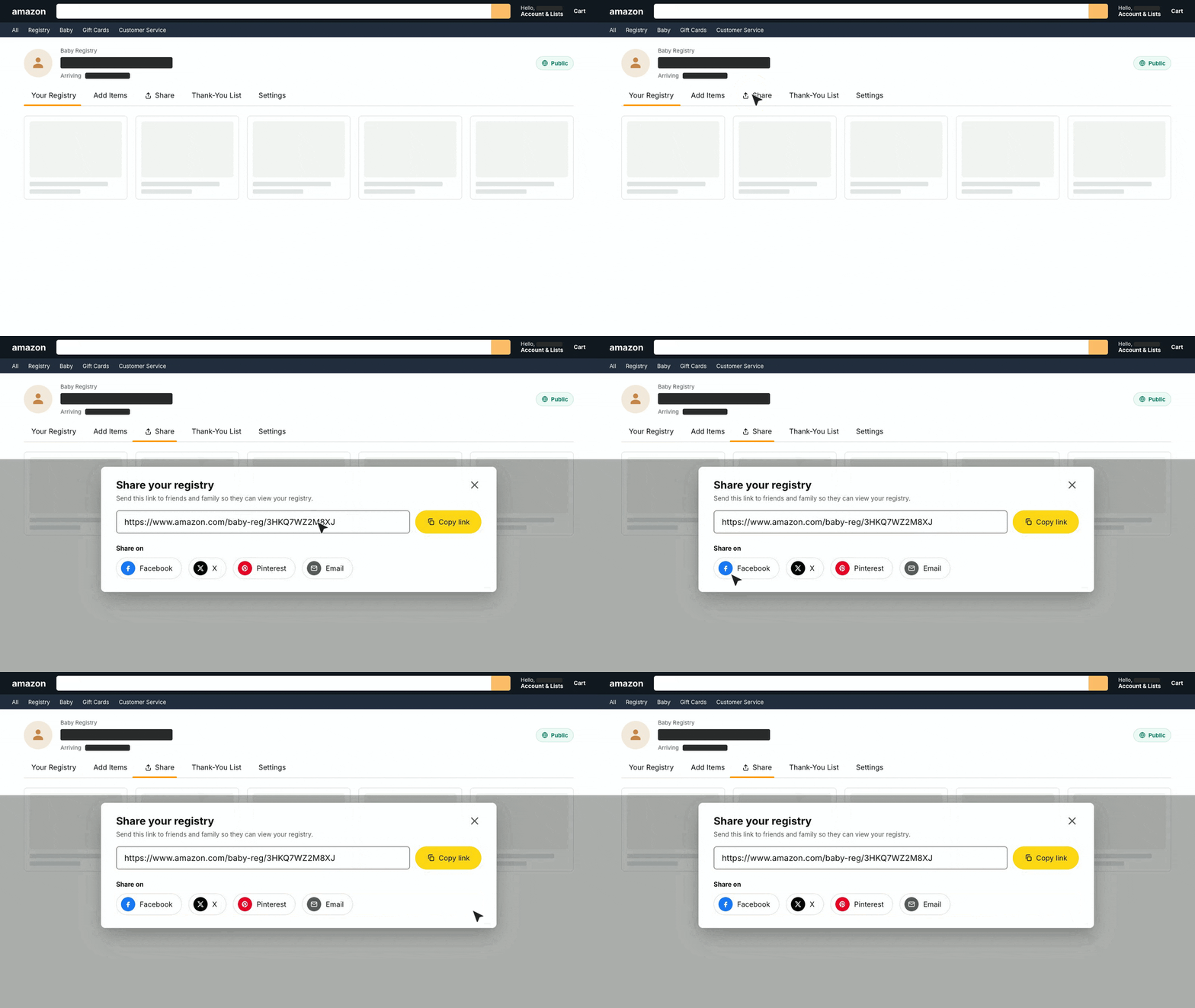
Go to Your Registry and select Share in the top navigation. Amazon displays the link there, next to the social sharing buttons.
Before you copy anything, check the privacy setting. Amazon is direct about this: a registry "can't be shared if it's private," and that restriction carries straight through to your QR code. Someone who scans a code pointing at a private registry sees nothing useful.
If yours is private, change it now. The setting lives in your registry's privacy options, and the change takes effect right away. Reload the page afterward to confirm it stuck.
This is the step most guides skip. It is also the most common reason a printed code fails.
Step 2: Copy the registry link
Copy the link Amazon shows you in the Share panel. Do not copy the URL sitting in your browser's address bar.
The difference matters more than it looks. The address bar version can carry session information tied to your account. Paste that into a QR code and your guests may land on an error, or on a sign-in prompt that stops them cold.
The share panel link is the public one. Amazon builds it to be handed to other people.
Useful tip: open the copied link in a private browser window before you go further. If it loads the registry without asking you to sign in, it will behave the same way for everyone else.
Step 3: Turn the link into a QR code
Paste the link into a QR generator and download the result.
FreeQR's link QR tool does this in the browser, with the code appearing beside the field the moment you paste it. No account. No payment, and no watermark stamped across the middle of it.
Pick your download format based on where the code is heading:
PNG for anything that stays on a screen, including email, group chats, and digital invitations.
SVG for print. Printers work from vector files, so an SVG stays sharp whether it lands on a 4x6 invitation or a poster.
Most free generators handle a plain link without trouble, so this is not a decision worth agonizing over. We have written separately on free QR code generators and where the real costs tend to hide.
You can adjust colors at this stage too. Keep the contrast strong. A dark code on a light background scans faster than a pale code on a patterned card, and invitations tend to be busy.
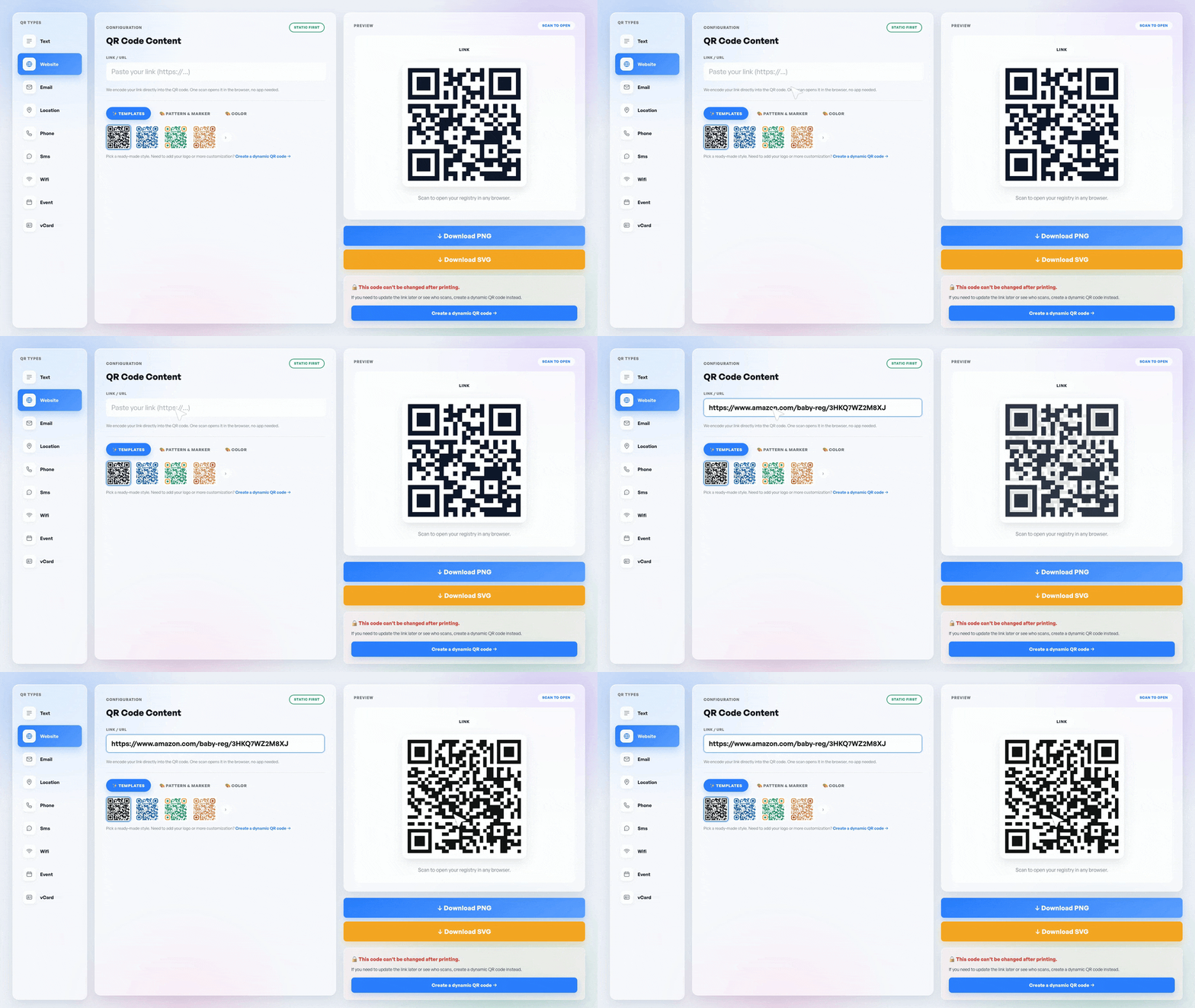
Step 4: Test the code before you print it
Scan your own code before it goes anywhere near a printer.
Use a phone that is not signed into your Amazon account. Your own phone will often open the registry regardless, because you are already signed in, and that hides the exact failure you are testing for. Borrow someone else's phone, or sign out first.
Check three things when it opens:
It lands on the registry itself, not on a sign-in wall.
The items are visible, which confirms the privacy setting is right.
It works on both iOS and Android, because your guests will arrive on both.
Then test at the size you plan to print. A code that scans cleanly from a laptop screen can fail at two inches on cardstock. Print one invitation, hold it at arm's length, and scan it there.
The result: you find the problems now, while fixing them still costs nothing.
Making a QR code for an Amazon wish list
Wish lists follow the same four steps, with one difference at the start.
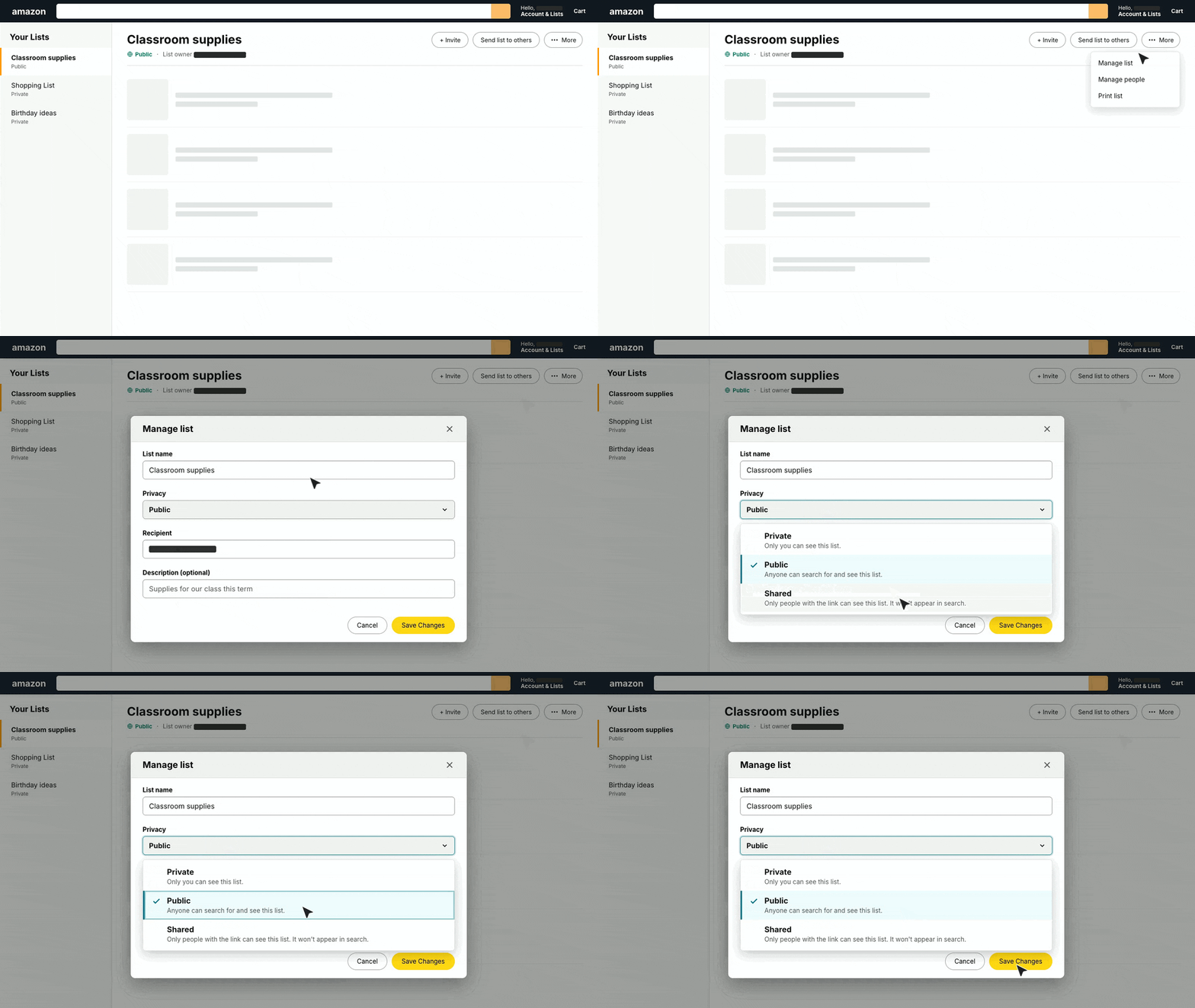
Open Your Lists and choose the list you want to share. Select the three dots at the top of the list, then Manage List. Amazon offers two sharing settings there:
Public makes the list visible to anyone holding the link. This is the setting you want behind a QR code on an invitation.
Shared limits access to specific people you name. Fine for a small group, wrong for a printed code.
Save changes, copy the link, and continue from Step 2 above.
A private list behaves exactly like a private registry. The code generates normally, scans normally, and then shows your guests nothing at all. Check the setting before you print rather than after.
Registry or wish list: which one do you need?
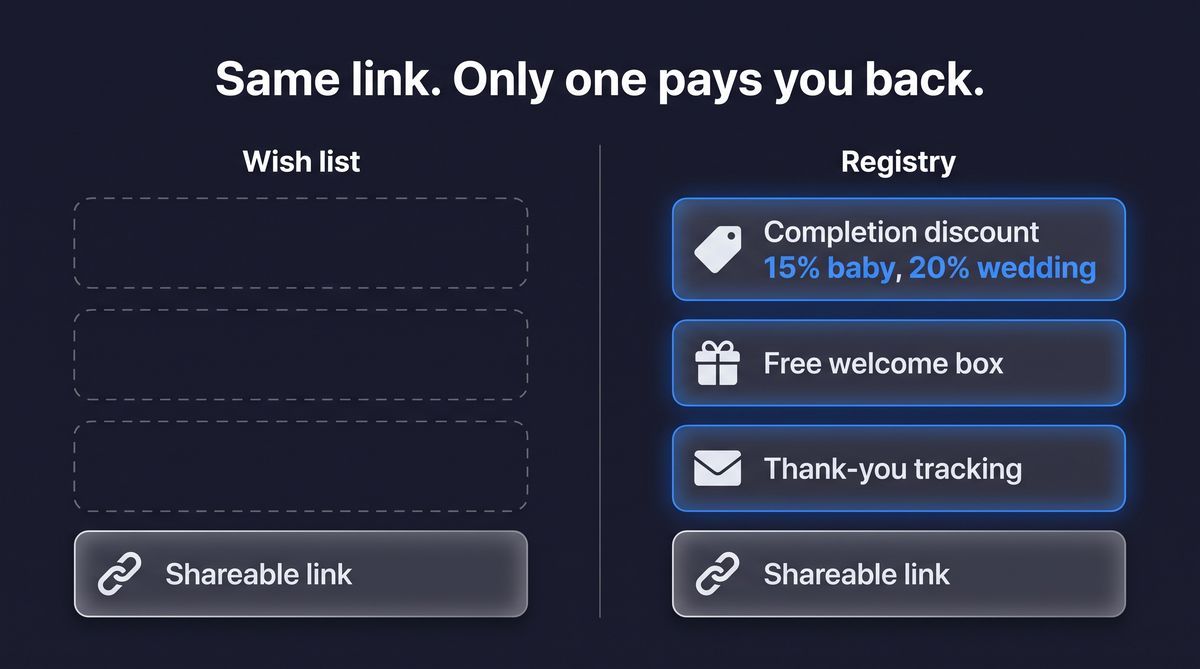
Both produce one shareable link, so the QR step is identical either way. What differs is everything Amazon layers on top.
Wish list | Registry | |
|---|---|---|
Shareable link | Yes | Yes |
Completion discount | No | 15% baby, 20% wedding |
Free welcome box | No | Baby registry only |
Thank-you tracking | No | Baby registry only |
The completion discount is the concrete reason to choose a registry. Amazon gives baby registry owners 15% off remaining eligible items, with a few conditions attached.
Wedding registries work on a threshold instead. Registrants who receive $500 or more in qualifying purchases get a one-time 20% discount.
A wish list carries none of this. For a birthday or a classroom collection, that is perfectly fine. For a baby shower, the registry earns the extra setup.
Where to put the code
Your code is an image file now, so it goes wherever a picture goes.
Shower and wedding invitations, printed or sent as an image.
A small card on the gift table, for guests who forgot to shop ahead.
Classroom supply lists. Teachers share a wish list QR code with families at the start of term and skip the paper sign-up sheet entirely.
Donation lists for a nonprofit drive.
An email signature, or pinned in the group chat where the planning is already happening.
Size it for the distance people read it from. An invitation is held at arm's length, so a one-inch code is plenty. A sign meant to be scanned across a room needs considerably more.
If this sparks other ideas, we keep a longer list of other ways people use QR codes.
The method itself is not specific to Amazon. You can make one for a Google Doc, or for any other link you control.
Common mistakes and how to fix them
Four things account for nearly every registry QR code that fails.
The registry is still private. This is the big one, and it is quietly brutal: the code scans perfectly and shows your guests nothing, so nobody thinks to tell you.
The link came from the address bar. Session information rides along with it and breaks the page for everyone who is not you.
The code was printed too small, or onto a busy background. Contrast and size both matter more on paper than they do on a screen.
Nobody tested it on a second device. Your own phone is the least reliable tester you own.
If the code still refuses to scan after all four checks, the problem is likely the code rather than the registry. We cover what to do if the code will not scan separately.
Should the code be editable later?
A fixed code always points at the same place, and it does not expire on its own. For a shower invitation that is fine, because the event happens once.
A dynamic QR code suits a code going somewhere more permanent. You can send it to a different registry later, and you can see how many people scanned it. Parents on a second baby tend to appreciate both.
If the lifespan question is what is bothering you, we go deeper into whether the code keeps working over time.
Frequently asked questions
Does Amazon have a QR code for registries?
No. Amazon's Share menu provides a link and social sharing buttons, and its help documentation describes nothing beyond that. You create the QR code yourself by pasting the link into a generator. The process is free and takes about a minute.
Can you make a QR code for an Amazon baby registry?
Yes, and the steps are identical to any other registry. Open the registry, select Share, copy the link, and generate the code. Baby registries also carry the 15% completion discount, which a plain wish list does not.
Is it free to make a QR code for an Amazon registry?
Yes. Turning a link into a QR code costs nothing, and no account is needed. Paid plans exist for people who want scan counts or codes they can redirect later, but a printed registry code needs neither of those.
How do I share my Amazon registry QR code?
Treat it as an image. Drop it into an invitation, print it on a card for the gift table, or send the file directly in a message. Guests scan it with the phone camera, and no app is required.
Why is my Amazon registry QR code not working?
Usually the registry is private, or the link came from the browser address bar instead of the Share panel. Check both, generate the code again, and test it on a phone that is not signed into your account.
Can teachers use a QR code for an Amazon wish list?
Yes. Set the list to Public under Manage List, generate the code, and share it with families. It works on a class newsletter, a classroom door, or a back-to-school email.
The link was always enough
Amazon never hid a QR code from you. It gave you a link, which is the only thing a QR code actually needs.
Set the list to public, copy the share link, generate the code, and scan it once before you print. Create your link QR code when you are ready.