How to Make a QR Code for a Google Doc: 2 Free Ways
Learn how to make a QR code for a Google Doc, free. Set the right sharing, then pick a quick static code or an editable one you can track in FreeQR.
By the end of this guide you will have a working QR code for your Google Doc, set so anyone can open it in one scan, with no app to install.
Here is how to make a QR code for a Google Doc: you create one from the document's share link, because Google Docs has no built-in generator. The quick way: set the doc to Anyone with the link, copy the link, paste it into FreeQR's free QR code generator, and download. Want to change where it points later or count scans? Make a dynamic QR code instead. Both are free.
Key Takeaways
Google Docs cannot create a QR code on its own. You generate one from the document's share link, free, in about a minute.
Two routes: a static QR code for a quick, one-off code, or a dynamic QR code you can update anytime and track. Both start free with FreeQR.
Set sharing to "Anyone with the link" first, or the code opens to an access-denied screen. The same steps work for Google Sheets, Slides, and Drive files.
Why link a QR code to a Google Doc?
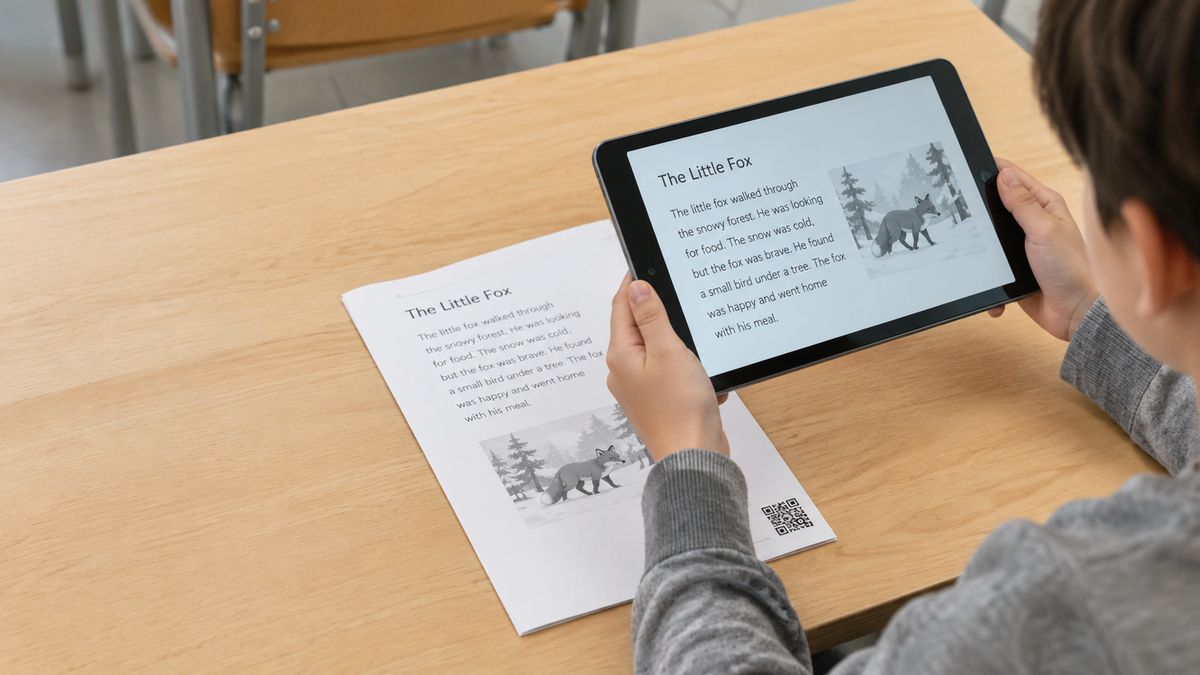
Sharing a Google Doc usually means pasting a long link. On a printed handout or a slide, that link is clumsy and easy to mistype. Worse, the people who reach it often hit a "you need access" wall.
A QR code fixes both. One scan opens the document, with no typing. Teachers use it for assignments and study guides. Businesses link a one-pager. Event organizers share the schedule. For more ways to use QR codes, we have a full list.
Static or dynamic: which QR code should you make?
Both options are free. The difference is what happens after you create the code.
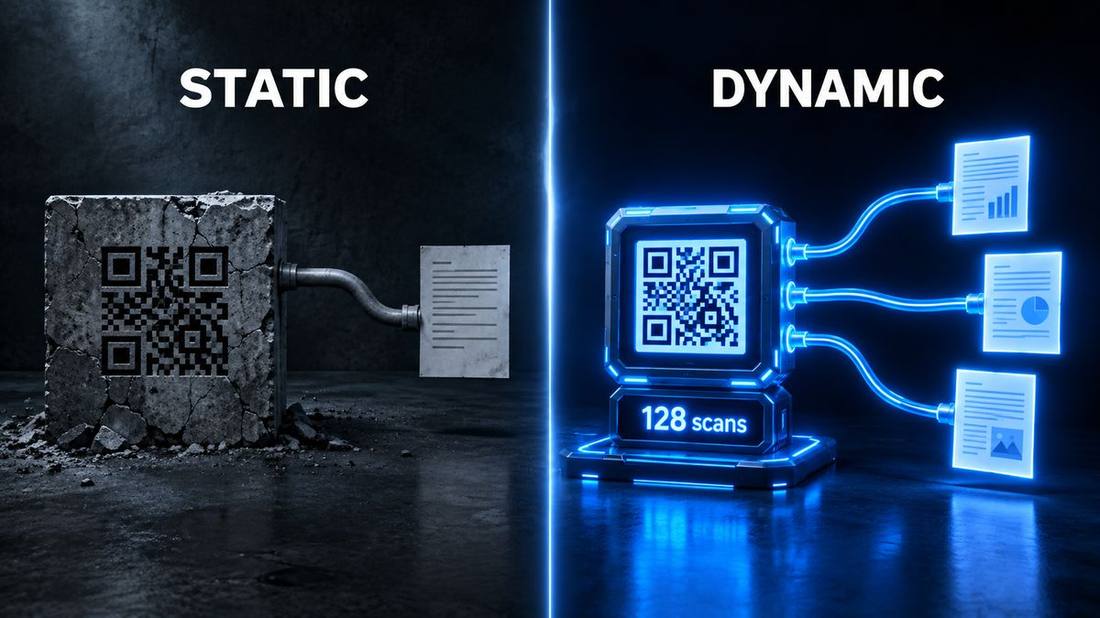
A static QR code locks in your document link. It is the fastest route and needs no account. The catch: once you print it, you cannot change where it goes. A long Google Doc link also makes a busier, denser code.
A dynamic QR code lets you change the destination anytime, even after printing, and shows how many people scanned it. It takes a couple of extra steps and a free account.
Here is the simple rule. For a one-off code where the link will not change, static is fine. For anything you print or plan to reuse, a QR code whose link you can change anytime is worth the small extra effort.
What you need
A Google Doc you can change the sharing settings on.
The document's share link, from the Share button.
FreeQR, free in your browser. The dynamic method also uses a free account, no card.
Method 1: The quick way (a static QR code)
Use this when you just need a code now and the link will not change.
Step 1: Set the doc to "Anyone with the link"
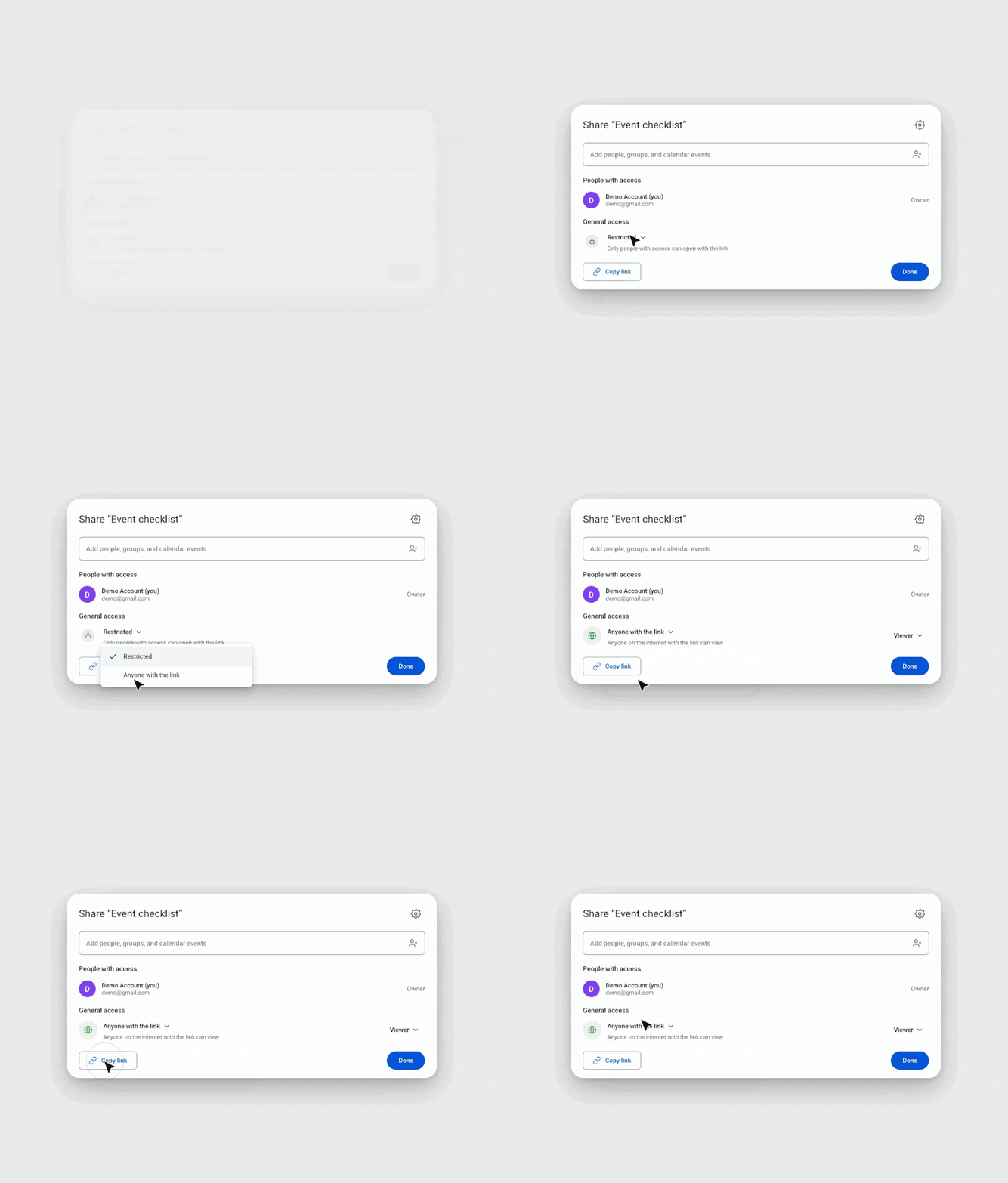
Open your document and click Share. Under General access, change Restricted to Anyone with the link. Keep the role on Viewer, unless you want people to comment or edit. This one setting decides whether the code works for anyone but you.
Step 2: Copy the share link
In the same Share box, click Copy link. That link is what your QR code will point to.
Step 3: Paste the link into FreeQR
Open FreeQR, choose a link QR code, and paste your document link. The code appears right away, ready to style.
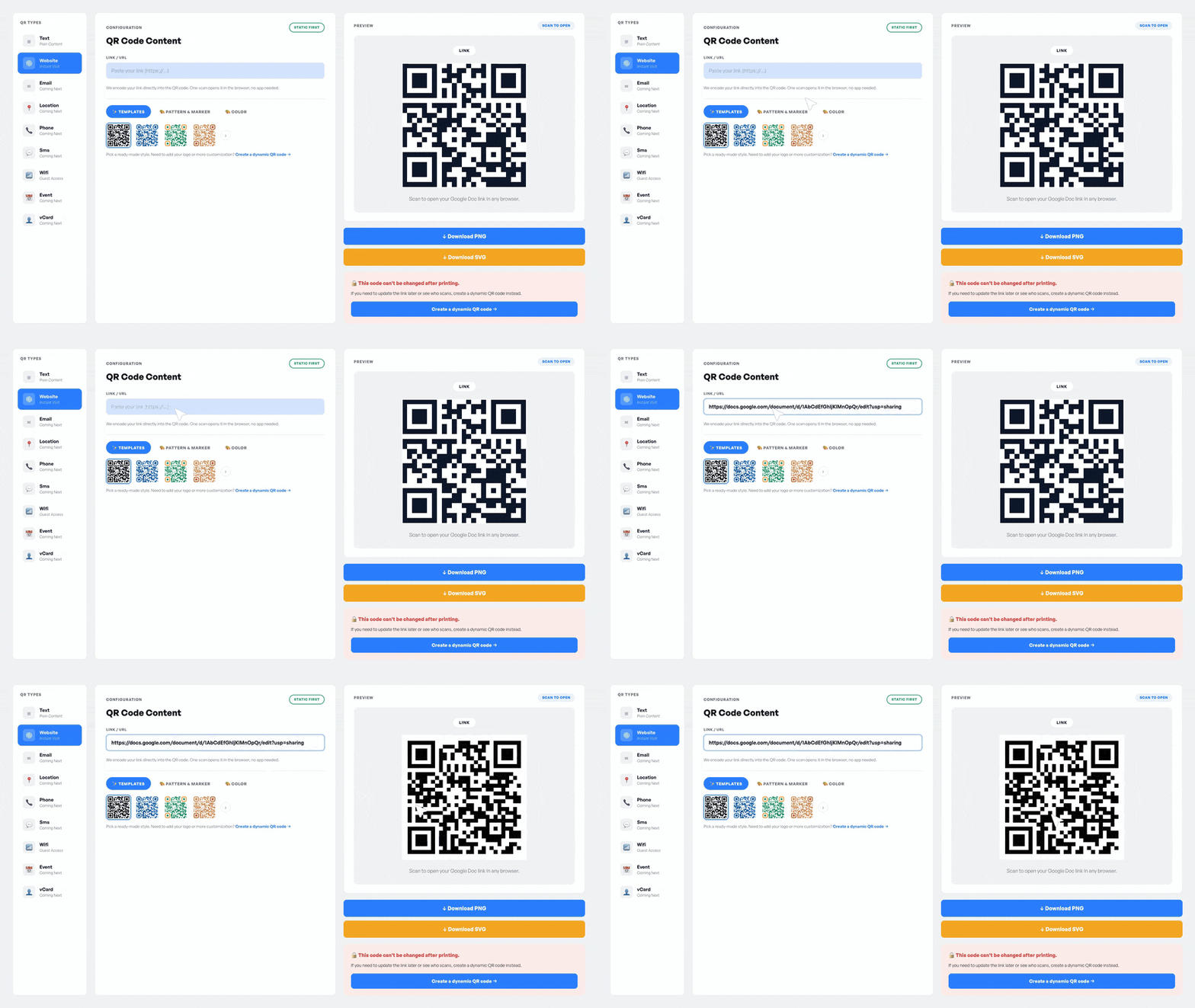
Step 4: Customize and download
Add a color or a logo if you like. Download a PNG for screens, or an SVG for print, which stays sharp at any size.
Step 5: Test it before you share
Scan the code with a phone that is not signed in to your Google account. If the document opens for you there, it will open for anyone.
Method 2: A dynamic QR code you can update anytime
Use this for anything you print or plan to reuse. You get one code that never has to be reprinted.
Step 1: Create a free FreeQR account
Sign up for the free forever account, no card needed. This account is what lets you edit and track the code later, which is the whole point of this route.
Step 2: Make a link QR code and add your doc
Create a link QR code and paste your document link, shared the same way as Step 1 above. Because the code uses a short link, it also prints cleaner than a raw Google Doc URL.
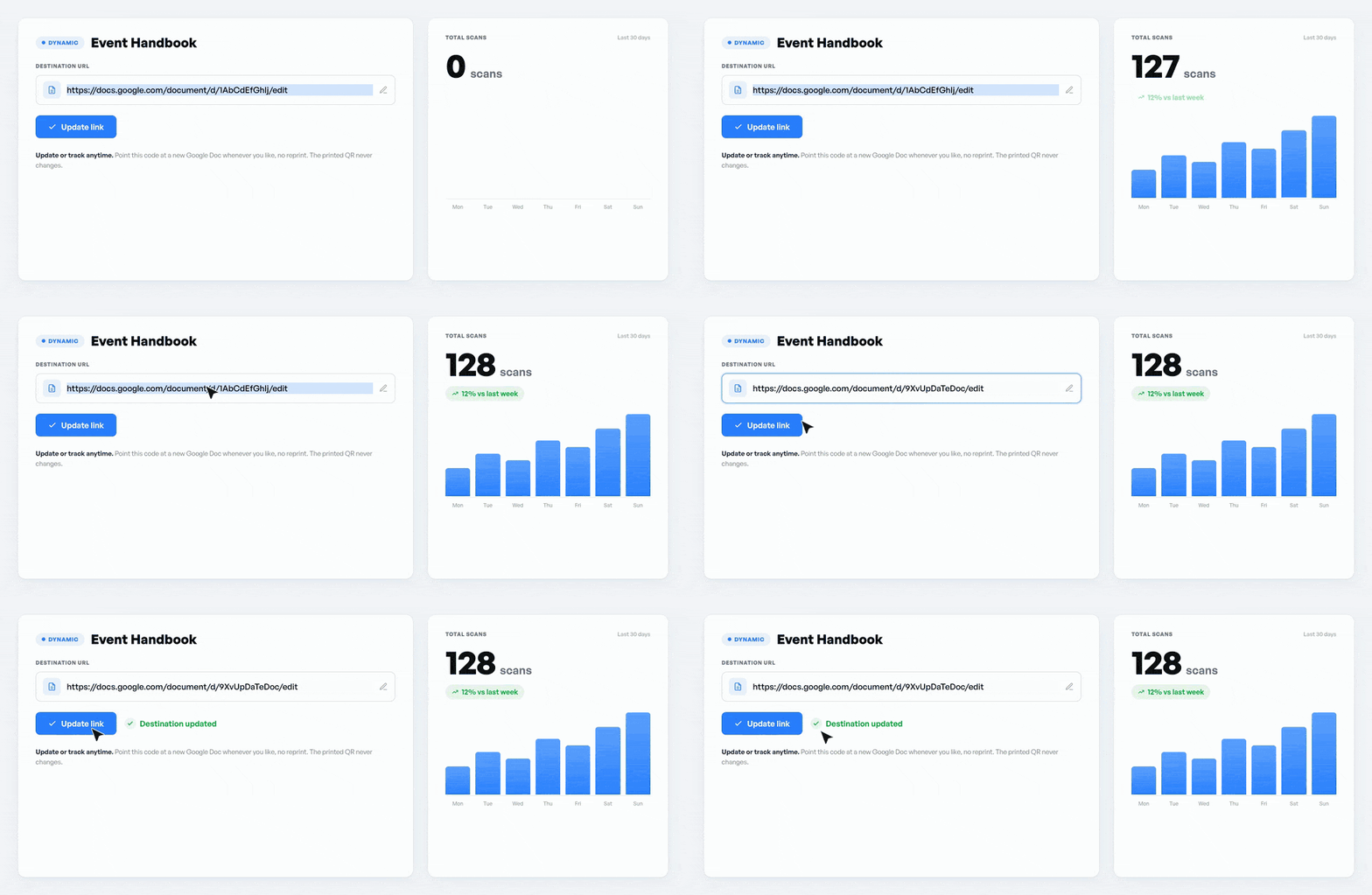
Step 3: Download, then update or track anytime
Download and print as usual. Later, point the same code at a different document without making a new one, or fix the link if it ever breaks. Your dashboard also shows how many people have scanned it, and when.
How to add a QR code inside a Google Doc
So far the code opens your document. Sometimes you want the opposite: a QR image placed on a page of the document. It might link out to a video, an answer key, or a form.
Google Docs has no built-in tool for this, so you have two options. Use a Docs add-on from Extensions > Add-ons, or create the QR image in FreeQR and drop it in with Insert > Image. Teachers often do this to link a handout straight to a lesson video.
Works for Google Sheets, Slides, and Drive files too
The same method works across Google. Share the file, copy the link, and make the code. Google Sheets can even build a QR code with an IMAGE() formula. Any Drive file or folder with a share link works as well. If you are making one for a form, see a QR code for a Google Form.
Good to know: permissions and limits
A few honest limits, so nothing surprises you later.
Google Docs has no built-in QR generator, confirmed by Google's own help. A separate tool is always involved.
A static code cannot be changed after you print it. Only a dynamic QR code can be updated.
There is no password on the code itself. Access is controlled by the document's sharing settings.
Delete the document and the code still exists, but the destination does not. A doc in Trash shows a permission error when scanned. Deleted for good, it returns a 404. For a fixed, read-only handout, a PDF QR code can be the better choice.
Troubleshooting: the QR code will not open the doc
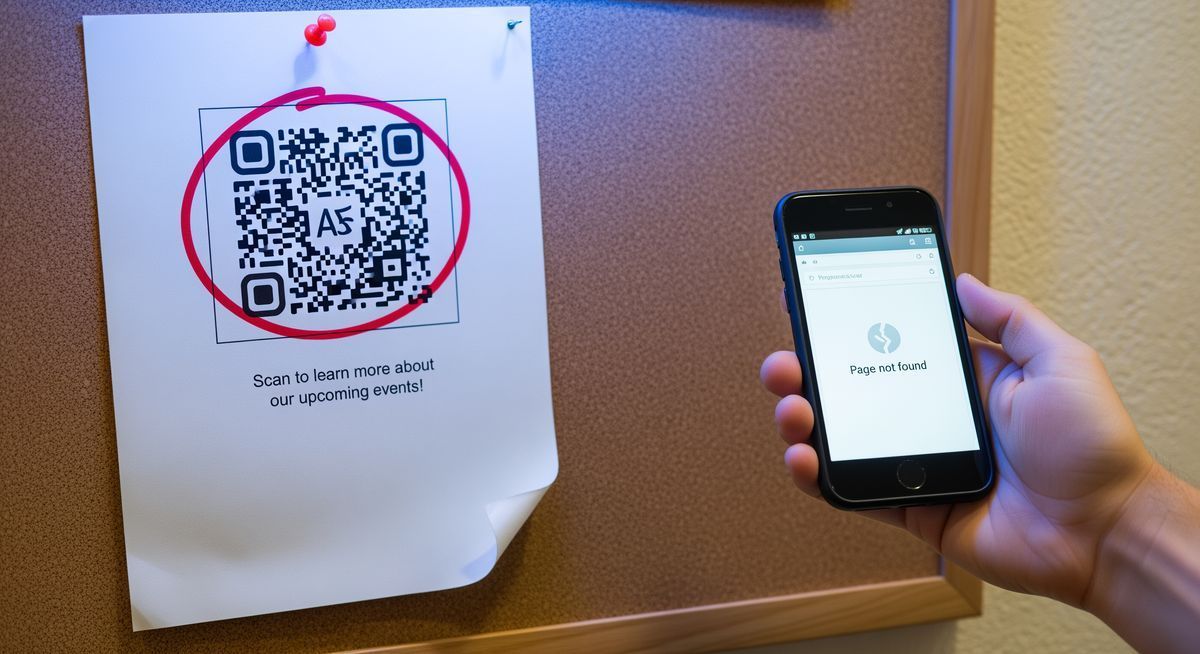
Almost every time, this is a sharing problem. The document is still set to Restricted, so only invited people can open it.
Go back to Share, choose Anyone with the link, and test again on a phone that is signed out of your account. If the code still will not scan, check that it is printed large enough and with good contrast.
Frequently asked questions
Does Google Docs have a built-in QR code generator?
No. Google confirms that Docs and Slides have no native QR tool. You create the code from the document's share link with a separate generator, or add one through a Docs add-on.
What is the difference between a static and a dynamic QR code?
A static QR code locks in your link and cannot change once printed. A dynamic QR code lets you update the destination anytime and see scan counts. Both are free to make.
Can I update the Google Doc without changing the QR code?
Yes. Edits to the document appear automatically, because the code points to the same link. With a dynamic QR code, you can also swap in a completely different document, same code.
Why does my QR code say "you need access"?
The document is still set to Restricted. Open Share, set General access to Anyone with the link, and keep the role on Viewer. Then re-test the code.
Do people need a Google account to open it?
With "Anyone with the link," no account is needed. If the document stays Restricted, only approved Google accounts can open it, which is why most public codes use the link setting.
Does a QR code for a Google Doc expire?
The code itself does not. It keeps working as long as the link works. For more on this, see whether QR codes expire.
What happens if I delete the Google Doc?
The code stays valid, but the destination breaks. A document in Trash shows a permission or moved error when scanned. A permanently deleted document returns a 404.
Can I make one for a Google Sheet or Drive file the same way?
Yes. Share the file, copy the link, and generate the code. Google Sheets also supports a QR code built with an IMAGE() formula.
Put your Google Doc one scan away
Set the sharing to "Anyone with the link." Then pick your route: static for a quick, one-off code, or dynamic for anything you print and reuse. Either way, your document is one scan away. Create your Google Doc QR code and give it a test before it goes out. For more QR code ideas, we keep a running list.
Written by Andy Lee, QR Technology Specialist at FreeQR. FreeQR helps people create dynamic QR codes with built-in landing pages and scan analytics. Learn more about us.