QR Code on Your Resume: Should You Add One, and How
When a resume QR code is worth adding, how to make one free with FreeQR, and where to put it so recruiters actually scan it.
By the end of this guide you will have a resume QR code that hiring managers know to scan. The page behind it stays yours to update.
Yes, a QR code on resume files is worth adding when it opens something the resume can't hold. Think portfolio, work samples or a short video. Give it a one-line caption, type the link next to it, and place it beside your contact details. FreeQR's free QR code maker builds the code and the page it opens.
Key Takeaways
Add one only when it shows what the page can't, such as a portfolio or a video.
FreeQR's free resume QR code opens one page with everything on it. You can edit that page after you hit send.
Hiring software can't read a QR code. Keep every essential detail as plain text, and treat the code as a bonus.
Should You Put a QR Code on Your Resume?
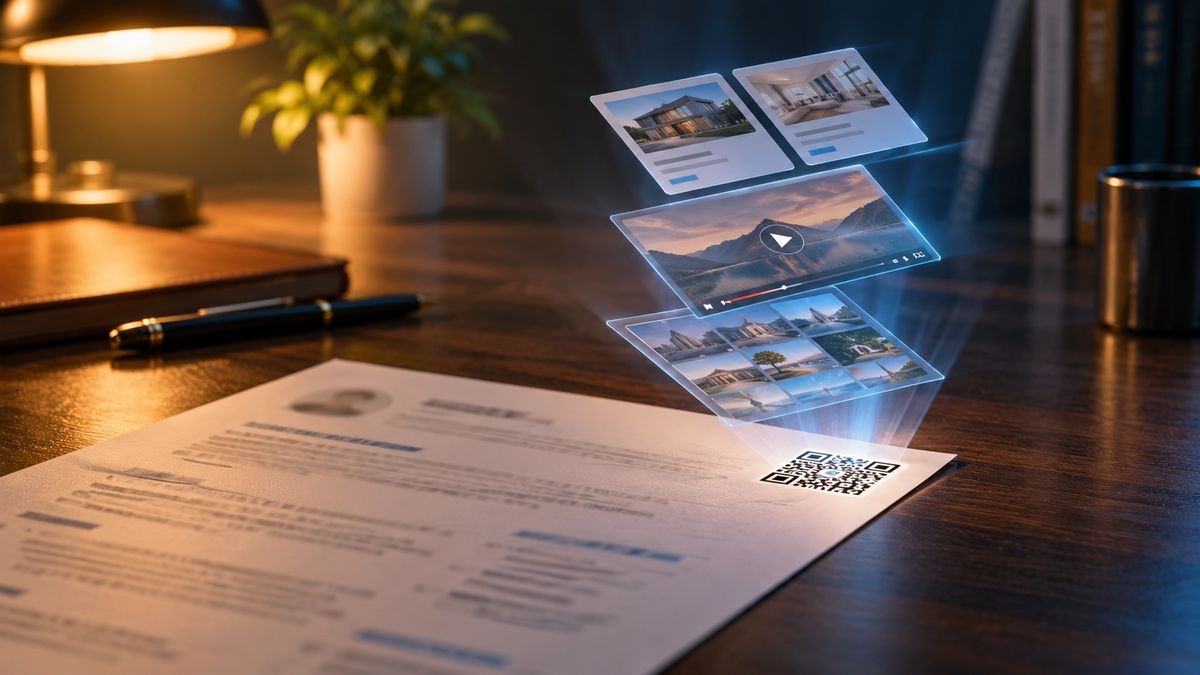
Yes, if the code takes a reader somewhere worth going. One page can't show a design portfolio, a demo reel or the app you built. A code can, and it saves the hiring manager from typing a long link by hand.
It helps most when:
You work in design, marketing, media or tech, and your proof is work people need to see.
You have a short video introduction or a recorded presentation.
Your resume will be printed, for a career fair, an interview or a networking event.
Skip it for online-only applications where the code would repeat a link already on the page. Resumes are one of many personal QR code ideas. Like the others, they work when the scan gives people something new.
In one eye-tracking study by Ladders, recruiters gave a resume a first look of about 7.4 seconds. That's why the caption matters. It tells a skimming reader what the scan gets them, in a few words.
What Your Resume QR Code Should Open
Pick the one thing that best proves you can do the job, then build outward from there.
A portfolio or personal site. The strongest choice for creative and technical roles.
A short video introduction, hosted on YouTube or Vimeo. Keep it under two minutes.
An online copy of your resume. If yours lives in Google Docs, here's how to make a QR code for a Google Doc. If it's a file, a QR code for a PDF works the same way.
Your LinkedIn profile. On its own it's the weakest option, since you can just type that link.
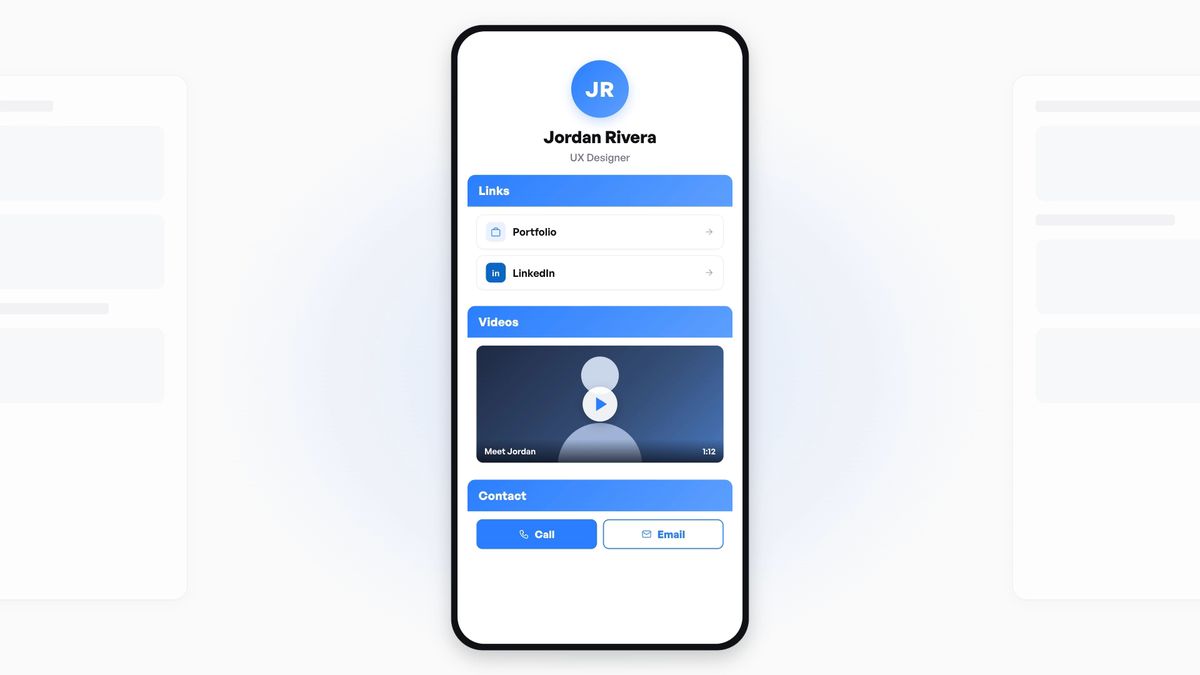
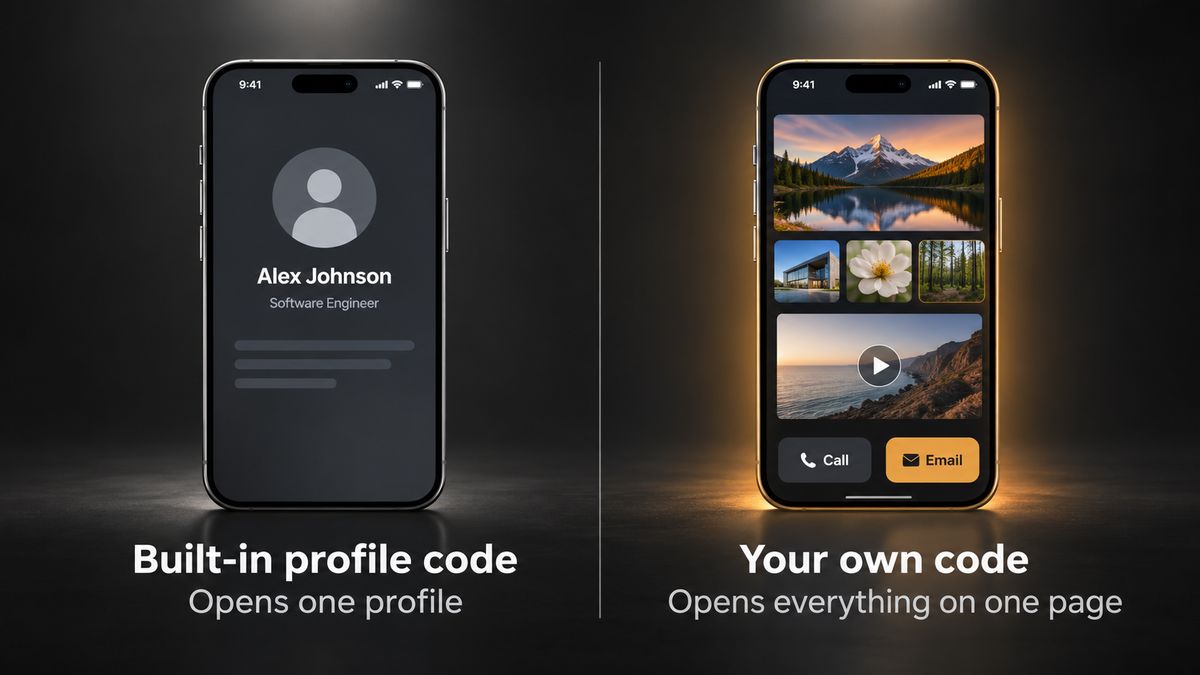
The best answer is often all of them on one page. Your QR code opens a page that holds all of it, plus buttons to call or email you. You choose the order, so put your best work first.
How to Add a QR Code to Your Resume
Here are the five steps with FreeQR. Any QR code maker can do the basic version. These steps build the page-plus-code setup described above.
Step 1: Create a free FreeQR account
Sign up for a free FreeQR account. A plain code that only opens a link needs no account. The account lets you build a page, edit it later and see when your code is scanned.
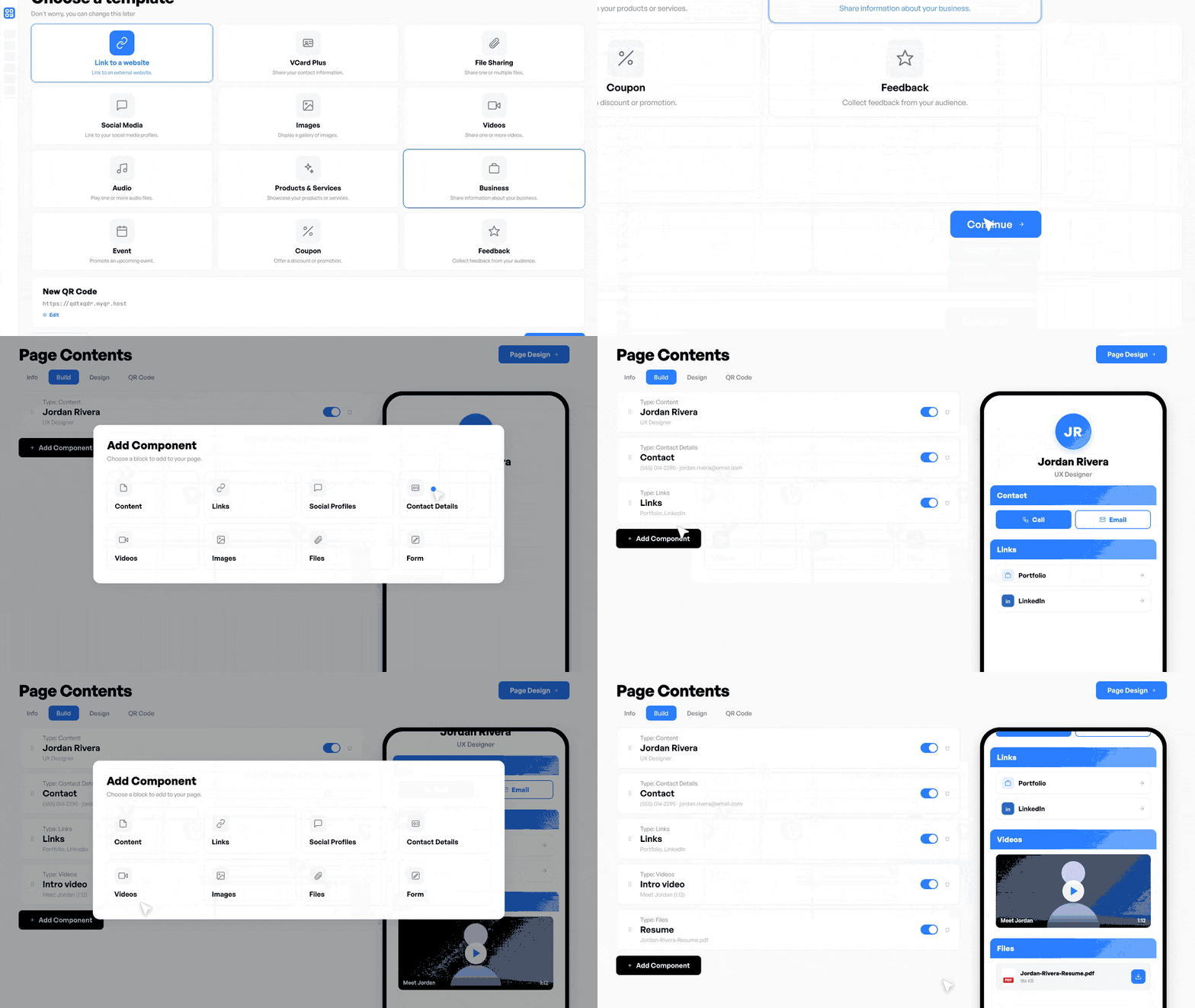
Step 2: Build the page your code will open
Choose the Business template, then add the pieces a hiring manager needs:
Contact Details for your name, phone and email, so people can reach you in one tap.
Links for your portfolio, LinkedIn and personal site.
Videos for a short introduction from YouTube or Vimeo.
Files for a PDF copy of your resume.
Keep it short. Put your best work first and cut anything a busy reader wouldn't open in 30 seconds.
Step 3: Style and download the code
Keep the code dark on a light background, because high contrast scans most reliably. You can add a small logo if you have one. You can match a color from your resume as long as the contrast stays strong.
Download an SVG if you'll print, since it stays sharp at any size. A high-resolution PNG works for a resume you only send as a PDF.
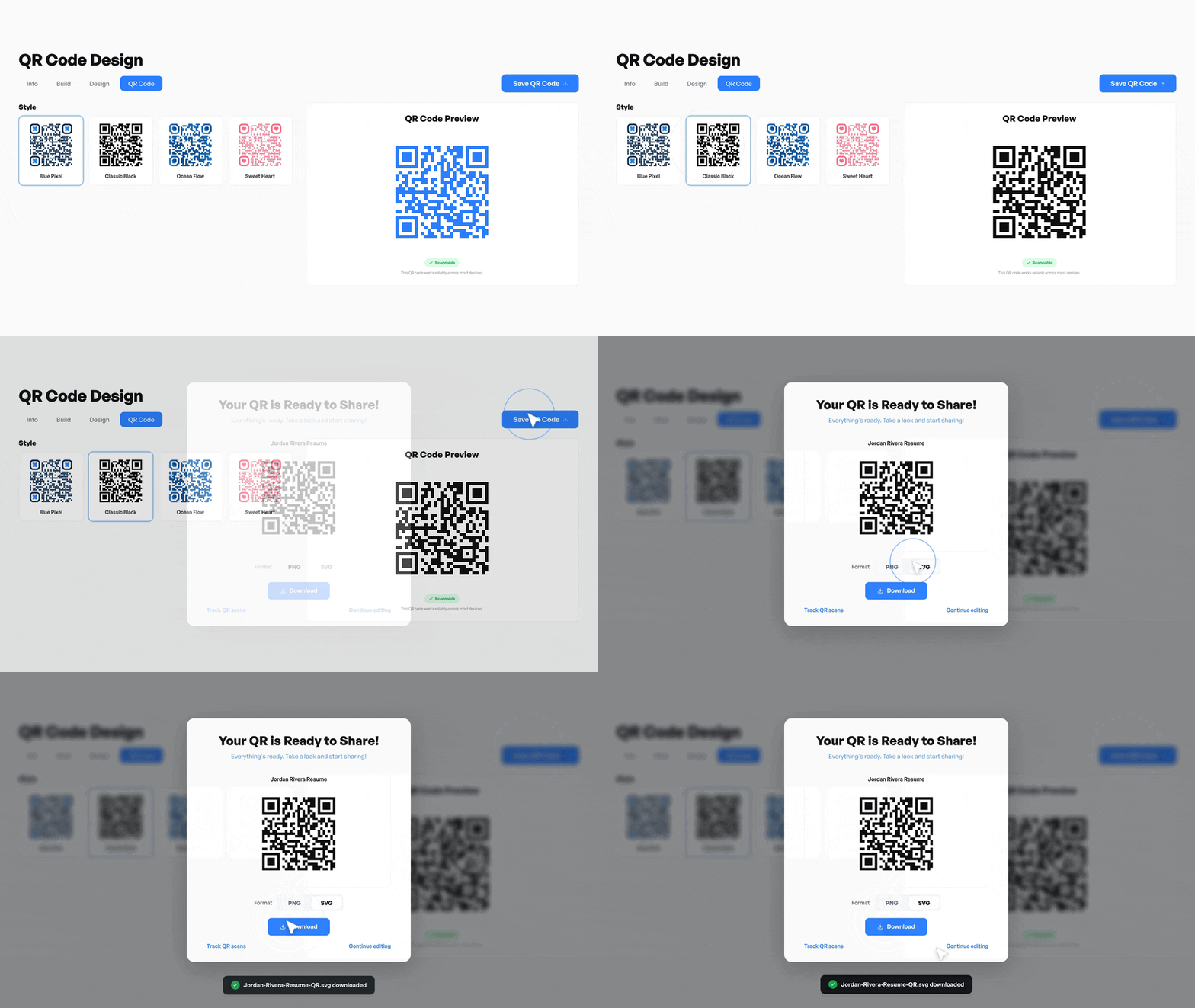
Step 4: Add it to your resume with a caption
Insert the code near your name and contact details. Under it, add a short caption that says what the scan gets them, like "Scan to see my portfolio."
Next to the code, type the short link in the body of your resume. That way the link still works when someone reads your resume on a laptop. Keep the code at least 2 cm (about 0.8 inch) square, so phones read it from arm's length.
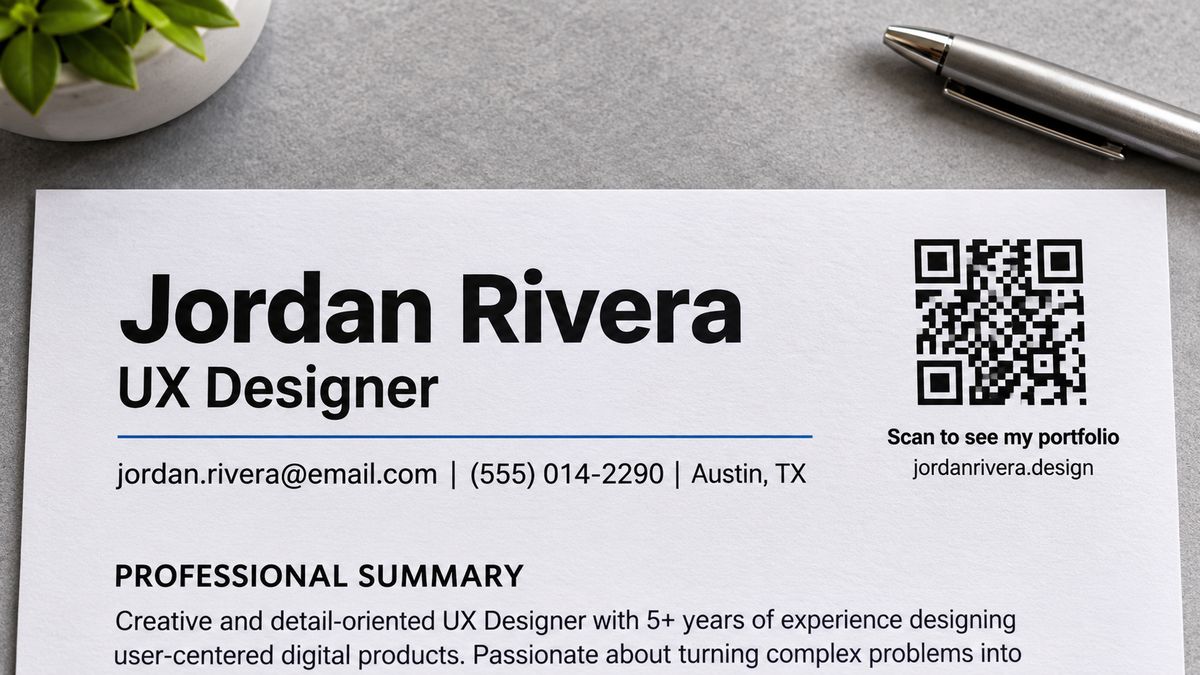
Step 5: Print it and test it
Print one copy and scan it with two different phones, ideally one iPhone and one Android. Watch the page load on mobile data, and tap every link.
Then open your PDF on a laptop and click the typed link. If both routes land on the same page, you're done.
Where to Put a QR Code on Your Resume
The best spot is the top of the page, right beside your contact details. A skimming reader starts at the top, and the code reads as part of how to reach you.
If the page behind the code is about one project, put the code next to that project instead.
Use one code per resume. Two codes split attention.
Keep your name, contact details and the typed link in the main body text. The hiring platform Greenhouse flags contact details in a header or footer as a common reason resumes fail to read.
LinkedIn's QR Code vs. Making Your Own
LinkedIn already gives you a QR code. Open the LinkedIn app, tap the QR icon in the search bar, then open "My code" to save it to your photos. Scanning it opens your LinkedIn profile.
If your LinkedIn profile is all you want to share, that code does the job. Make your own when one scan should reach more, like your portfolio and contact details too. Your own code also lets you change where it goes later and see how often it's scanned.
Keep Your Resume QR Code Current and See When It's Scanned
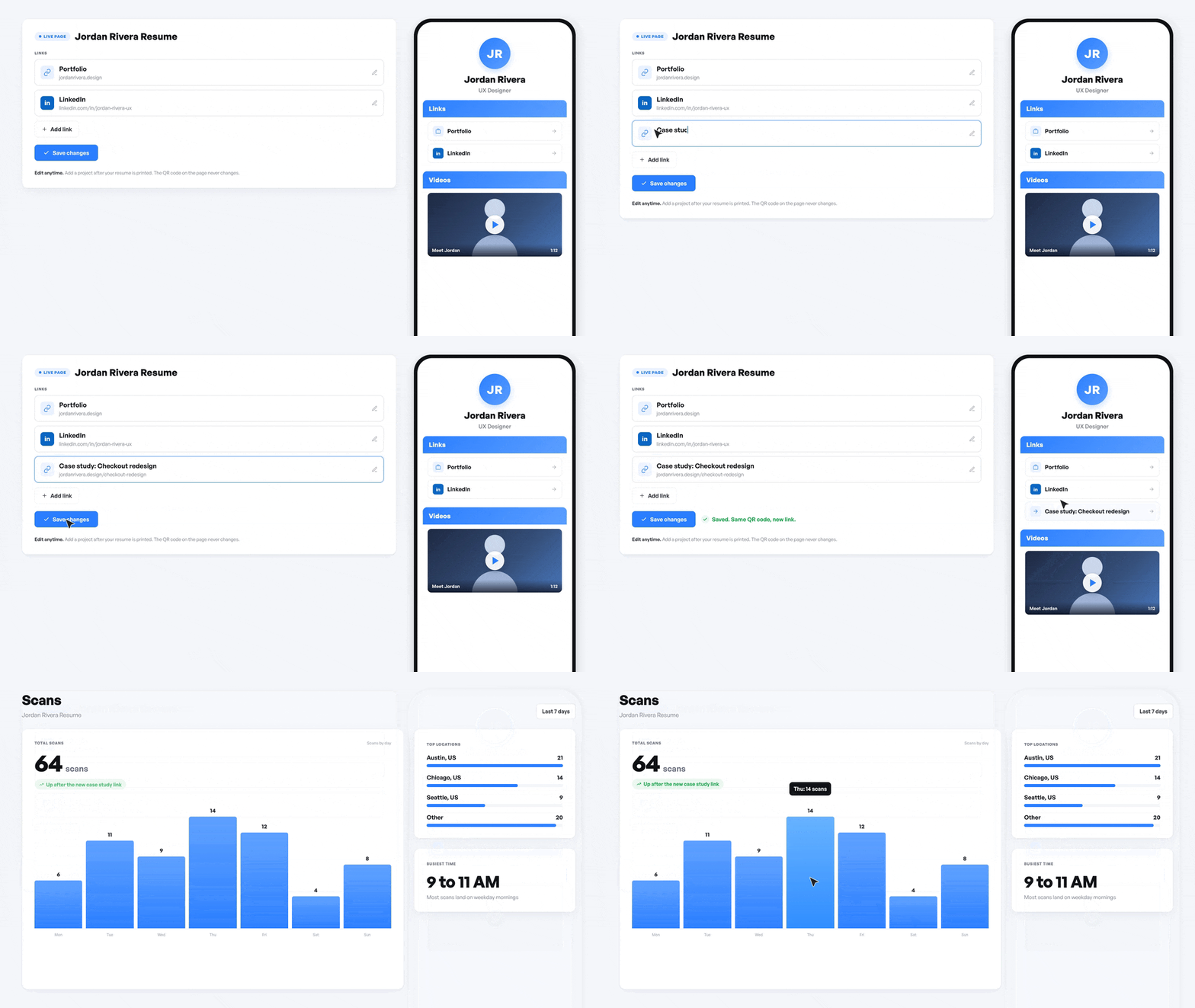
The page behind your code isn't fixed. Add a new project, swap in a better video or fix a broken link. The same printed code shows the update. Resumes you sent last month still lead to your latest work.
You can put that same code on a personal business card too. If people only need to save your number, a vCard QR code handles that on its own.
Scan analytics show how many times your code was scanned, when, and roughly where. They don't show who scanned it. A scan the day after you apply means someone looked, which is still worth knowing.
Downsides to Watch For
A QR code on a resume has a few limits, and each has a simple fix.
Hiring software can't read it. At large employers, a resume usually passes through an applicant tracking system before a person sees it. Jobscan found one at 97.4% of Fortune 500 companies in 2026. That software reads text, not images, so never put anything essential only inside the code.
Many resumes are read on a laptop screen, where scanning is awkward. The typed link covers it.
Small, faint or blurry prints won't scan. Keep the size, keep the contrast and test before you send.
Frequently Asked Questions
Can an applicant tracking system read a QR code on a resume?
No. Applicant tracking systems read text, and a QR code is an image, so the software skips it. That's why the typed link and all your contact details should sit in the main body of your resume. The code is a shortcut for a human reader.
Where should a QR code go on a resume?
Put it at the top, beside your name and contact details, with a one-line caption saying what it opens. If the page behind it is about one project, place it next to that project instead. Use only one code per resume.
What size should a QR code be on a resume?
Make it at least 2 cm (about 0.8 inch) square. That's the usual minimum for a code scanned at arm's length. Bigger is fine if your layout allows it. Print a test copy and scan it with two phones before you send it.
Can I put my LinkedIn QR code on my resume?
Yes. The LinkedIn app gives every member a profile code under the QR icon in the search bar. It's a good choice if your profile is all you want to share. Make your own code if one scan should also reach your portfolio and contact details.
Is a QR code on a resume unprofessional?
Not when it's useful and clearly captioned. A code that opens your portfolio or a short video helps a hiring manager. One that only repeats a link already on the page looks like decoration, so leave it off.
Can I change where my resume QR code goes after I send it?
Yes, if your code opens a page you can edit. With FreeQR, you update the page in your account. Every resume you've already printed or sent shows the new version. A plain code that points straight at one link can't be changed.
Can I put a QR code on a CV?
Yes. CV is the UK and European term for the same document, so the same advice applies. Caption the code, type the link beside it and keep it at least 2 cm square. Test it before you send.
Make Your Resume Do More Than One Page Can
Caption it, place it beside your contact details, type the link next to it and test it. Then a hiring manager who wants to see your work is one scan away. Browse more QR code ideas for other ways to use a code, or create your resume QR code free.
Written by Andy Lee, QR Technology Specialist at FreeQR. FreeQR helps people create dynamic QR codes with built-in landing pages and scan analytics. Learn more about us.